Participant
June 15, 2021
Answered

Cannot find any word in PDF document

  • June 15, 2021
  • 3 replies
  • 1537 views

I made a postscript file of my MS Word document, then I used Acrobat Distiller (ver. 17.0) to make a PDF file. However, I cannot find any word in the PDF document using Acrobat Pro 2017. When I copy a word from the PDF document to another document, I see its not a word, but some weird question marks. I've tried every proposed solution to this problem that I saw posted, however, none have worked. So I tried making the PDF document directly from MS Word. I tried searching for a word in the PDF document, and it works fine! I conclude that the problem is with Acrobat Distiller. Does Adobe or anyone else have a fix for this problem?


Moved from Using the Community (which is about the forums) to the correct forum... Mod
To ask in the forum for your program please start at https://community.adobe.com/
This topic has been closed for replies.
Correct answer Bevi Chagnon - PubCom.com

The worst way to make a PDF is to use Acrobat Distiller. Second worst way is to Print to a PDF, as in File/Print/Acrobat Virtual Printer. And FYI, Distiller is obsolete and no longer needed  since around 2000, IIRC.


Either of these two methods destroys your live text...live text that is searchable and machine readable. Your distilled PDFs may still look like text to the human eye, but in fact it's either dots that look like letters or a bunch of gibberish code.


Use either of these 3 ways to make a PDF the right way...one that will retain the live text, fonts, and machine-readability that you want.


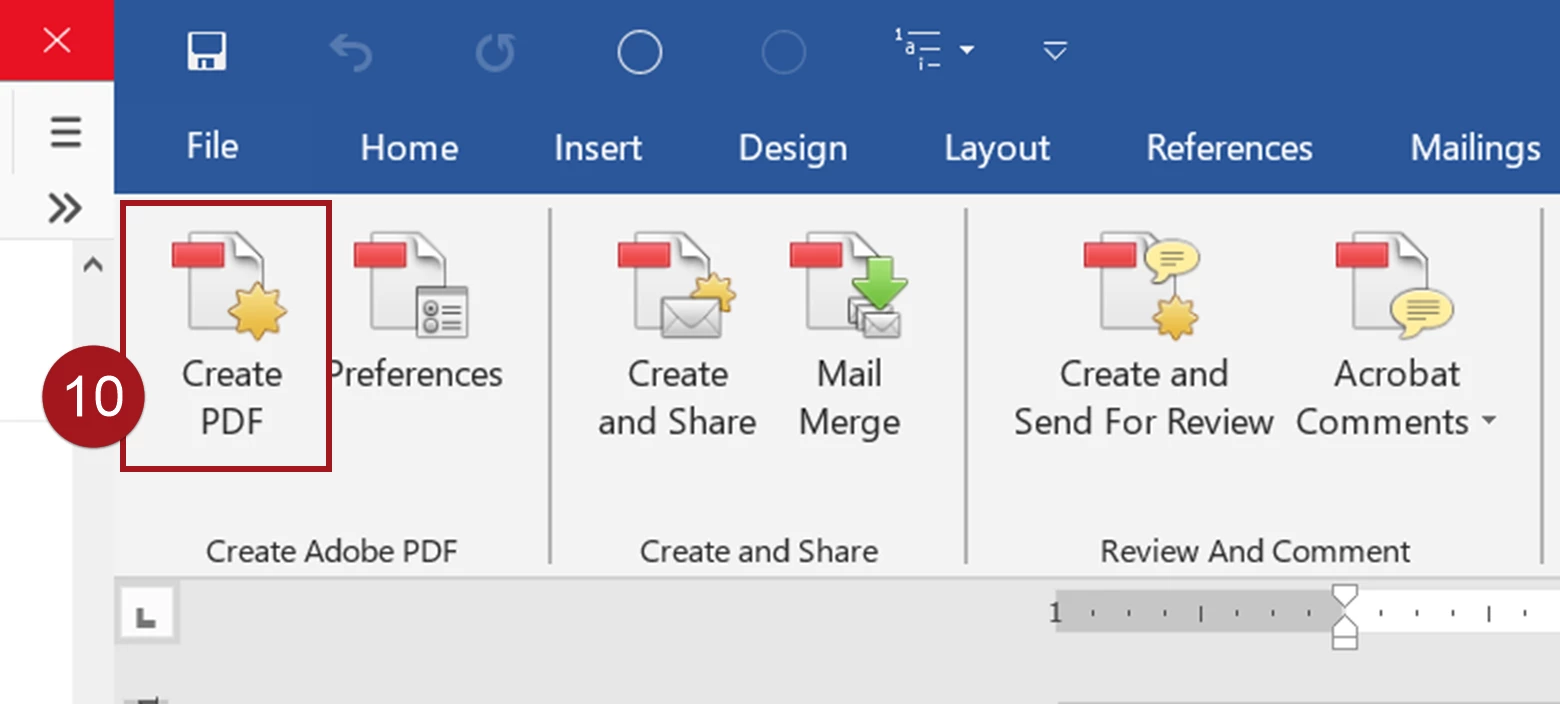
Method 1: Use Adobe's PDF Maker plug-in for MS Office.

It's installed automatically into MS Office programs when you install Acrobat Standard or Pro, and it appears as the Acrobat Tab/Ribbon.

  • First, click the Preferences icon to choose what type of PDF you want to make (i.e., for Press, Print, Archive, etc.). Drill down as deep as needed to get the setting you need, such as to embed all fonts.
  • Second, click the Create PDF icon (#10 in the screen capture) to actually generate the PDF per your preferences.


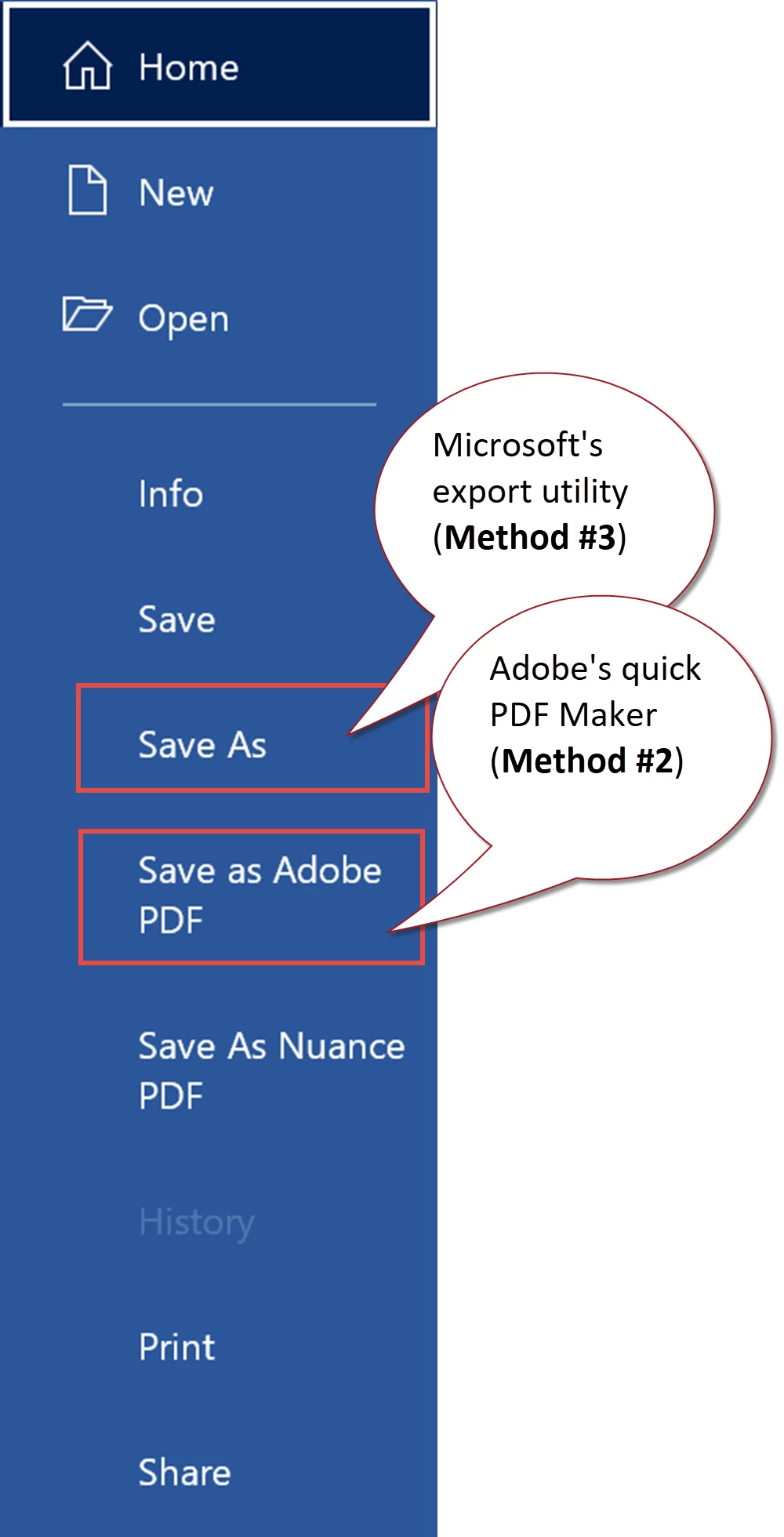
Method 2: Use the quick version of Adobe's PDF Maker plug-in via File / Save As Adobe PDF.

  • Fewer clicks, fewer controls, but it's still Adobe's PDF Maker exporting your PDF.


Method 3: Use Microsoft's built-in PDF export utility.

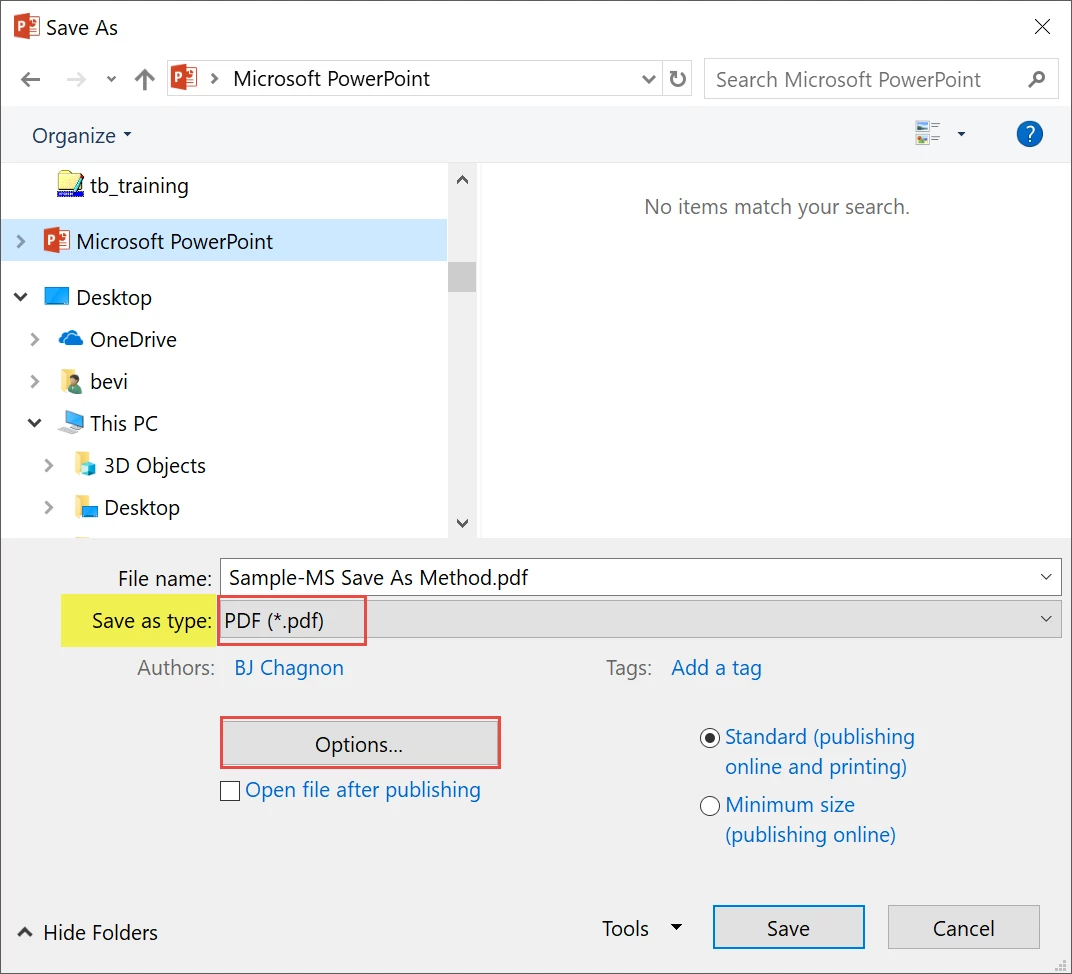
  • File / Save As /  and choose PDF in the "TYPE" menu.
  • Under the Options button, set any setting you need, and then create the PDF.


Hope this solves the problem for you.


3 replies

Participant
June 16, 2021

Thanks very much Bevi for your clear explanation and the three methods to fix the problem. My old way of using Distiller has worked on my system until recently. Its the old story of "Don't fix it until its broke." Habit is deeply entrentched in human nature.


Best Regards,


Bill Oberkampf

Amal.
Community Manager
Community Manager
June 16, 2021

Hi there


++ Adding to the correct suggestion by Bevi Chagnon - PubCom


For more information about creating the PDF from MS office please check the help page - https://helpx.adobe.com/acrobat/how-to/create-pdf-files-word-excel-website.html


Regards

Amal

Bevi Chagnon - PubCom.com
Legend
June 15, 2021

The worst way to make a PDF is to use Acrobat Distiller. Second worst way is to Print to a PDF, as in File/Print/Acrobat Virtual Printer. And FYI, Distiller is obsolete and no longer needed  since around 2000, IIRC.


Either of these two methods destroys your live text...live text that is searchable and machine readable. Your distilled PDFs may still look like text to the human eye, but in fact it's either dots that look like letters or a bunch of gibberish code.


Use either of these 3 ways to make a PDF the right way...one that will retain the live text, fonts, and machine-readability that you want.


Method 1: Use Adobe's PDF Maker plug-in for MS Office.

It's installed automatically into MS Office programs when you install Acrobat Standard or Pro, and it appears as the Acrobat Tab/Ribbon.

  • First, click the Preferences icon to choose what type of PDF you want to make (i.e., for Press, Print, Archive, etc.). Drill down as deep as needed to get the setting you need, such as to embed all fonts.
  • Second, click the Create PDF icon (#10 in the screen capture) to actually generate the PDF per your preferences.


Method 2: Use the quick version of Adobe's PDF Maker plug-in via File / Save As Adobe PDF.

  • Fewer clicks, fewer controls, but it's still Adobe's PDF Maker exporting your PDF.


Method 3: Use Microsoft's built-in PDF export utility.

  • File / Save As /  and choose PDF in the "TYPE" menu.
  • Under the Options button, set any setting you need, and then create the PDF.


Hope this solves the problem for you.


|    Bevi Chagnon   |  Designer, Trainer, & Technologist for Accessible Documents ||    PubCom |    Classes & Books for Accessible InDesign, PDFs & MS Office |