
clavin007
Inspiring
August 8, 2012
Answered

Case of the disappearing Acrobat X Pro Toolbars

  • August 8, 2012
  • 4 replies
  • 37784 views

Hi all,

I have installed Acrobat X Pro together with CS6. Whenever I launch Adobe Acrobat X Pro, I don't happen to see any toolbars or menu bars on top. I have even uninstall and re-install again to no avail. I suspect it causing a clash with my graphics card, My graphics card specs is NVIDIA GeForce 9500 GS. I have updated the device driver as well.

However, the other Adobe CS6 products are doing fine. So what gives?

Here is the screen-shot taken :
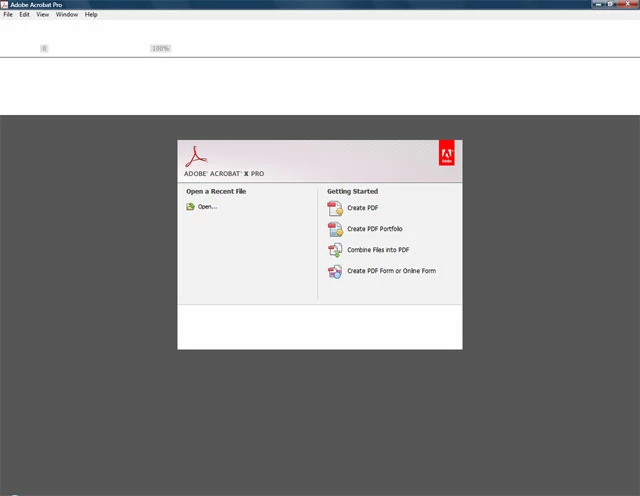
Thanks for reading!

Correct answer clavin007

which tools are you looking for.  Adobe for some reason changed the tools to be on the side you can create a toolbar or show the navigation by right clicking any where on the menu, select page navigation and then show all page navigation tools.


Hi kgator,

Well thanks for reading this. I have already managed to solve the problem of the disappearing toolbar. All you have to do is to right+click on the Acrobat application and under Compatibility > choose run this program Windows XP.

Strange, it works after that.

Cheers!


4 replies

Participant
March 25, 2020

I got the same problem.


To solve it is easy  --if you know how to do 🙂


Just pull the window bar at the bottom up and the windows bar will show up.


Apparently, the windows is so large that it covers the windows bar.


That's all folks!

Participant
March 3, 2015

Hy everybody.

The problem is because of Kaspersky antivirus. I called them and they send me the steps below.

Step 1 : Uninstall the Kaspersky you currently have. Kaspersky 2015 uninstallation guide is available here: http://support.kaspersky.com/11166
Step 2 : Install the latest version of Kaspersky. Please install Kaspersky Internet Security 2015 by following the instructions below:

1. Download the latest version of Kaspersky Internet Security 2015: http://usa.kaspersky.com/files/?file=kis&lang=en&pn=Downloads+%7C+Product+Updates+%7C+Kaspersky+Internet+Security&track=pu_kis_usen
2. After the download is complete please run the downloaded file.

3. Follow the setup wizard.

4. At the activation step type in your 20-character activation code.

5. Detailed description of the installation process is available here: http://support.kaspersky.com/11173

Have a nice day!

Participant
August 29, 2016

None of the above worked for me.  After 1.5 hours I found my culprit:

What SOLVED my problem to view the Navigation Pane was to Deselect READING MODE (CTRL-H) under the View Menu.

Reading Mode had been accidently selected.  Once UNSELECTED, everything returned to normal.

Apparently there are multiple ways to hide the Navigation, Tool and Menu bars!!

bcb

Participant
August 9, 2012

Try this!

Go to Edit > Preferences

From Category select Page Display.

Under Rendering Pane uncheck the option 'Use 2D Graphics accelerator'

Then start Acrobat again.

clavin007
clavin007Author
Inspiring
August 10, 2012

Hi abhishamster@gmail.com,

I have tried according to your instructions, but it still does not work at all after restarting Acrobat a few times.

Are there any other solutions?


Participant
August 8, 2012

Press the F8 on your keyboard and check it works for you.

clavin007
clavin007Author
Inspiring
August 9, 2012

Hi prat_k,

Thanks for your reply. May I know what does F8 achieve? Is it some kind of refresh? No offense, but I think this is a more deep-seated problem than just pressing F8.

Strangely, When I was using Acrobat 9, it does not pose that problem. I felt by having Acrobat X Pro, it has much more problems than before.

Regards,

James

Legend
August 9, 2012

F8 is shown as View > Show/hide > Toolbar items > Hide toolbars.