


- Home
- Acrobat
- Discussions
- Re: Check marks not showing in check box of flatte...
- Re: Check marks not showing in check box of flatte...
Check marks not showing in check box of flattened PDF (Mac user)

Copy link to clipboard
Copied
I created a fillable PDF. The users of the PDF (consultants) will fill in the form, then save it as a standard (flattened) PDF before sending it to their clients, so the client cannot change the information. The problem is that it contains check boxes and the check marks aren't showing up when saving the file as a standard "flattened" PDF on a Mac (I have a Mac work laptop and tested this on). They do show up on a PC because the process is different (I had my co-worker beta test it for me). 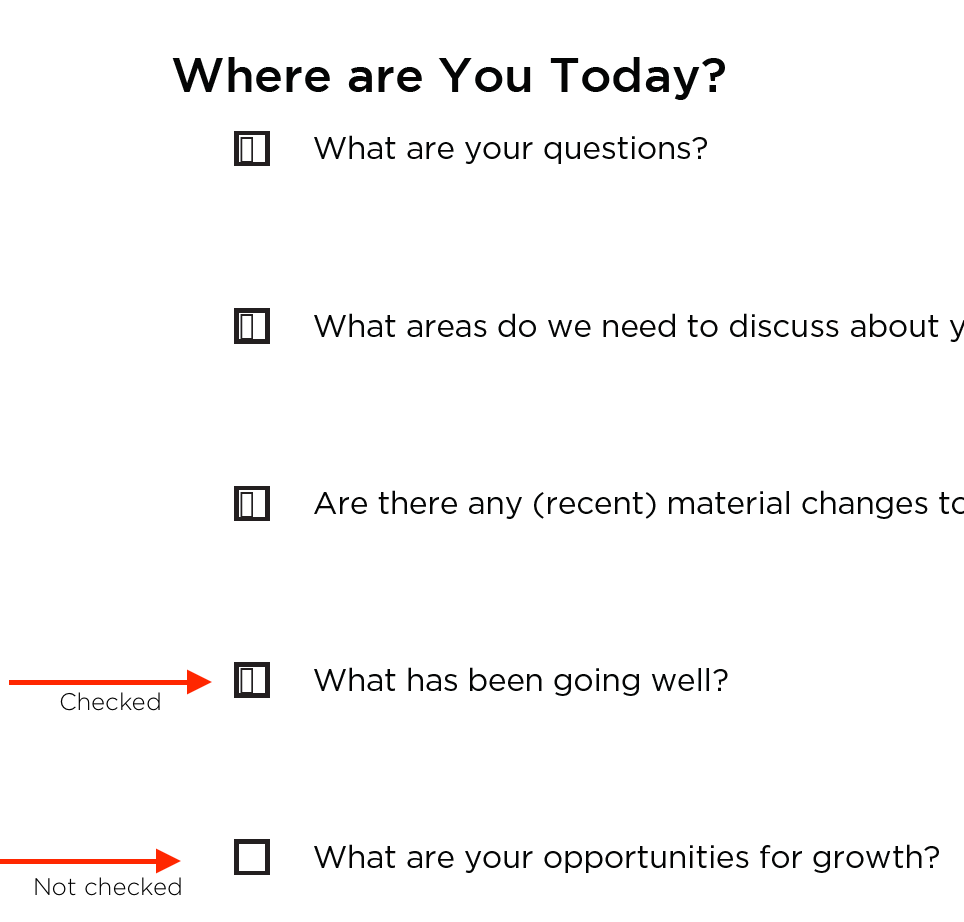


 10
Replies
10
10
Replies
10




Copy link to clipboard
Copied
The question for me is what are you using in macOS to view the PDFs?
Is it a webbrowser, mac Preview, or Adobe Reader DC?
Copy link to clipboard
Copied
I'm using Adobe Acrobat Reader DC to open, edit, save, etc. In Preview, you can't fill in the fillable portions of the PDF, and I have my Mac settings customized to open PDFs using Adobe Acrobat (preferred app).

Copy link to clipboard
Copied
Exactly how are the users flattening the form on a Mac?
Copy link to clipboard
Copied
I'm glad you asked that, @George_Johnson because I was thinking that might be the issue. I cannot seem to save the filled in PDF as a Standard PDF within my printer settings like a PC user would be able to, so I had to save my changes to my desktop, right-click, select Open With > Save as Adobe PDF. When I try to save the filled in PDF in print mode, I don't have the Adobe PDF as a printer option and I get the following error message when I click the "Printer..." button:
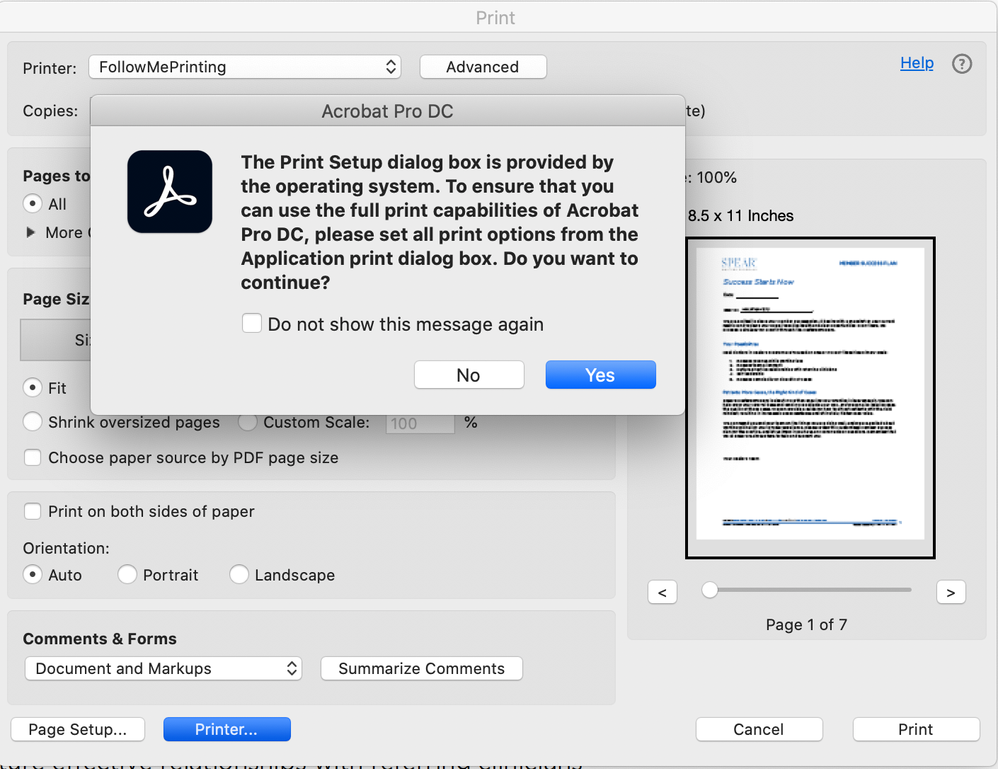
When I select "Yes" and choose "Save as Adobe PDF," I get the following error message:
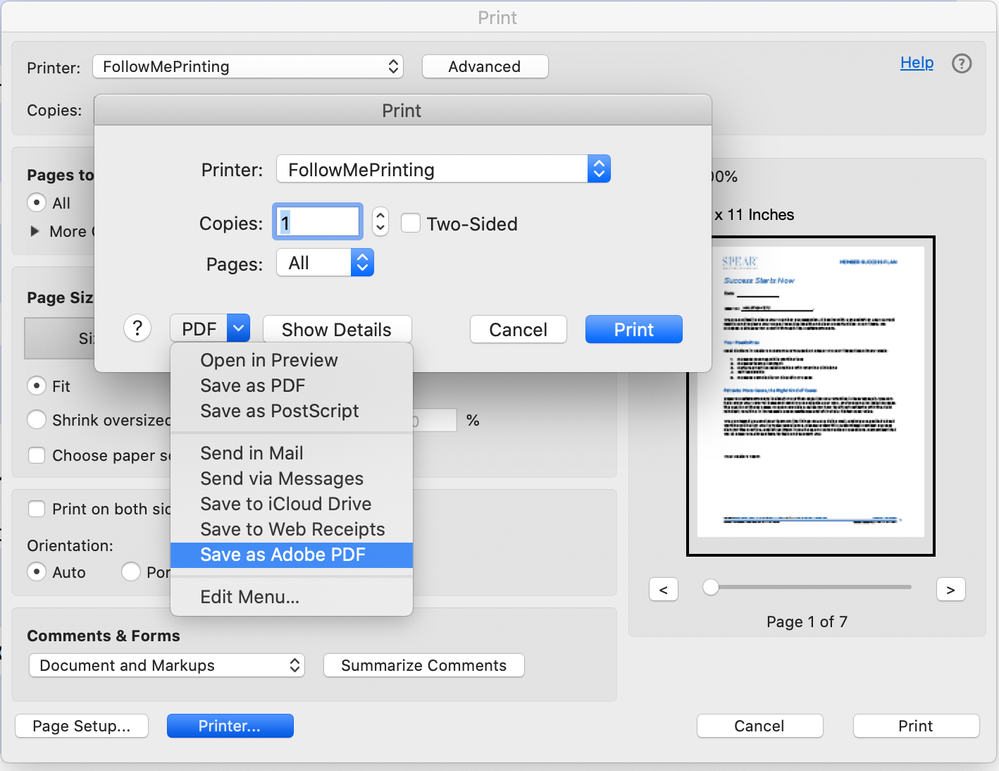
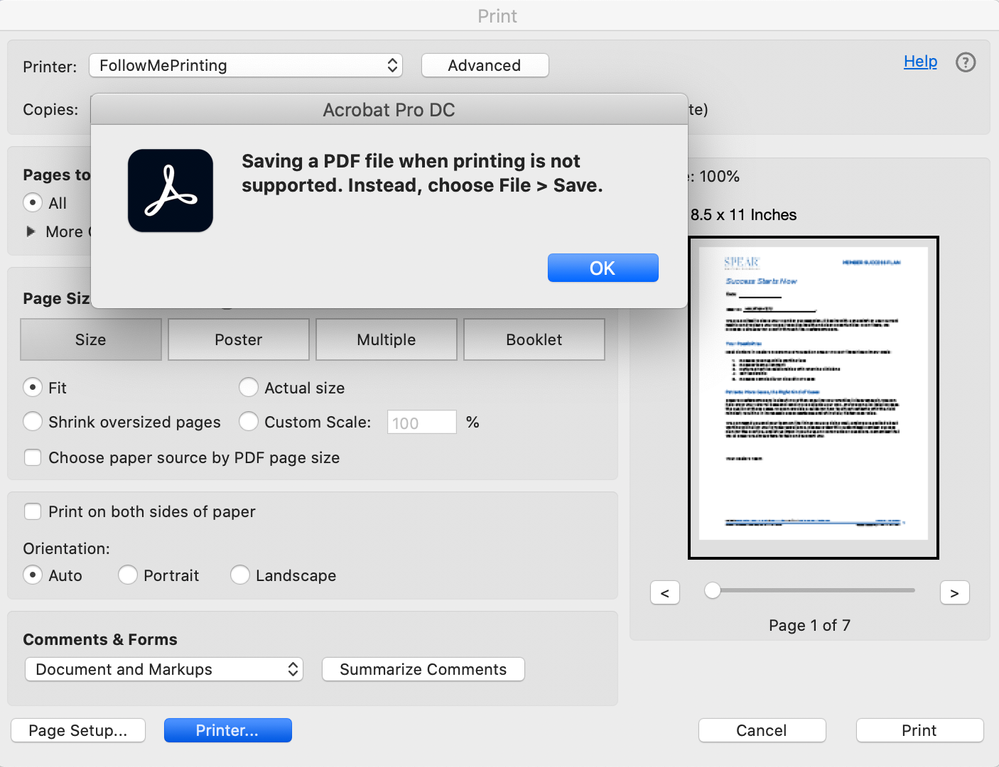
What am I doing wrong? Is it a setting I need to fix?
Copy link to clipboard
Copied
There's a much better and fast way to flatten a PDF form, but is can't work with Reader, but it will work with Acrobat. Do any of the users use Reader?
Copy link to clipboard
Copied
I have Acrobat Pro, but the users would be instructed to download the free Adobe Acrobat Reader via https://get.adobe.com/reader/ to open and use the fillable PDF.
Copy link to clipboard
Copied
You might consider using a script to set the fields to read-only before sending the form. You could trigger the script in the Mouse Up event of a (nonprinting) button for example. This would not prevent someone with Acrobat from being able to change the field values, but neither does flattening. Post again if you'd like help with this approach.
Copy link to clipboard
Copied
The consultants (users/target audience of this form) need to be able to fill in the form. I have some of the fields set to read-only, but only the fields that are auto-calculating a formula (sum, product, etc. of two or more fields). Will this approach allow them to check the boxes and save the the form as a standard PDF? I can always protect the document from being edited, but I still need it to be fillable for the consultants, so they can fill it in and flatten it before sending it to their clients.

Copy link to clipboard
Copied
The issue is most likely caused by this virtual PDF printer you're using...
Copy link to clipboard
Copied
The best way to "lock" the values of the fields in a file is to digitally sign it using a Signature field, which can be set to lock all the fields when signed.


Get ready! An upgraded Adobe Community experience is coming in January.
Learn more
 AdChoices