Sorry, I should have said Save as other> Optimized PDF. When the optimize settings window appears, adjust the settings and click the save button in the settings window and give your settings a name. Use this setting in your action.
The preflight is under Tools> Print Production> Preflight> Fixups (the blue wrench icon)> Color Spaces, Spot colors, Inks.
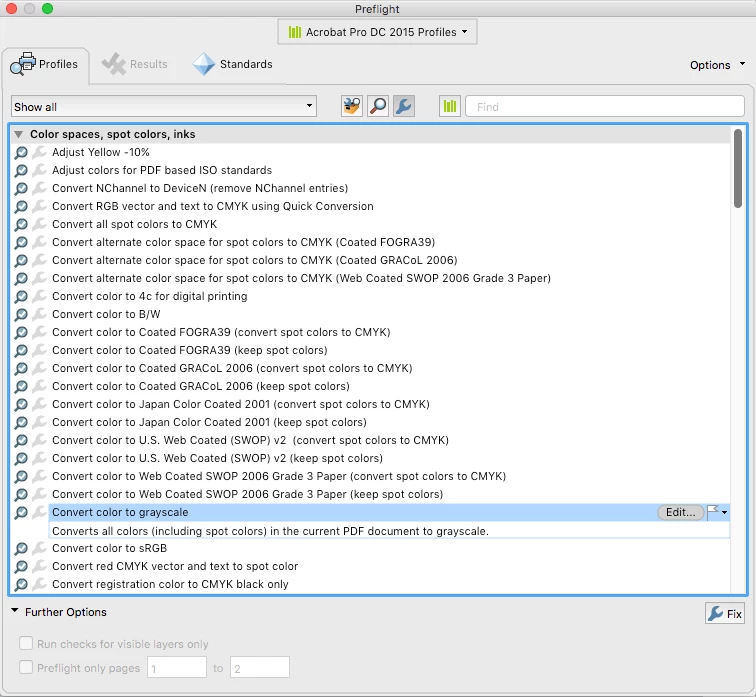
At the top of the Preflight window it should say "Acrobat Pro DC 2015 Profiles". You can try the Color to B/W or Color to grayscale preflight.
Since converting color to BW can be subjective, Photoshop has tools for better control of the conversion when you need to make a critical conversion.
Another method it to use Print Production> Convert Colors>Convert to Profile> Dot gain 15%.
By selecting all of the Discard & Clean up options under your Optimize settings (unless there is something you specifically need to keep) your PDF size should be much smaller.
Thank you for your reply.
I tested all the settings you suggested, but the two settings of Acrobat X which I was asking for in my first post still are ideal for me.
But thanks to the following hint of yours, I finally found these two settings also in Acrobat Pro DC:
At the top of the Preflight window it should say "Acrobat Pro DC 2015 Profiles". |
1. Convert to grayscale
Acrobat X
Edit > Preflight... > Profiles > PDF fixups > Convert to grayscale
Acrobat Pro DC
Edit > Preflight... > At the top of the Preflight window it should say "Acrobat Pro DC 2015 Profiles" > Profiles > Convert colors > Convert to grayscale
2. Downsample image resolution to 150 ppi (bitmaps to 300 dpi)
Acrobat X
Edit > Preflight... > Profiles > PDF fixups > Downsample image resolution to 150 ppi (bitmaps to 300 dpi)
Acrobat Pro DC
Edit > Preflight... > At the top of the Preflight window it should say "Acrobat Pro DC 2015 Profiles" > Profiles > PDF fixups > Downsample image resolution to 150 ppi (bitmaps to 300 dpi)
For information only, here are my current settings:
Configuration of the Action Wizard
Open PDF in Acrobat Pro DC
Sidebar > More Tools
Customize
Drag and drop "Action Wizard" to the sidebar
Action Wizard
New Action
Choose tools to add:
Document Processing
Add "Preflight" to "Action steps to show"
Specify Settings
Run Preflight check using: > Acrobat Pro DC 2015 Profiles > Convert to grayscale
Leave unchecked: "Run profile without applying fixups")
Save
Uncheck "Prompt user"
Choose tools add:
Document Processing
Add "Preflight" to "Action steps to show"
Specify Settings
Run Preflight check using: > Acrobat Pro DC 2015 Profiles > Downsample image resolution to 150 ppi (bitmaps to 300 dpi)
Leave unchecked: "Run profile without applying fixups"
Save
Uncheck "Prompt user"
Save
Action name: "Grayscale, Downsample"
Save
Convert PDF
Open PDF in Acrobat Pro DC
Sidebar
Action Wizard
"Grayscale, Downsample"
Add files (optional)
Start
Top menu bar > File
Save as
Desktop
Save

 AdChoices