New Participant
May 15, 2020
Answered

Converting a PDF to MS Word - Font spacing issue.

  • May 15, 2020
  • 5 replies
  • 49527 views

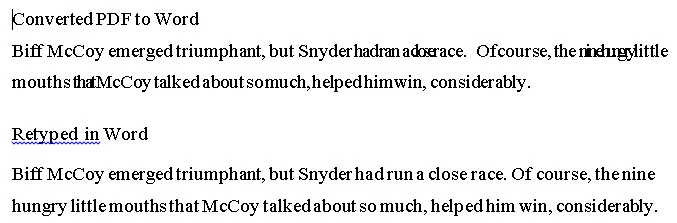
I have and old manually typed document that I scaned to PDF.  The PDF document reads well. I then converted the PDF to Word file from Acrobat DC,  In some instancies the Word file had a text compression (letters and spaces mashed together) I tried changing fonts, paragraph and line spacing and could not correct.. When I pasted the compressed line in this text box the compression went away. So I made a jpeg with a screen capture.


Correct answer Bevi Chagnon - PubCom.com

We had a similar example about a year ago.

Found that the text (or portions of the text) had kerning/tracking applied, and it probably was introduced by Acrobat's OCR utility, attempting to mimic/represent the visual appearance of the original scanned text.


Adobe, please check your utility: it should not be adding tracking/kerning/letterspacing to any text during the OCR process.


We corrected the resulting Word file by removing all manual overrides at the character level. Two ways to do that in Word/Windows (Mac-ers, only the second method is available in Word/Mac):

  1. Open Word's Navigator panel.
  2. Select the text (we recommend selecting ALL the text with Control + A).
  3. Click the bottom-most pink eraser to erase manual overrides (formatting).
  4. The text should snap and appear normal.
 

OR ...

  1. Select the text.
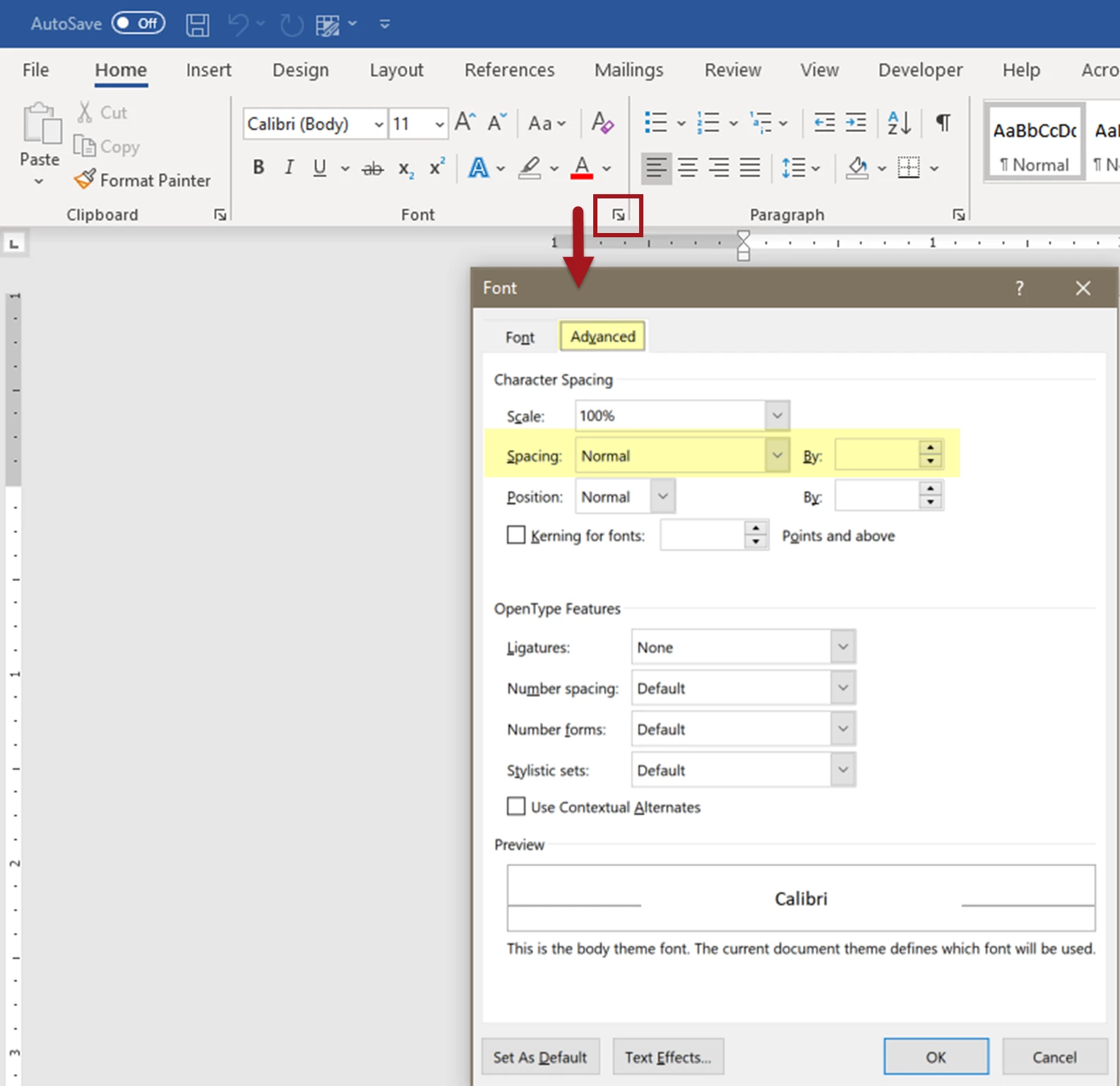
  2. Open Word's Font Panel (see screen capture below).
  3. Select the Advanced tab at the top.
  4. Set the Spacing to Normal and leave the "By" field blank.
  5. The text should snap and appear normal.


Hope this helps.

 

5 replies

New Participant
July 11, 2024
  • •Font size: 10 or 12
  • • Font: Times New Roman
  • Line spacing: Single line spacing
  • • Font color: As displayed
  • • 1 IMAGE OUTPUT 1 PDF
New Participant
August 9, 2023

I find a solution that works for me, when it comes to exporting from .pdf export as the older version of word  - .doc all should look okay and then save it out as a docx file

Bevi Chagnon - PubCom.com
Brainiac
May 20, 2020

We had a similar example about a year ago.

Found that the text (or portions of the text) had kerning/tracking applied, and it probably was introduced by Acrobat's OCR utility, attempting to mimic/represent the visual appearance of the original scanned text.


Adobe, please check your utility: it should not be adding tracking/kerning/letterspacing to any text during the OCR process.


We corrected the resulting Word file by removing all manual overrides at the character level. Two ways to do that in Word/Windows (Mac-ers, only the second method is available in Word/Mac):

  1. Open Word's Navigator panel.
  2. Select the text (we recommend selecting ALL the text with Control + A).
  3. Click the bottom-most pink eraser to erase manual overrides (formatting).
  4. The text should snap and appear normal.


OR ...

  1. Select the text.
  2. Open Word's Font Panel (see screen capture below).
  3. Select the Advanced tab at the top.
  4. Set the Spacing to Normal and leave the "By" field blank.
  5. The text should snap and appear normal.


Hope this helps.
 

|    Bevi Chagnon   |  Designer, Trainer, & Technologist for Accessible Documents ||    PubCom |    Classes & Books for Accessible InDesign, PDFs & MS Office |
gary_sc
Community Expert
May 20, 2020

Hi Bevi,


Interesting approach, good to know for the future. 


What I did was to save the documents as straight, unformatted text ( .txt) that removed ALL formatting, including the page breaks so that importing that back into Word for subsequent formatting and correcting all of the OCR errors.


Bevi Chagnon - PubCom.com
Brainiac
September 15, 2022

Hi @gary_sc

Saving to .txt format (ascii text) often does the trick on this type of legacy formatting.

But not always.

We've found ascii retains and passes through some deep formatting, like mail merge codes and section breaks.

So give .txt a try, and if that doesn't completely strip the file down to its pure content, you'll have to do more extensive stripping. It's one reason why we keep a copy of Corel WordPerfect on one of our computers: its Reveal Codes utility is a lifesaver! (FYI, Corel is now Alludo.)


|    Bevi Chagnon   |  Designer, Trainer, & Technologist for Accessible Documents ||    PubCom |    Classes & Books for Accessible InDesign, PDFs & MS Office |
Adobe Employee
May 20, 2020

Hi,


Thank you for reporting the issue. Have you started facing this issue recently?

Can you please tell us if it is specific to some font or a file? If possible, can you please share the input and output files with us so that we can take a look into the issue and provide you the better experience with our services.


Thanks and Regards,

Akanksha

Software Engineer II
Adobe Acrobat Team

New Participant
July 18, 2025

Yes, this issue has cropped up only for the past three to four months. I never had this issue before.

gary_sc
Community Expert
May 15, 2020

Hi Relmeaux,


First off, I can't help you. However, I can join in your grief in that I also had a typed document that after scanning and OCR-ing also had dreadful results. Parts were so bad it was eaiser to retype them than to repair the text.


Other than to rasis my hand and say "Me Too," was curious as to what typewriter did the original? The original that I was dealing with used the Courier font. Was yours a Selectric where you could change the font ball?


Anyhow, good luck to all. I find it interesting that when processing text in a document, manual typing text seems to work less well than other kinds of text on paper. Curious.