


March 26, 2012
Answered

Create a new digital ID - passwords do not match

  • March 26, 2012
  • 4 replies
  • 45165 views

When creating a new digital ID in Adobe Acrobat X on Windows 7 computer, after entering the new filename where the ID is to be stored and password, I get a message box: "Passwords do not match".

I have gathered the following information about creating digital IDs in Acrobat:

Acrobat help which says: "Type a password for the digital ID file. For each keystroke, the password strength meter evaluates your password and indicates the password strength using color patterns. Reconfirm your password."

A forum post which says: "6. Now enter the password in two places as instructed. "

I also watched a video how the person was inserting the password when creating a new digital ID, she had two text boxes to enter it. Screenshot from the video is here:

But when I try to do the same, I only have one field to enter the password. Here is a screenshot from my computer after clicking "Finish":
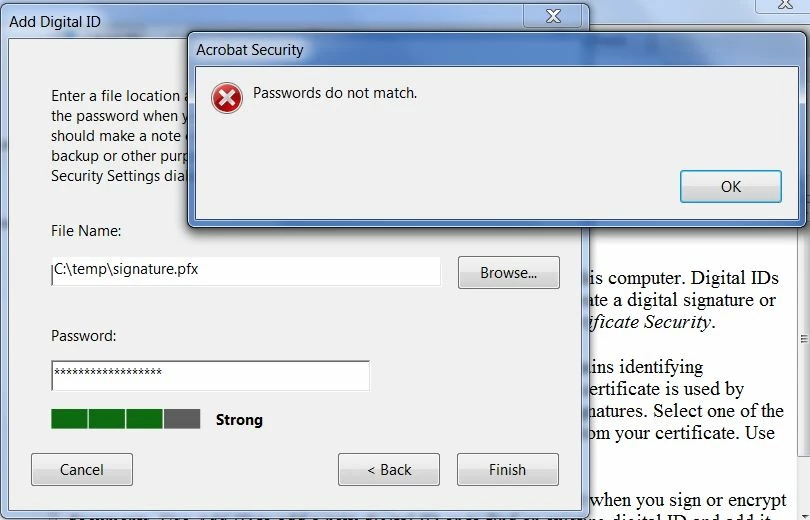
Does anybody know how to make the second password field appear, so I can confirm it and get rid of the "Passwords do not match" message and finally create the digital ID?

This topic has been closed for replies.
Correct answer

I just had the same problem, I'm using Acrobat X Pro.  I found this post and how the form is supposed to look so when I had typed in my password in the "Password:" box, I pressed Tab and the cursor dissapeared, I then re-typed my password assuming that it had gone to the "Confirm Password:" box that is not visible and then pressed Finish.  This worked for me and I was able to create a digital ID. Might work for you too.  Good luck.

4 replies

MHI799522
New Participant
March 20, 2015

Thank you so much dtfish78dtfish78

I find it hard to believe that Adobe couldn't send out an update in 2 years to fix this issue so you could see both password boxes!

Inspiring
March 23, 2015

I saw posts on this forum that this problem has been fixed in some recent Acrobat/Reader X and XI versions. Try the latest one (10.1.13/11.0.10).

New Participant
October 12, 2012

This is a bug, because of the programmer use abosulte layout for the dialog.

And the dialog only can work correctly with the default DPI settings of windows display.

Try goto windows control panel => Adjust Screen Resloution => Make text and other items larger or smaller => smaller (100% default)

Then logoff windows and logon, do all again, you can see the second password input box.

My environment:

Windows7 64bit

Acrobat X Pro

New Participant
October 28, 2014

This bug still hasn't been fixed (I've just noticed the date on previous posts -- March 2012!

Come on, Adobe devs and project managers, extricate a digit and move this user story to the top of the product backlog!

As a user, I'd like to be able to see the second password field when creating a new digital ID, just like Annamarie Lukes does at 3 mins 20 in the digital ID tutorial video on the Adobe website: How to Digitally Sign a Document with Adobe Reader | Acrobat X | Adobe TV).

PS: Adobe Acrobat X Pro (v.10.1.1) with Windows 7 Home Premium SP1.

Braniac
October 28, 2014

If it will be fixed, surely it won't be fixed in version 10 now version is 11 is out. Can anyone confirm if it is fixed in 11?

Adobe Employee
April 11, 2012

Hi,

Can you please provide the following information so that the reason for such issue can be figured out:

1. Version of Acrobat?

2. OS: which service pack and 32bit/64bit

3. Screen resolution of display information. For it go to run -> type "dxdiag". Please share the scrrenshots of 'Display', 'System' tab.

Thanks in advance.

April 12, 2012

1. Version 10.1.3

2.

3.

Hope this helps,

Fish

Adobe Employee
April 12, 2012

Thanks for the information. We are looking into the issue from our end.

Correct answer
April 11, 2012

I just had the same problem, I'm using Acrobat X Pro.  I found this post and how the form is supposed to look so when I had typed in my password in the "Password:" box, I pressed Tab and the cursor dissapeared, I then re-typed my password assuming that it had gone to the "Confirm Password:" box that is not visible and then pressed Finish.  This worked for me and I was able to create a digital ID. Might work for you too.  Good luck.

New Participant
May 2, 2018

Just had the same problem using Acrobat X Pro (10.1.16) on A 64-bit Windows 7 Pro installation. Thanks for posting the solution. I tabbed and re-entered my password and it worked great!