
Participant
November 23, 2022
Answered

Creating an interactive flowchart using Adobe Acrobat.

  • November 23, 2022
  • 4 replies
  • 10395 views

We use flowcharts to map out our company procedures. This works great, but there are some steps within a procedure that require additional explanation. Is there some way I could create a pdf that hides/shows a text box with additional instructions when a user hovers over a step within the procedure?


I tried just using the highlight/notes feature, but the text can't be formatted which makes for a less than ideal user experience. The whole goal here is to make our documentation as easy to consume as possible so people actually use it.


Ideas are greatly appreciated.
Correct answer JR Boulay

You can create a layer-based layout, with Illustrator or InDesign.

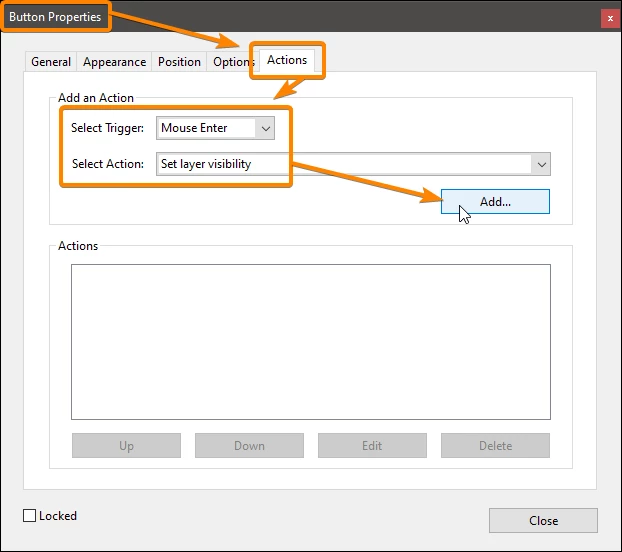
Then you have to add the "show/hide layer" actions with Acrobat Pro.

(This action is not available in InDesign)


4 replies

Participant
July 22, 2025
Abid_Hassan_27_Jun-1.pdf
JR Boulay
Community Expert
Community Expert
November 29, 2022

No, you should ask them

Acrobate du PDF, InDesigner et Photoshopographe
Participant
November 30, 2022

Looks like lucidchart has an option to export layers; however, it exports each layer as a page. I had to split the pages and reimport them as layers in Acrobat to get this to work. But it works. Thanks for the help.

JR Boulay
Community Expert
JR BoulayCommunity ExpertCorrect answer
Community Expert
November 25, 2022

You can create a layer-based layout, with Illustrator or InDesign.

Then you have to add the "show/hide layer" actions with Acrobat Pro.

(This action is not available in InDesign)


Acrobate du PDF, InDesigner et Photoshopographe
Participant
November 29, 2022

Do you know if lucidchart is capable of exporting a pdf file with layers? That's the tool I use to make our flowcharts.

try67
Community Expert
Community Expert
November 23, 2022

You can do it using an image field or a (read-only) text field, and a simple script to show it when the user enters with the mouse another field, and hide it when they exit it. Actually, you can even do it using the built-in "Show/Hide a Field" action, without needing any code.

Participant
November 29, 2022

Thanks for the tip!