
lindsaym11404628
Participant
December 11, 2017
Answered

Crop marks won't show up over image?

  • December 11, 2017
  • 1 reply
  • 16771 views

I'm attempting to add crop marks to an entire PDF document, but I keep getting a dialogue box that says:

"Printer marks may overlap artwork. You may need to expand the Crop box using the Crop dialogue."

This doesn't mean much to me... can anyone help? I don't really understand why pages with bleed graphics aren't getting the crop marks.

Thanks!!
Correct answer Cari Jansen

What that message means is that although the crop marks have been added when you  use "Add Printer Marks", they are not visible until you increase the page size of the document.

  1. Start by Opening Print Production tools
  2. Apply the trim marks, by clicking on Add Printer Marks, follow the default prompts as you've done previous, and click through that warning message.
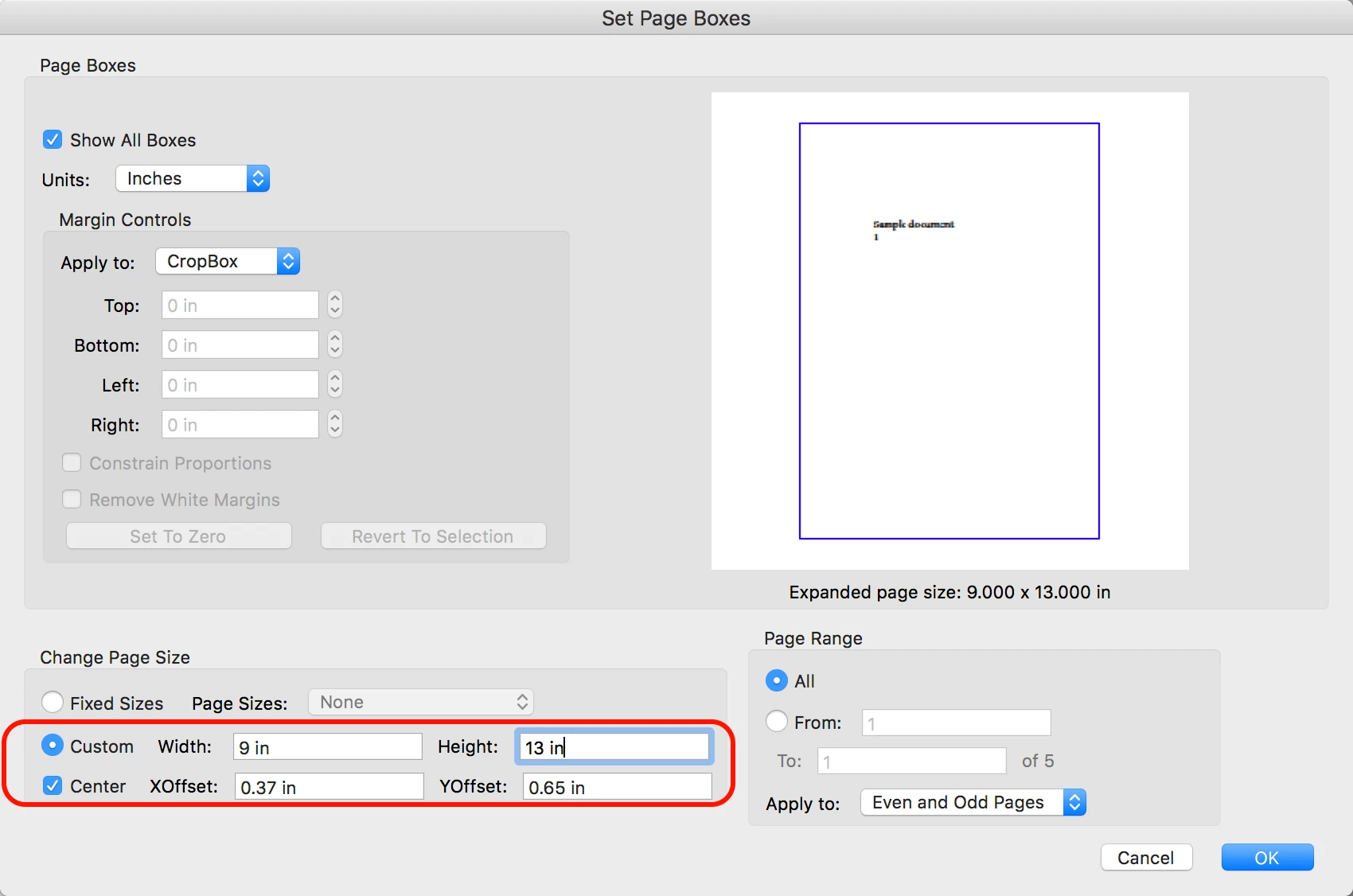
  3. While still in Print Production tools, click on Set Page Boxes
  4. Below the preview of the PDF you'll see the current page size.
  5. Calculate what the new cropbox settings need to be and adjust the Page Size
  6. Set Page Range to All and click OK.

You should be able to see the crop marks you've added initially after doing this.

1 reply

Cari JansenCorrect answer
Legend
December 15, 2017

What that message means is that although the crop marks have been added when you  use "Add Printer Marks", they are not visible until you increase the page size of the document.

  1. Start by Opening Print Production tools
  2. Apply the trim marks, by clicking on Add Printer Marks, follow the default prompts as you've done previous, and click through that warning message.
  3. While still in Print Production tools, click on Set Page Boxes
  4. Below the preview of the PDF you'll see the current page size.
  5. Calculate what the new cropbox settings need to be and adjust the Page Size
  6. Set Page Range to All and click OK.

You should be able to see the crop marks you've added initially after doing this.

Participant
December 13, 2023

Very helpful! Thank you!