Participant
February 20, 2021
Question

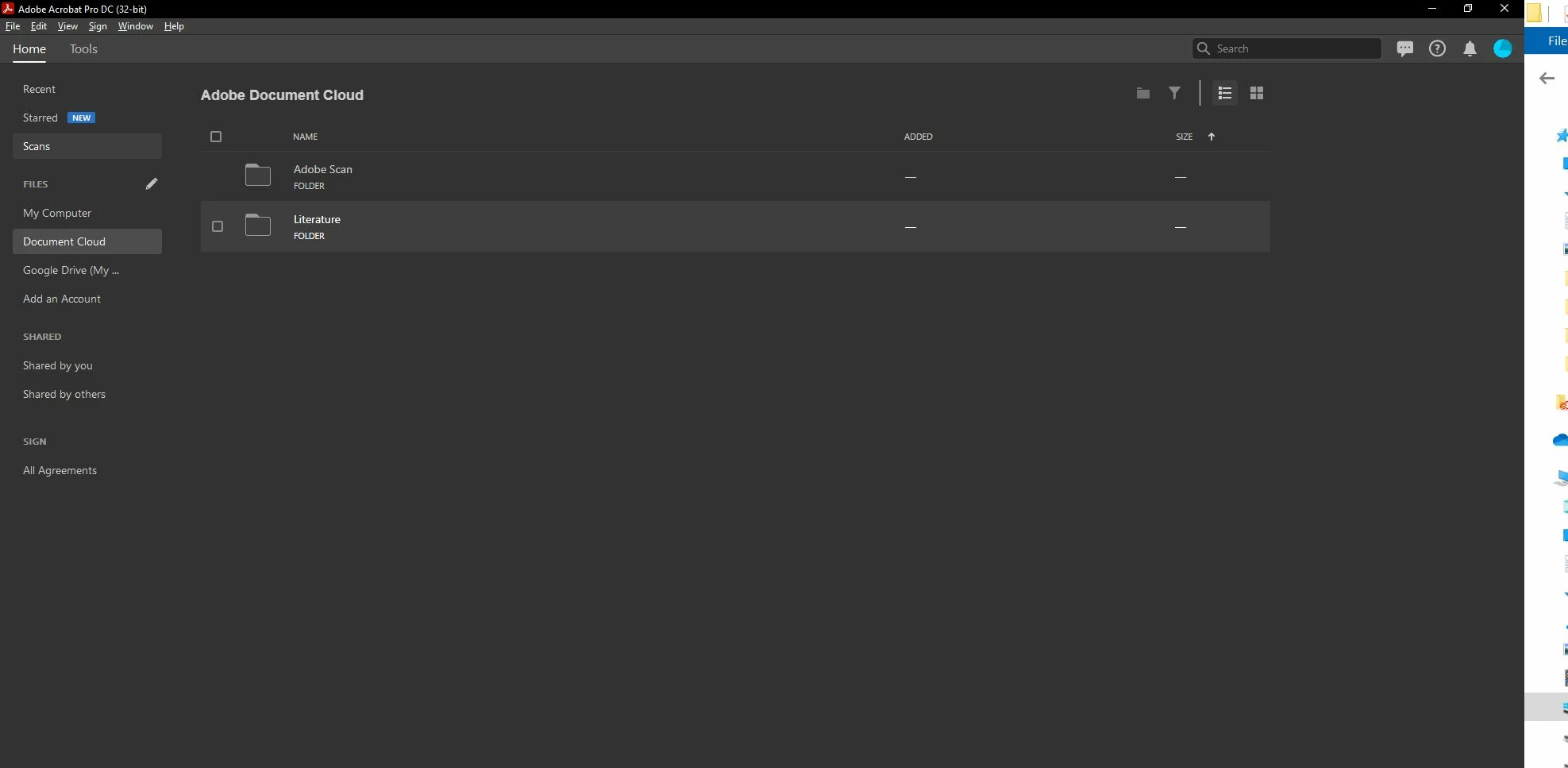
Document cloud, file upload button missing, Adobe Acrobat Pro DC desktop app

  • February 20, 2021
  • 2 replies
  • 3790 views

Hello everyone I am trying to upload files to the Adobe Acrobat Pro DC Document cloud desktop app but I cannot seem to find the upload button on the Document Cloud tab.


Ive previously read that people have been doing one of two things

1) Uploading from the web version of document cloud

2) Save as - Document cloud


Was wondering if I can directly upload on the desktop app.

This topic has been closed for replies.

2 replies

studio jLL
Participant
April 27, 2022

I'm having the same problem. No upload icon exists in the web browser and none of the apps give me the option to save to Creative Cloud...

Bernd Alheit
Community Expert
Community Expert
April 28, 2022

In a web browser you can upload files to your Adobe Document Cloud.

mpnunan
Participating Frequently
December 9, 2022

(FYI, things look different for me when I log into Adobe cloud now. I see the 'Upload a file' button right away. It hadn't looked like this on 4/29/22 when I made the above post.)
In regards to moving a file, I see that if you click the box to the left of a file name (you must hover over the file name for it to appear), then a right column appears with many actions available. Scroll down to see 'Move' to choose which location to put your checked file. Hope that helps.


I just read through this - I can't upload. anything to the cloud.  I can go to "sync" and get the upload button to turn on.  But everytime I try to drag and drop a folder, it says "assets can't be uploaded."   Thanks in advance for any advice.

Bernd Alheit
Community Expert
Community Expert
February 20, 2021

Want you upload or download documents?

Participant
February 21, 2021

As I've mentioned above I would like to upload documents from my PC to the Adobe Document cloud through the desktop app. Thank you 

Bernd Alheit
Community Expert
Community Expert
February 21, 2021

Open the document in Adobe Acrobat and use File > Save As... to save the document in the Document Cloud.