Participating Frequently
May 6, 2025
Answered

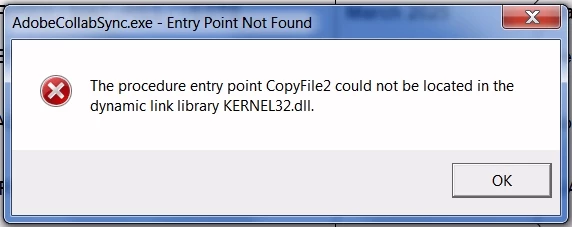
Entry Point CopyFile2 not located in KERNEL32.dll

  • May 6, 2025
  • 3 replies
  • 24664 views

Hi.
Recently (since about 20 April 2025), Adobe Acrobat Reader repeatedly displays an error message:

I'm using a PC running Windows 7 Pro ... and the version number of Acrobat Reader is 2025.001.20474.
I've uninstalled and then reinstalled Acrobat Reader . . . but the error messages still occur.
Any clues as to how to solve this.....?
Many thanks.

Correct answer tdhofstetter

Adobe updated for me yesterday and now I'm getting the messages again too. Sorry about that, I don't see a way to prevent Adobe reader updates.


rick_4271: that's not too hard. Go into your Services and disable Adobe's updater service.


To all else... AnandSri has been leading you down a tunnel of misinformation. CopyFile2 isn't called by Adobe Reader at all. It's called only by AdobeCollabSync, which is a different program that Adobe Reader infuriatingly tries to run because it thinks that you want to use your PDFs collaboratively with other people across the Internet.

Which nearly nobody actually does.
Further infuriatingly. you can't just disable AdobeCollabSynk by deleting or renaming it. Reader gleefully just downloads another copy. against your wishes. Your best bet is to close all Adobe programs, wait until all the Adobe processes are gone from your TaskMan, delete AdobeCollabSync.exe, then immediately create (or copy in) an empty text file that has been renamed AdobeCollabSync.exe, then lock that file so it cannot be replaced.

To lock the file, first set its permissions to read-only. Then go into Permissions and add yourself with full control and also add Administration with full control, then turn off Permission Inheritance and remove all permissions for System. You want to personally be the only one in control of this file's existence.

Sometimes you have to throw rocks to kill despotic giants.

3 replies

Participant
July 16, 2025

Disabling Updates by itself doesn't work either, but this solution does work, I've performed it myself.

Go to Local Disk C: and open it.

Navigate to Program Files, open it.

Navigate to Adobe Reader DC, open it.

Navigate to Reader Folder, open it and once inside locate the file: AdobeCollabSync and just delete it.

Problem solved, assuming Adobe don't have a sneaky way of re-installing it somehow? Keep the updater service Disabled.


Participant
May 11, 2025

That error likely means the latest Reader version is using system calls not supported in Windows 7 CopyFile2 was introduced in Windows 8 [removed third party link]  Rolling back to an earlier Reader version might help.

Participant
May 17, 2025

I was having the same issue with Windows 7. The way I corrected it was to uninstall Adobe. Then re-ran the adobe install exe, but before running it, I opened the file properties and selected compatibility
Check the box, Run this program in compatibility mode for:
Select [Windows 7] in the drop down box
Select OK
Then run the AcroRdrDC2400220857_en_US.exe or similar program
After doing this, I no longer saw the error messages.

Participating Frequently
May 17, 2025

Hi Rick.

Great ... I'm glad this worked for you.

I followed your instructions ... and at first all was okay ... but then (after a minute or two) Reader said it was updating ... after which , the KERNEL32 messages problem re-occurred!

There seems to be no option available to me to stop Reader from downloading updates.  Do you know how to prevent it from automatically updating?

With many thanks,

John


AnandSri
Community Manager
Community Manager
May 6, 2025

Hello John!


I hope you are doing well, and thanks for reaching out.


This error occurs because the CopyFile2 function is part of the Windows API introduced in Windows 8 and later. You're using Windows 7, which does not support this function. The version of Adobe Acrobat Reader 2025.001.20474 you installed is built for Windows 10 or newer and is not compatible with Windows 7. See this article for the technical specification of Acrobat Reader: https://adobe.ly/3EWAxF8


Recommended Solutions: 
1. Update Windows to the Latest Version: The CopyFile2 function is not available in older versions of Windows. Ensure you're running a supported version of Windows (preferably Windows 10 or later) and that all updates are installed:

Go to Settings > Update & Security > Windows Update. Click Check for updates and install any available updates.


2. Install Microsoft Visual C++ Redistributable Packages: Missing or outdated Visual C++ Redistributable packages can cause DLL-related errors. Install the latest supported versions: Microsoft Visual C++ Redistributable latest supported downloads.

See this article for more details: https://adobe.ly/44YulqO


Note: The above suggested steps may or may not work depending on the app's compatibility with the operating system.


I hope this helps.

Thanks,

Anand Sri.

Participating Frequently
May 6, 2025

Hi Anand Sri.
Thankyou for getting back to me so quickly.  I appreciate your help.

I'm running Windows 7 because newer versions of Windows won't run some of my older software.
I have unstalled Acrobat Reader version 2025.001.20474 ... and have now installed version 2025.001.20467 which Adobe says is the latest version for Windows 7 UK English . . . and I have downloaded vc_redist.x64.exe from Microsoft and run it (which required me to first uninstall the version already on my PC because it was more recent) . . . but the problem in Acrobat Reader still persists.
Do I have to put up with Acrobat Reader displaying the error message  -  or is there a way to fix this..?

With many thanks.  🙂


AnandSri
Community Manager
Community Manager
May 9, 2025

Hi again Anand.
I ran Disk Cleanup ... and restarted my PC ... which took over an hour ... and now I find that (as well as the error messages about KERNEL32.dll stil appearing) I now have an additional problem for some (but not all) of my pdf files when I try to read them:  Acrobat Reader says: "There was an error opening this document. Access denied" !!
Oh dear.

So ... I altered the permissions for one of the files I'm now unable to read ... and noticed a user-name "RESTRICTED" which I'd previuosly been unaware of ... and it's now readable ... but I have THOUSANDS (!) of pdf files and would have to check ALL of them to see whether or not their permissions still allow me to read them.

Help!  Please.


Hi John!


Because your test profile worked, but your long‑used profile still shows “Access denied,” the root cause isn’t Acrobat itself—it’s your user‑profile’s file permissions and sandbox settings. When you ran Disk Cleanup, Windows reset or removed inherited permissions on your PDF folders, leaving a mysterious “RESTRICTED” user and blocking Reader’s sandbox from opening them.


  • Open an elevated Command Prompt (Run as administrator).

  • Run these commands against the root folder where your PDFs reside (for example D:\PDFs😞

takeown /F "D:\PDFs" /R /D Y
icacls  "D:\PDFs" /grant "%USERNAME%":(OI)(CI)F /T
icacls  "D:\PDFs" /reset /T


  • takeown makes you the owner of every file/folder.

  • icacls … /grant gives your account Full control, propagating to subfolders (OI=object inherit, CI=container inherit).

  • icacls … /reset restores default inherited ACLs.

This will remove the “RESTRICTED” entries and re‑enable normal access for your user, SYSTEM, and Administrators.


Even with correct permissions, Acrobat may still block files from unexpected locations. To allow your PDFs to open:

  • In Acrobat Reader, go to Menu> Preferences > Security (Enhanced)

  • Uncheck “Enable Protected Mode at startup” (or set Protected View to “Off”)

  • Or under Privileged Locations, click Add Folder Path and add your PDF root folder.


  • Open a formerly blocked PDF.

  • It should now load without “Access denied.”

If the issue still persists with the current user profile, please switch to the new user profile which you created, and migrate the data as suggested earlier.

Thanks,

Anand Sri.