Correct answer ls_rbls

++Adding to the discussion,


The "SHIFT+ALT+ CTRL" method does not reset Acrobat like other Creative Cloud applications. That is a guidance that is referenced in the Adobe Acrobat Help Center( Adobe HelpX)  for Adobe In-Copy.


In addition, in more recent updates Adobe has been blocking and reassigning keyboard combination shortcuts that used to be exclusivley dependent on the ESC or CTRL  keys. You'll notice that tgey don't work anymore like they used to.


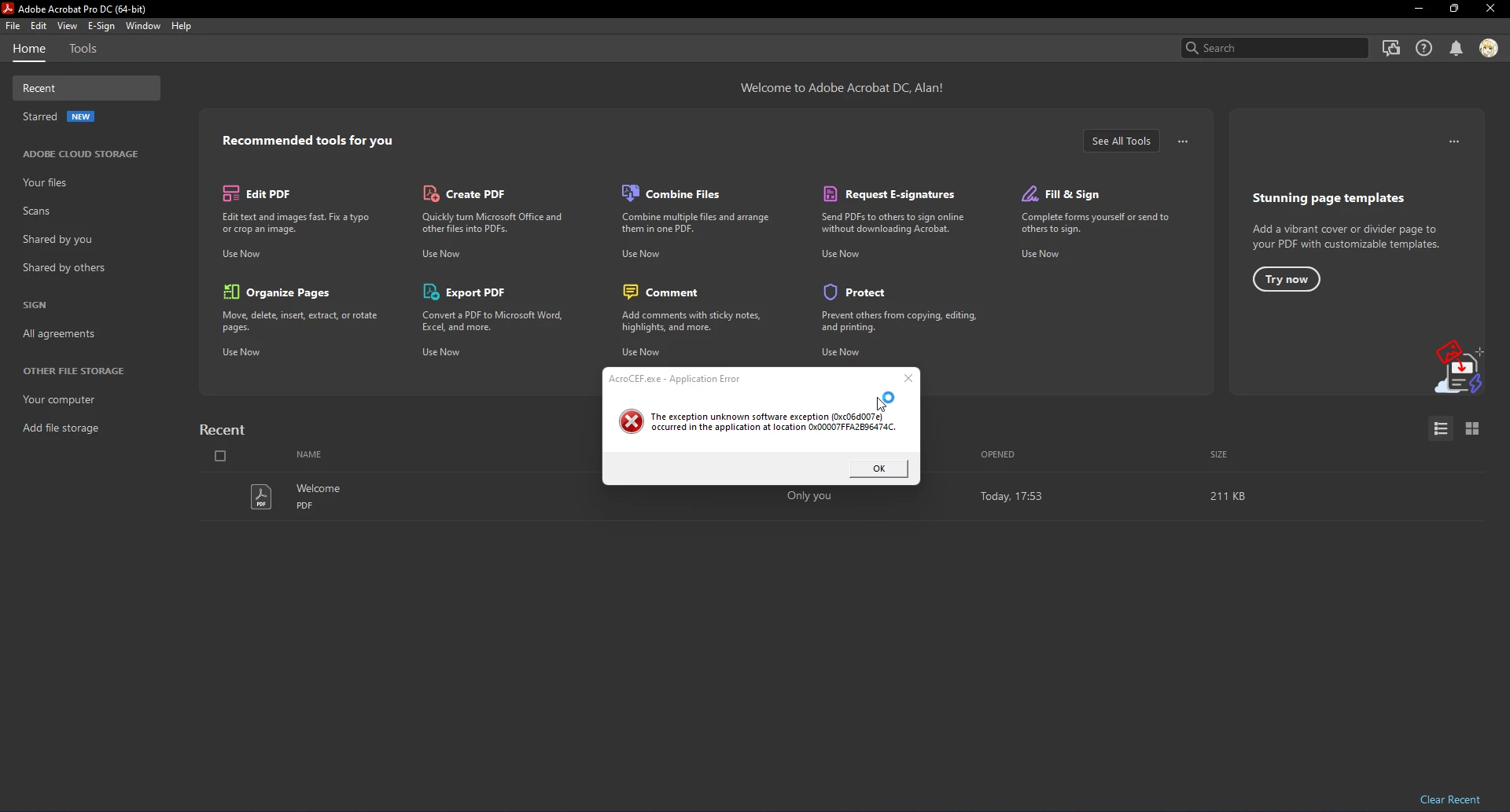
Your screenshot also shows that you are using Micrososft Windows 11, in which case you must be aware that not all of the features that used to work  well for a 32 bit or 64 bit version of Adobe Acrobat Pro on a Windows 10 computer will work well with a Windows 11 version (the same is true for other Microsoft applications, not just Adobe's).


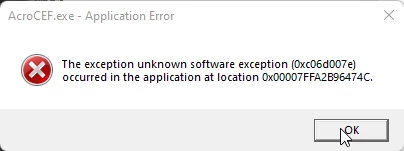
In any case, in order to understand the error that you're getting you must also understand what AcroCEF executable is, what is it used for, and how many other processes depend on it.


Acording to Adobe HelpX you may try to repair the installation, or perform an uninstall / reinstall and the problem should go away.


However, this is not the same as "Resetting the preferences" so the whole concept shouldn't be used interchangeably because the procedures are entirely different, hence resetting Acrobat nor uninstalling and reinstalling may not resolve the issue at all.


For example, wether you choose to repair an installation or uninstall the software completely and reinstall it, there is a bunch or orphan files that stay present in other document cloud cache folders, temporary cache folders and system startup files. This also implies third-party dynamic link libraries (.dll) that remain associated with old traces of your Acrobat after it is uninstalled.


For macOS users, there is no repair insrallation option, so they must manually troubleshoot the cache folders, for example. Nevertheless, if resetting Acrobat preferences to their defaults is your approach, the best way to do it is manually (be advised that these may not be a trivial task).


In Micrososft Windows you can do the same by moving the contents of your Adobe Acrobat cache folders to a different location.


Look in:


  • C:\\Users\"your current user account name"\AppData\Local\Adobe


  • C:\\Users\"your current user account name"\AppData\Local\LocalLow\Adobe   <<<---AcroCEF cache is here


  • C:\\Users\"your current user account name"\AppData\Local\Roaming\Adobe   <<<---Acrobat Preferences and User preferences here


Once you restart your computer, Acrobat will recreate these temporary folders and files again. If this works you can compare the old cached files with the new cached files to spot discrepancies. 


Be aware, that you won't be able to move a cached content out of its cache location n until all processes that are currently associated with Acrobat are terminated.


You may use the Task Manager to end all Creative Cloud and Acrobat's related processes. And for troubleshooting purposes, I would also suggest to go to the "Startup" tab of the task manager and disable all of Adobe's startup programs (you can always enable them again if you need to).


You may also want to get in the habit of clearing the Windows Temp folder periodically:


C:\\Users\"your current user account name"\AppData\Local\Temp


2 replies

ls_rbls
Community Expert
ls_rblsCommunity ExpertCorrect answer
Community Expert
July 24, 2022

++Adding to the discussion,


The "SHIFT+ALT+ CTRL" method does not reset Acrobat like other Creative Cloud applications. That is a guidance that is referenced in the Adobe Acrobat Help Center( Adobe HelpX)  for Adobe In-Copy.


In addition, in more recent updates Adobe has been blocking and reassigning keyboard combination shortcuts that used to be exclusivley dependent on the ESC or CTRL  keys. You'll notice that tgey don't work anymore like they used to.


Your screenshot also shows that you are using Micrososft Windows 11, in which case you must be aware that not all of the features that used to work  well for a 32 bit or 64 bit version of Adobe Acrobat Pro on a Windows 10 computer will work well with a Windows 11 version (the same is true for other Microsoft applications, not just Adobe's).


In any case, in order to understand the error that you're getting you must also understand what AcroCEF executable is, what is it used for, and how many other processes depend on it.


Acording to Adobe HelpX you may try to repair the installation, or perform an uninstall / reinstall and the problem should go away.


However, this is not the same as "Resetting the preferences" so the whole concept shouldn't be used interchangeably because the procedures are entirely different, hence resetting Acrobat nor uninstalling and reinstalling may not resolve the issue at all.


For example, wether you choose to repair an installation or uninstall the software completely and reinstall it, there is a bunch or orphan files that stay present in other document cloud cache folders, temporary cache folders and system startup files. This also implies third-party dynamic link libraries (.dll) that remain associated with old traces of your Acrobat after it is uninstalled.


For macOS users, there is no repair insrallation option, so they must manually troubleshoot the cache folders, for example. Nevertheless, if resetting Acrobat preferences to their defaults is your approach, the best way to do it is manually (be advised that these may not be a trivial task).


In Micrososft Windows you can do the same by moving the contents of your Adobe Acrobat cache folders to a different location.


Look in:


  • C:\\Users\"your current user account name"\AppData\Local\Adobe


  • C:\\Users\"your current user account name"\AppData\Local\LocalLow\Adobe   <<<---AcroCEF cache is here


  • C:\\Users\"your current user account name"\AppData\Local\Roaming\Adobe   <<<---Acrobat Preferences and User preferences here


Once you restart your computer, Acrobat will recreate these temporary folders and files again. If this works you can compare the old cached files with the new cached files to spot discrepancies. 


Be aware, that you won't be able to move a cached content out of its cache location n until all processes that are currently associated with Acrobat are terminated.


You may use the Task Manager to end all Creative Cloud and Acrobat's related processes. And for troubleshooting purposes, I would also suggest to go to the "Startup" tab of the task manager and disable all of Adobe's startup programs (you can always enable them again if you need to).


You may also want to get in the habit of clearing the Windows Temp folder periodically:


C:\\Users\"your current user account name"\AppData\Local\Temp


Alan25363469b0c9
Participant
July 26, 2022

I clear all about acrobat's file and reinstall it, and then acrobat can work properly

ls_rbls
Community Expert
Community Expert
February 3, 2023

Hi @ls_rbls .

Thank you for your answer.


Im running Win 11 Pro    22h2  64bit

And the Adobe Acrobat version is  Version 2022.003.20314


I have exact the same Problems.

If i start adobe Acrobat as admin the same error apears.


If i want to insert a signature the adobe reader gets stuck.


Hmmm.


I am not able to reproduce this on my end.


Is this happening with every PDF document that open wirh Adobe Acrobat Reader or just one particular file.


In any case, can you share a dummy copy of one of those PDFs with no sensitive data on it ?


I can it test on my end.


One more question, is your Windows 11 already configured without Internet Explorer 11?

Geоrge
Legend
July 23, 2022

The quick way of resetting on a PC which is to hold down Ctrl + Alt + Shift when launching Acrobat and respond affirmatively when asked if you want to reset.

Remember, never say you can't do something in InDesign, it's always just a question of finding the right workaround to get the job done. © David Blatner
Alan25363469b0c9
Participant
July 23, 2022

nothing happens when i hold Ctrl + Alt + Shift

Geоrge
Legend
July 23, 2022

Double click on Acrobat icon and then press and hold fast CTRL+ALT+SHIFT


Remember, never say you can't do something in InDesign, it's always just a question of finding the right workaround to get the job done. © David Blatner