Participant
November 17, 2025
Answered

Error editing a page in Acrobat Pro using Paint or Photoshop

  • November 17, 2025
  • 1 reply
  • 46 views


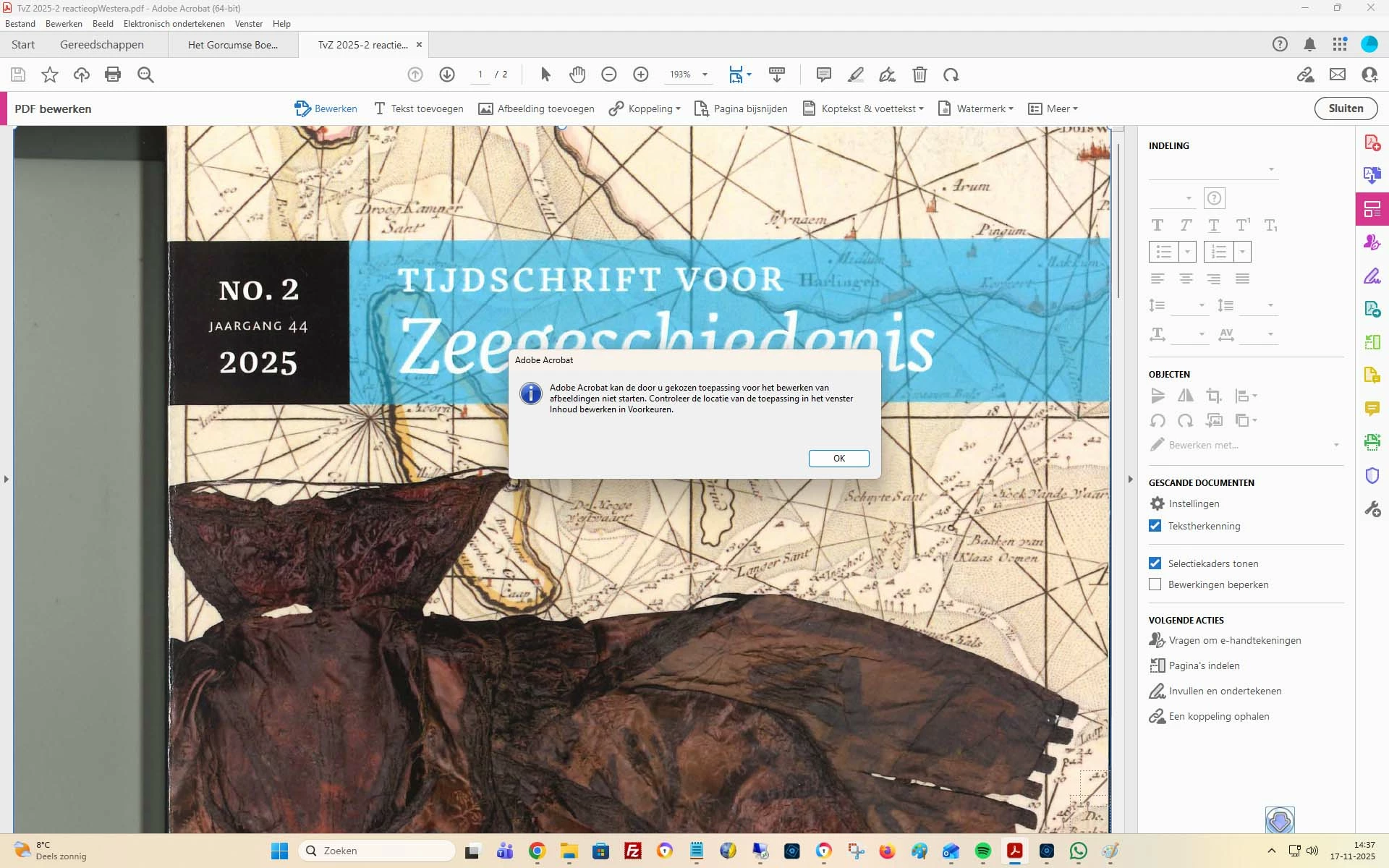
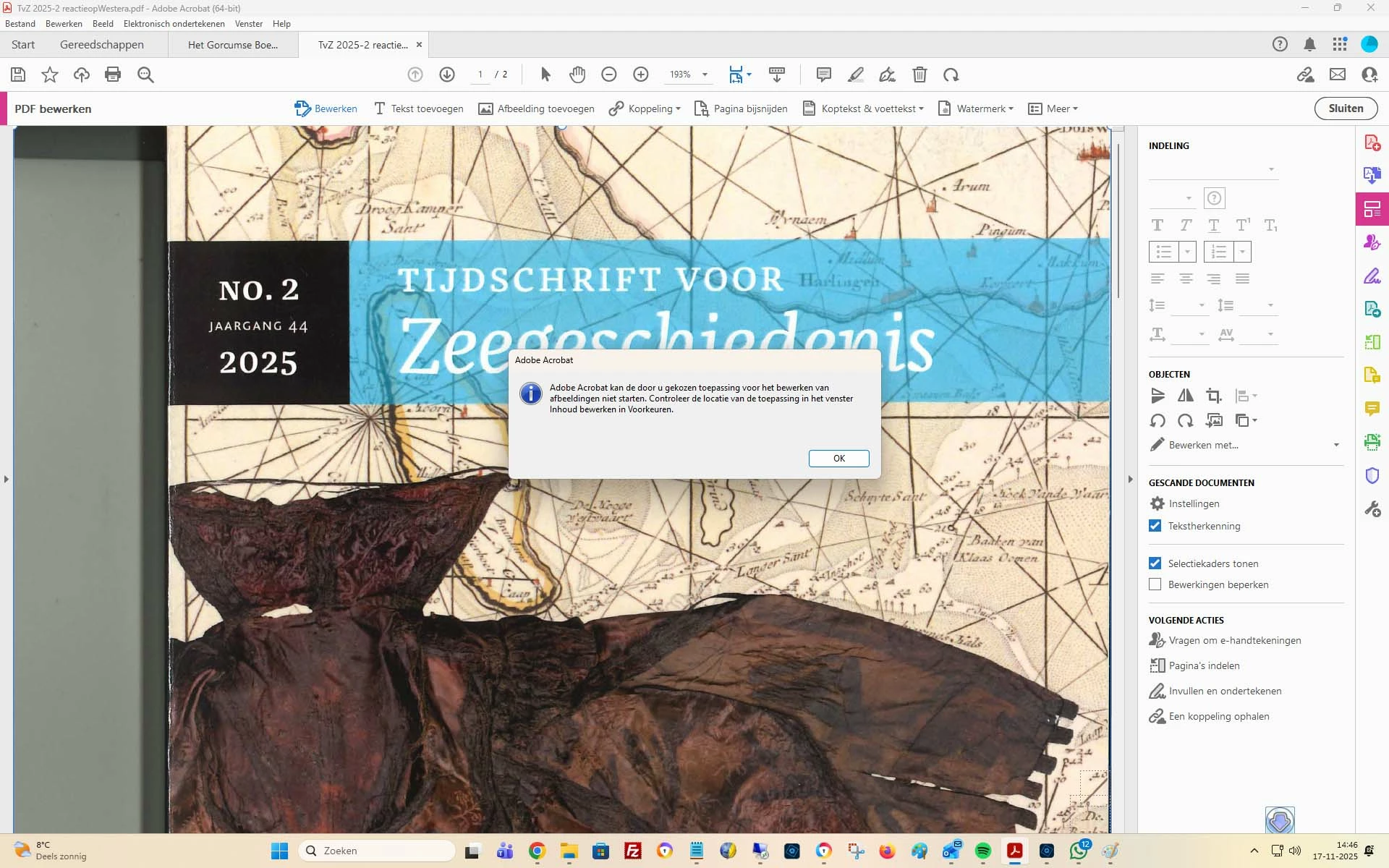
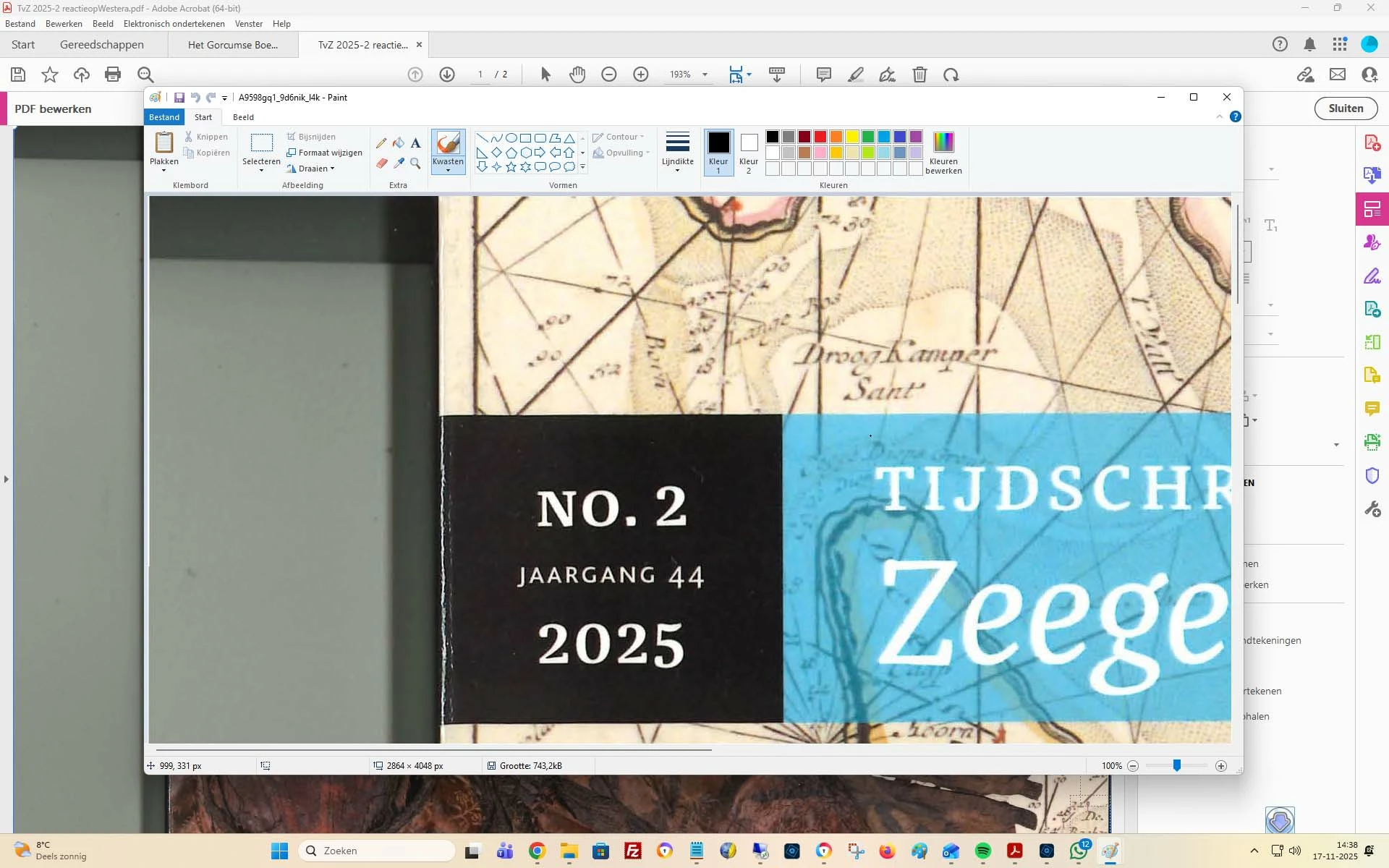
Ik probeer in Acrobat Pro een pagina te wijzigen met Paint of Photoshop. Zodra ik dat kies krijg ik een melding dat de beide programma's niet goed zijn opgegeven in de instellingen van Acrobat. Maar vervolgens openen zowel Paint als Photoshop wel. Echter als ik dan de wijziging in mijn document wil opnemen, krijg ik de melding dat mijn verwijzingen niet kloppen. Dit is eerste keer dat ik hier last van heb. Kan dit door een update van Windows11 komen? Weet u een oplossing? Hoop dat u kunt helpen (PS ben geen ervaren windows expert)

Correct answer creative explorer

@Martin27731093655v sorry, Google Translates says for the error message: 
Adobe Acrobat cannot start the application you selected for image editing. Check the location of the application in the Edit Content window in Preferences.

Therefore, Acrobat loses the correct file path to your external image editor (like Photoshop or Paint) or when a recent Windows or Adobe update changes file security permissions. Since both applications do open, but Acrobat can't re-import the changes, the issue is definitely that Acrobat cannot locate the edited file to save it back into the PDF. You just need to manually tell Acrobat exactly where to find the executable file (.exe) for the editor you want to use Photoshop or Paint. Right-click the Photoshop icon on your desktop or in your Start Menu. Select Open file location. Once the folder opens, right-click on the actual Photoshop.exe file. Select Properties. In the Properties window, copy the entire text from the Location field, or even better, the Target field. (It usually looks something like C:\Program Files\Adobe\Adobe Photoshop 2025\Photoshop.exe). 

Once that is done, paste that correct path into Acrobat's settings. Open Acrobat. Go to Edit in the top menu bar. Select Preferences. In the left-hand panel of the Preferences window, select Edit Content. Under the Image Editor section, click the Choose button. Browse to the location you found in Step 1 (e.g., the folder containing Photoshop.exe) and select the executable file (.exe). Click OK to save the change and close the Preferences window. Acrobat should now launch the editor and, more importantly, be able to re-import the image after you save your changes in the external program (remember to save in the editor, do not use "Save As").

 

1 reply

creative explorer
Community Expert
creative explorerCommunity ExpertCorrect answer
Community Expert
November 18, 2025

@Martin27731093655v sorry, Google Translates says for the error message: 
Adobe Acrobat cannot start the application you selected for image editing. Check the location of the application in the Edit Content window in Preferences.

Therefore, Acrobat loses the correct file path to your external image editor (like Photoshop or Paint) or when a recent Windows or Adobe update changes file security permissions. Since both applications do open, but Acrobat can't re-import the changes, the issue is definitely that Acrobat cannot locate the edited file to save it back into the PDF. You just need to manually tell Acrobat exactly where to find the executable file (.exe) for the editor you want to use Photoshop or Paint. Right-click the Photoshop icon on your desktop or in your Start Menu. Select Open file location. Once the folder opens, right-click on the actual Photoshop.exe file. Select Properties. In the Properties window, copy the entire text from the Location field, or even better, the Target field. (It usually looks something like C:\Program Files\Adobe\Adobe Photoshop 2025\Photoshop.exe). 

Once that is done, paste that correct path into Acrobat's settings. Open Acrobat. Go to Edit in the top menu bar. Select Preferences. In the left-hand panel of the Preferences window, select Edit Content. Under the Image Editor section, click the Choose button. Browse to the location you found in Step 1 (e.g., the folder containing Photoshop.exe) and select the executable file (.exe). Click OK to save the change and close the Preferences window. Acrobat should now launch the editor and, more importantly, be able to re-import the image after you save your changes in the external program (remember to save in the editor, do not use "Save As").
 

m