
Participant
February 7, 2018
Answered

How do I change the line spacing in a multi-line text field on a PDF form? (on MAC)

  • February 7, 2018
  • 10 replies
  • 44680 views

How do I change the line spacing in a multi-line text field on a PDF form?

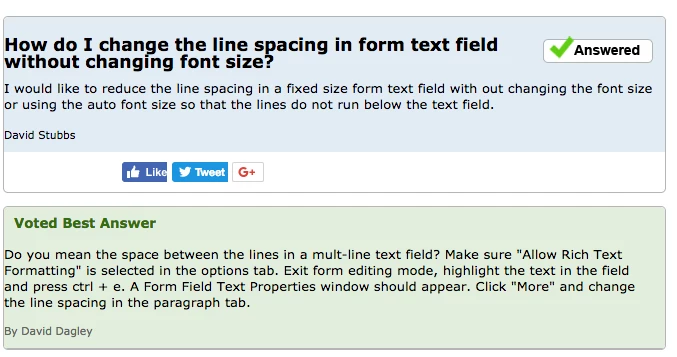
One answer I saw mentioned highlighting the text field and pressing ctrl + e, and then clicking on "more" in the menu that opens. They said you must then click on the "paragraph" tab. However, this does not exist on the MAC version as far as I can tell. What can I do? This is the answer I'm referencing and it does not work on my MAC.
Correct answer JR Boulay

You should understand that line spacing is a form field attribute.
Form fields attributes are not software-dependent, they are governed by the PDF specifications (ISO 32000).
Features requests should therefore be addressed to ISO, and neither Adobe nor any other software publisher can do anything about it.

See: https://www.pdfa.org/resource/iso-32000-pdf/

&

https://community.adobe.com/t5/acrobat-discussions/how-do-i-change-the-line-spacing-in-a-multi-line-text-field-on-a-pdf-form-on-mac/m-p/11840851#M298688


10 replies

Participant
June 11, 2025

I found that a missing key detail is in knowing that this line formatting needs to be done in Preview mode (vs the Editing mode).  
At the risk of beating a dead horse, this is what worked for me (Windows).  Hope it helps someone else cuz goodness knows this took a LOT of time (that I'll never get back) to figure out!


  1. In Preview mode, enter multiple lines of dummy text (to preview settings).
  2. Highlight the text.
  3. Ctrl-E to display a Text Field Properties box.
  4.  Select the chain icon to display a formatting popup.
  5. Click the Paragraph tab.

In the Line Spacing field, select Exactly and play around with the value until you see your dummy text fit the way you like (this is why it's helpful to have copied multiple lines of text).

Close the Text Field Properties box.

6. Remain in Preview mode.

7. Highlight the text and replace it by typing a [space] – this holds the formatting when you Close the preview mode.

8. Close the preview mode.

9. Save the PDF.

10. Repeat for all fields that require multi-line copy - you can simply re-edit the same PDF by selecting the Preparation Tool again and repeat the above steps for any additional form fields.


The document now is now ready to accept content, spaced according to the settings you made in the Preview mode (NOT the editing mode).


Happy PDFing!

Participant
June 11, 2025

Another small (but essential) detail that was already mentioned so, don't forget - from the form field Properties/Options tab, be sure to select "Allow Rich Text Formatting."  Otherwise, you won't get the full feature set in the Form Field Text Properties popup.

Participating Frequently
August 28, 2024

Hi 

Thanks for the information.  That helps with aligning the text onc its entered into the box. I was looking to find away that the text was always formatted this way when it was entered into the text field rather than doing after the text was entered.


Thanks 

Robert

PDF Automation Station
Community Expert
Community Expert
August 28, 2024

Put one character in the field and format the way you want.  Close the Rich text formatting toolbar.  Highlight the character in the field and press the space bar.  That should do it.

Participant
July 20, 2023

CHANGE the LEADING in Acrobat form

Press > Command+e <

A form text properties appear, select the text to change leading click in chain icon, select paragraph optiones and finally line spacing.


Participant
December 19, 2023

This is non exixtent on a Mac. Ridiculous that this question is still am issue ... I have the latest version of Adobe and OS as of Dec. 2023. 

JR Boulay
Community Expert
Community Expert
December 20, 2023

On Mac it's exactly the same, there is no difference.

Acrobate du PDF, InDesigner et Photoshopographe
JR Boulay
Community Expert
JR BoulayCommunity ExpertCorrect answer
Community Expert
March 23, 2023

You should understand that line spacing is a form field attribute.
Form fields attributes are not software-dependent, they are governed by the PDF specifications (ISO 32000).
Features requests should therefore be addressed to ISO, and neither Adobe nor any other software publisher can do anything about it.

See: https://www.pdfa.org/resource/iso-32000-pdf/

&

https://community.adobe.com/t5/acrobat-discussions/how-do-i-change-the-line-spacing-in-a-multi-line-text-field-on-a-pdf-form-on-mac/m-p/11840851#M298688


Acrobate du PDF, InDesigner et Photoshopographe
Participant
August 17, 2022

This is still not fixed. I pay £20/mth for a useless function. I would have thought Adobe would be the best at creating a fillable PDF. Not the case! 
I have wasted too many hours trying to fix the multi-line spacing in a fillable PDF (windows) 

I have tried the suggested fix of coming out of editing > changing the line spacing > leaving just spaces on each line to keep the spacing. But this just leaves code in its place when I then open the PDF using PDF program other than Adobe. Not everyone uses Adobe as their PDf reader!

How is line spacing on a mulitline line box NOT AND OPTION?!

This is a fix that just so happens to work, sometimes. It is a fix figured out by a user and not put there by Adobe.

Anyone paying for Adobe Pro just for the  Fillable PDF function, is better off with PDFEscape. It's free and has the same functions as Adobe. Still no line spacing. But at least if your set the font size to fit your lines, they keep their posistion. This is not the case for Sdobe. What you see is not what you get in the saved copy

lindam63486991
Participant
March 11, 2021

This solution works, however, if you want a user to see a blank form and just start typing without having to change the line spacing themselve, JUST ADD A BLANK SPACE AT THE BEGINNING OF THE FORM FIELD. Field will now hold line spacing when saved.

Participant
April 22, 2022

Oh my goodness - THANK YOU for this workaround. I was racking my brain trying to figure out how to retain the line spacing when sending it off.

Participating Frequently
April 26, 2022

It's the 2022, this question was asked in 2018, and Adobe still hasn't made setting leading easy. I can't believe how much time I've spentg on this one problem today.

JR Boulay
Community Expert
Community Expert
February 18, 2021

Lines are only useful on paper to guide handwriting. They don't make sense in a digital form.


Since we cannot manage line spacing in form fields, when I use this type of field in supplied documents (with lines) I use an "onFocus" script which changes the background color of the field (mostly white), and a validation script which leaves the white background if the field is filled or which makes it transparent if it is empty.

Acrobate du PDF, InDesigner et Photoshopographe
Participant
November 29, 2020

This is extremely helpful. The folks at Adobe must have worked several overtime shifts when determining out how best to hide this functionality in a way that is nearly impossible to locate. Thank you for describing where the ability to edit leading on multi-line form fields is buried.

andyp41477990
Participant
February 17, 2021

This is fine but does not allow you to format an existing document PDF with multi-line forms with the correct spacing set up for others to fill in (the document in question has come from a third party and has lines included where the multi-line forms are). You can set the spacing but when you delete the text it will default back.

So, you either leave the text in and ask the user to delete it when filling in the form or explain to them how to set the spacing. Either way is not ideal. A method of locking the formatting would be a great deal more useful.  


Thom Parker
Community Expert
Community Expert
February 7, 2018

Ctrl-e displays the properties toolbar, which has a number of font an paragraph options. However, these options are only available for Rich Text fields. Rich Text is a setting on the Options tab of the Properties Dialog for the text box.

On Mac the keyboard shortcut is Cmd-e.  On Acrobat DC this toolbar is also available from the "View > Show/Hide > Toolbar Items > Show Properties bar" menu item. You'll see the keyboard shortcut next to the menu item.

Thom Parker - Software Developer at PDFScriptingUse the Acrobat JavaScript Reference early and often
Participant
February 12, 2019

You're missing the point.  It's saying that Paragraph tab on the properties toolbar is NOT available on Mac version. 

Bernd Alheit
Community Expert
Community Expert
February 12, 2019

It is not available in old versions of Adobe Acrobat.

Bernd Alheit
Community Expert
Community Expert
February 7, 2018

What version of Adobe Acrobat?