
Participant
January 8, 2025
Answered

How do I get a PDF illustration as a high-resolution image in Word?

  • January 8, 2025
  • 1 reply
  • 809 views

I'm trying to insert a schematic sectional drawing in PDF format, that I created in Autodesk Inventor (see attached), as a high-resolution image into a Word document. However, this apparently simple task seems to be ridiculously cumbersome. I tried some different file formats and conversion tools but couldn't achieve satisfactory results so far. Here are my attempts:

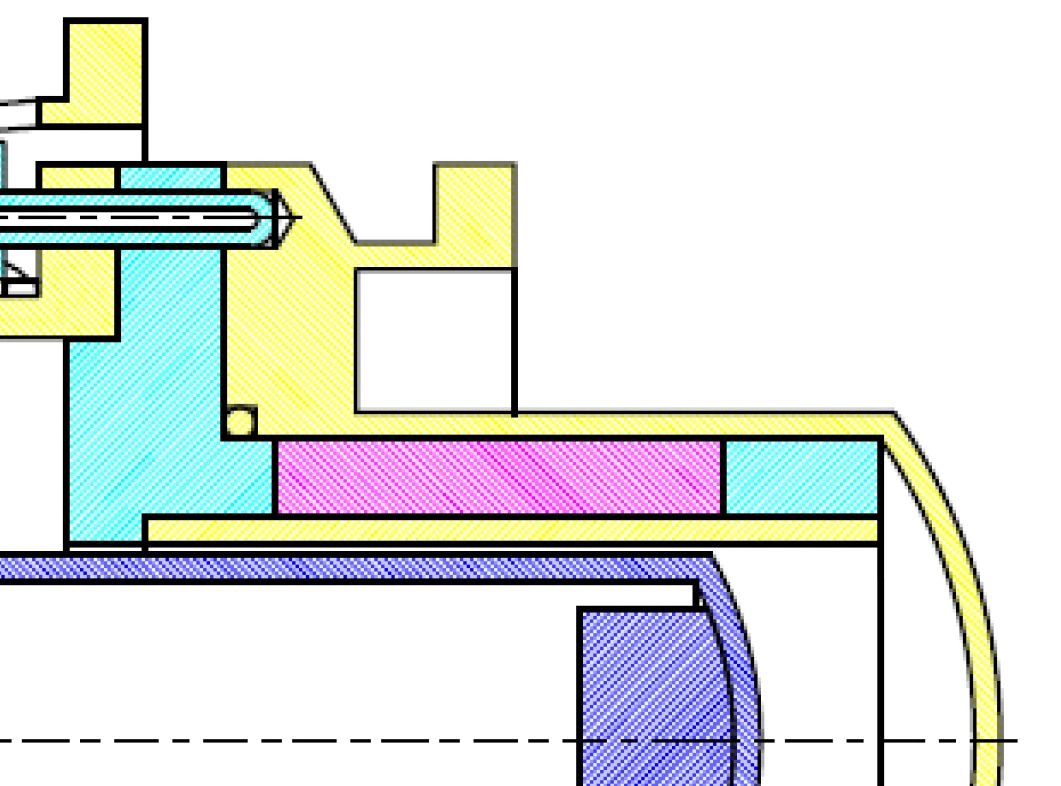
  1. Creating a screeshot of the PDF and inserting it into the Word document/ Problem: Poor resolution when zooming
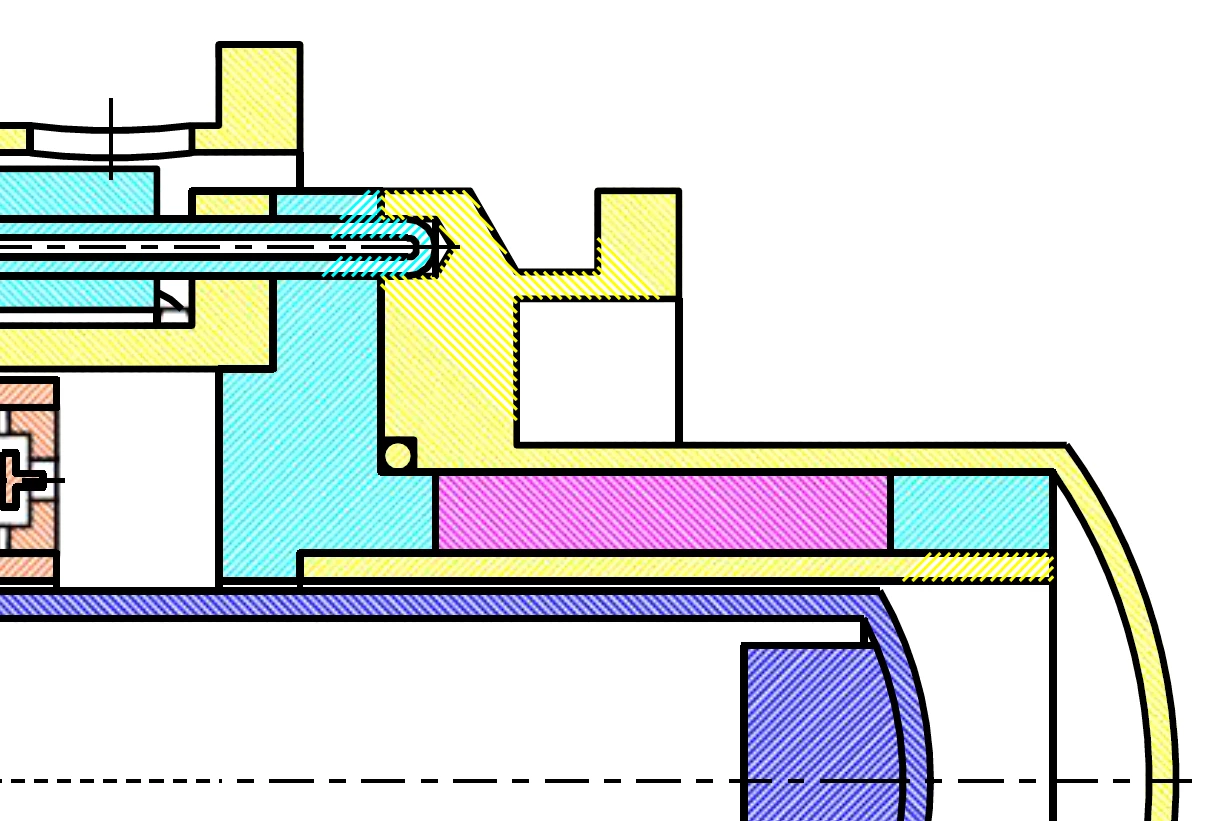
  2. Converting the PDF file with the Adobe tool to a Word file and and insert it into the Word document / Problem: Display errors in the hatching and partial conversion of the central dash-dot line into a dashed line
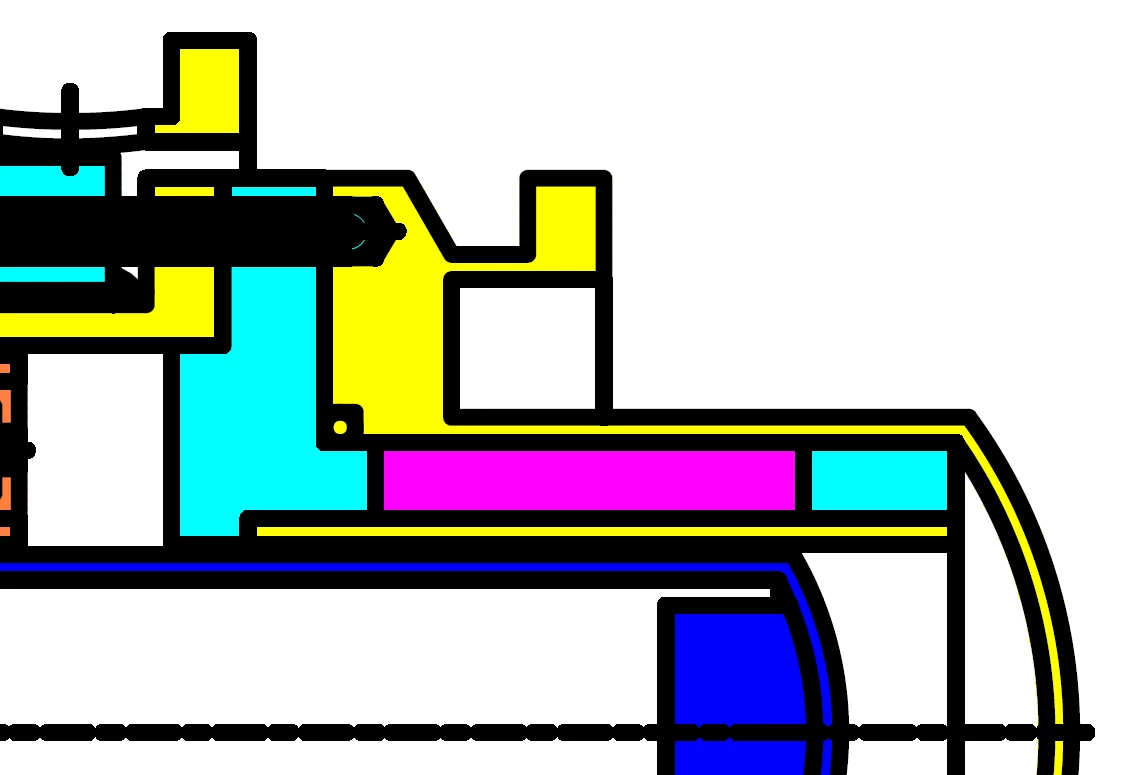
  3. Converting the PDF file with Illustrator to SVG, insert it into the Word document and save as PDF / Problem: Line width becomes much too thick and hatchings become color-filling
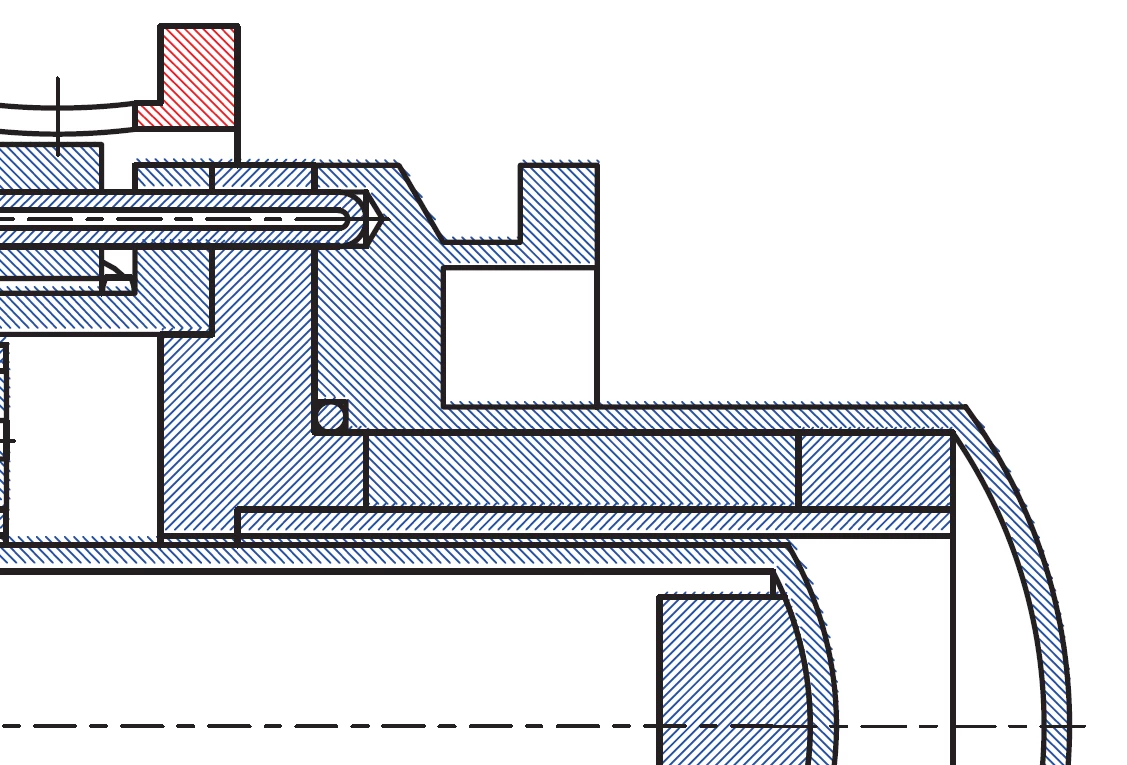
  4. Converting the PDF file with Illustrator to SVG, insert it into the Word document and save as Adobe PDF / Problem: Hatchings get an offset (shown here in a different color setting), sometimes the offset is smaller, but always present
Can anybody help?
Correct answer gary_sc

Hi, @bruce_4536, when I dragged this into a Word document, I did not observe any of the issues you mentioned. This was after decreasing and increasing the size of the image. 


However, I saw a large artboard around the image. This prevents any of the Word content from getting close to the image. To get rid of this you'll need Adobe Illustrator (You might be able to do the following in Autodesk, but I do not have a clue as to how to do that.


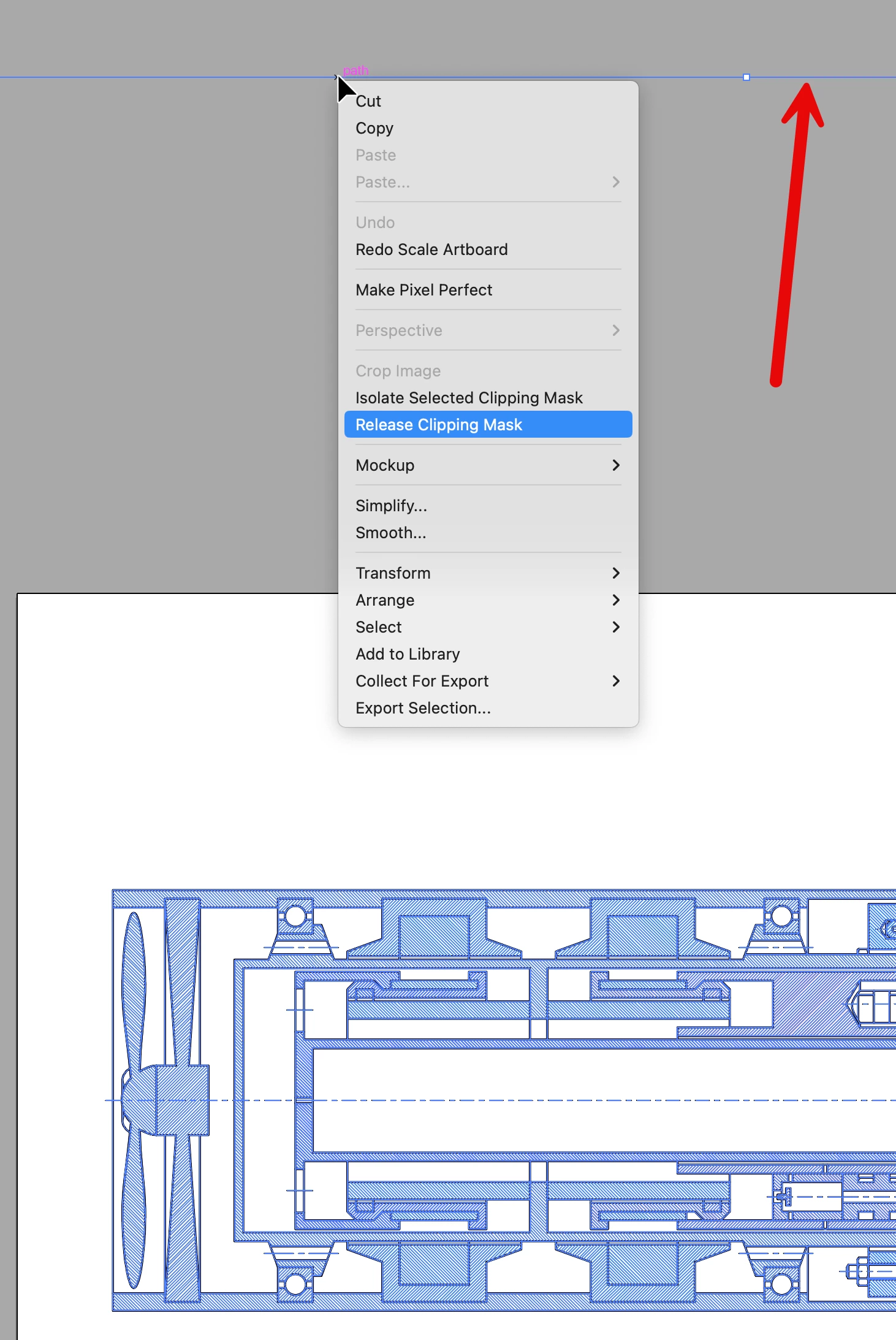
After opening this in Illustrator and trying to select the image, you'll see a blue line box a considerable distance from the drawing. You can see the top part of the box in the image below with the red arrow pointing at it. Right-click on that and select "Release Clipping Mask." 

(continued below)

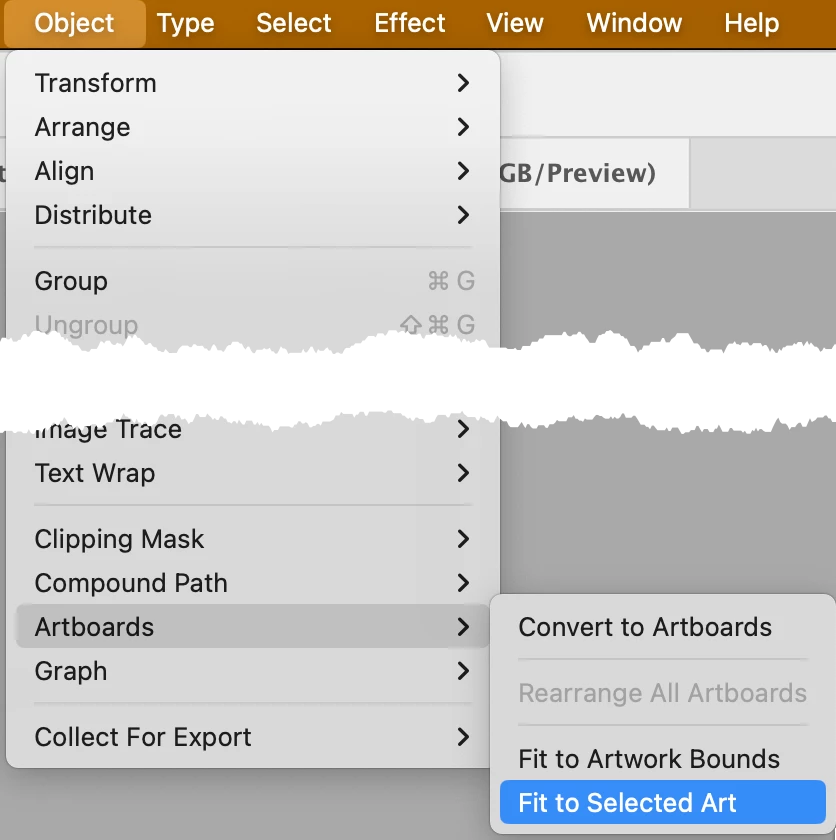
 Now, you can marquee around the entire drawing, and it will be selected. But to reduce the Artboard, you need to go back to the Object menu, drag down toward the bottom, and select Artboards —> Fit to Selected Art. Now, you can save the drawing back as a PDF, and then drag that into the Word document.


 Let me know if this solves the problem. If you do not have Illustrator, see if it's possible to do this in Autodesk.


Good luck.

1 reply

gary_sc
Community Expert
gary_scCommunity ExpertCorrect answer
Community Expert
January 9, 2025

Hi, @bruce_4536, when I dragged this into a Word document, I did not observe any of the issues you mentioned. This was after decreasing and increasing the size of the image. 


However, I saw a large artboard around the image. This prevents any of the Word content from getting close to the image. To get rid of this you'll need Adobe Illustrator (You might be able to do the following in Autodesk, but I do not have a clue as to how to do that.


After opening this in Illustrator and trying to select the image, you'll see a blue line box a considerable distance from the drawing. You can see the top part of the box in the image below with the red arrow pointing at it. Right-click on that and select "Release Clipping Mask." 

(continued below)

 Now, you can marquee around the entire drawing, and it will be selected. But to reduce the Artboard, you need to go back to the Object menu, drag down toward the bottom, and select Artboards —> Fit to Selected Art. Now, you can save the drawing back as a PDF, and then drag that into the Word document.


 Let me know if this solves the problem. If you do not have Illustrator, see if it's possible to do this in Autodesk.


Good luck.

Participant
January 9, 2025

Hi Gary,
Thank you for the quick response. Reducing the Artboard according your description worked. I could also drag and drop the image into Word, but it looks like this would involve converting it to a pixel-based graphic and degrading the resolution. Therefore, I converted the reduced Artboard illustration via "Export from Screens" to a SVG-file and inserted it afterwards into Word. This maintained the high resolution and I could no longer observe the offset of the hatch. So it finally worked.
Thanks.

gary_sc
Community Expert
Community Expert
January 10, 2025

Interesting. On my Mac I was able to drag the PDF directly into Word, resize it as I wanted, and never saw a pixel. 


Well, glad it worked out for you.