Inspiring
July 10, 2017
Answered

How do I make colored text black for press?

  • July 10, 2017
  • 1 reply
  • 4213 views

The headings in my FrameMaker file are blue (Pantone 534C), and the file also includes color graphics and a Pantone 534C blue logo that are EPS files. For the PDFs for press, I need the headings and the logo to be black and the graphics to be gray scale.

In Acrobat Pro, I can use the Gray Gamma 2.2 profile and Ink Manager to convert the graphics to gray scale and the logo to Process Black, but for some reason the blue text will not convert to black. It converts to a dark gray. I've tried selecting Promote Gray to CMYK Black, but that doesn't do anything. I've tried various settings while specifying the Object Type as Text to no avail. The only way I've found to get black headings is to make two PDFs from FM, one with colored headings for the web and one printed to PDF with Spot Color as Black/White selected for press. Then for press I use Acrobat to convert the logo and graphics to black and gray scale, respectively.

A Preflight analysis in Acrobat shows the EPS Pantone 534C logo as a spot color object, but the Pantone 534C heading text does not show as spot color. It seems that FrameMaker sees it as spot color because it'll make it black in the PDF when Spot Color as Black/White is selected during printing. But Acrobat doesn't seem to see the headings as spot color.

Of course, I could use the text editing tool in Acrobat to select each heading and make it black, but many of my PDFs are hundreds of pages, each in 12 languages, so that's not a good option.

So how can I get the blue headings to convert to 100% black in Acrobat?
This topic has been closed for replies.
Correct answer Luke Jennings

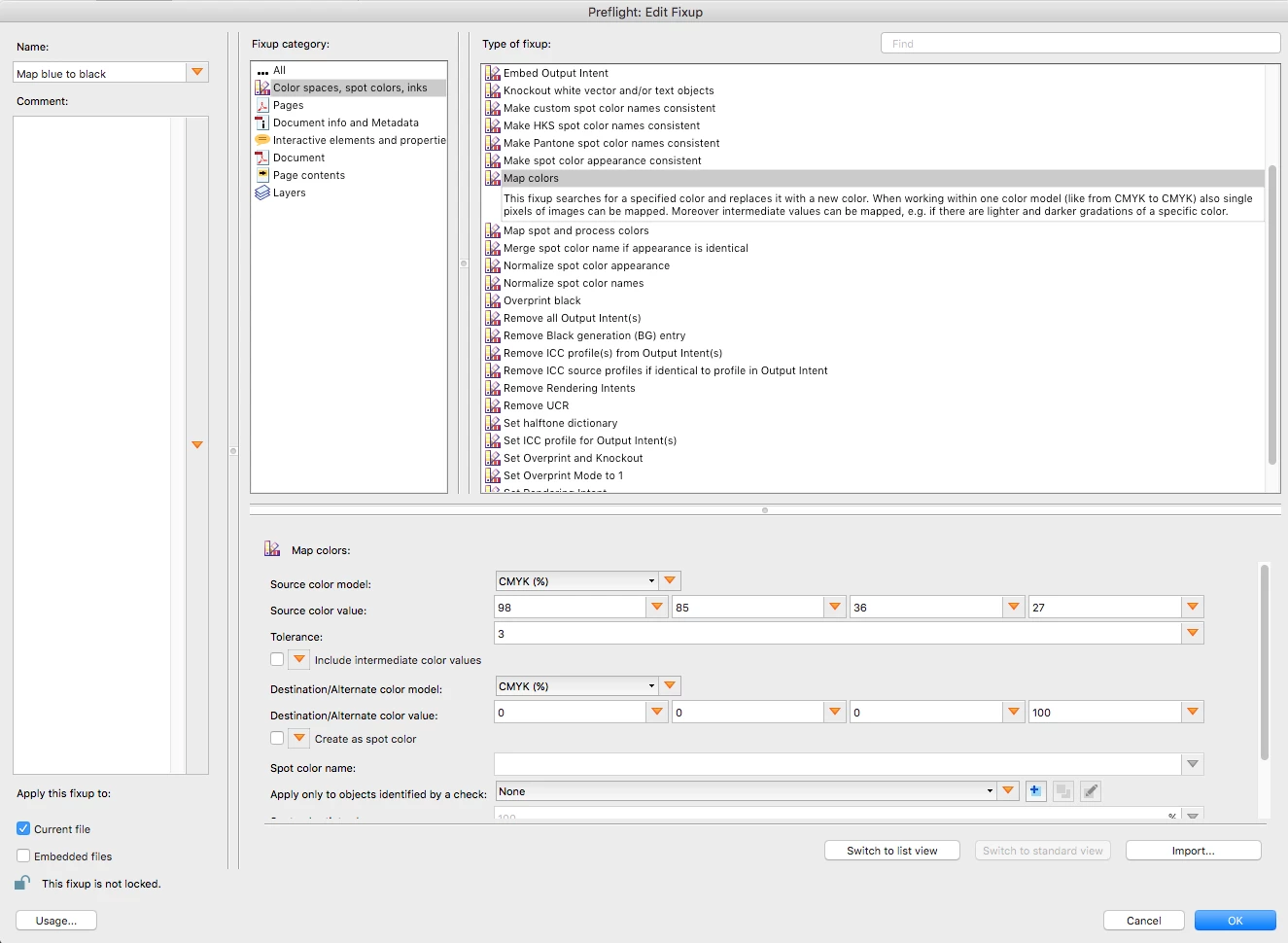
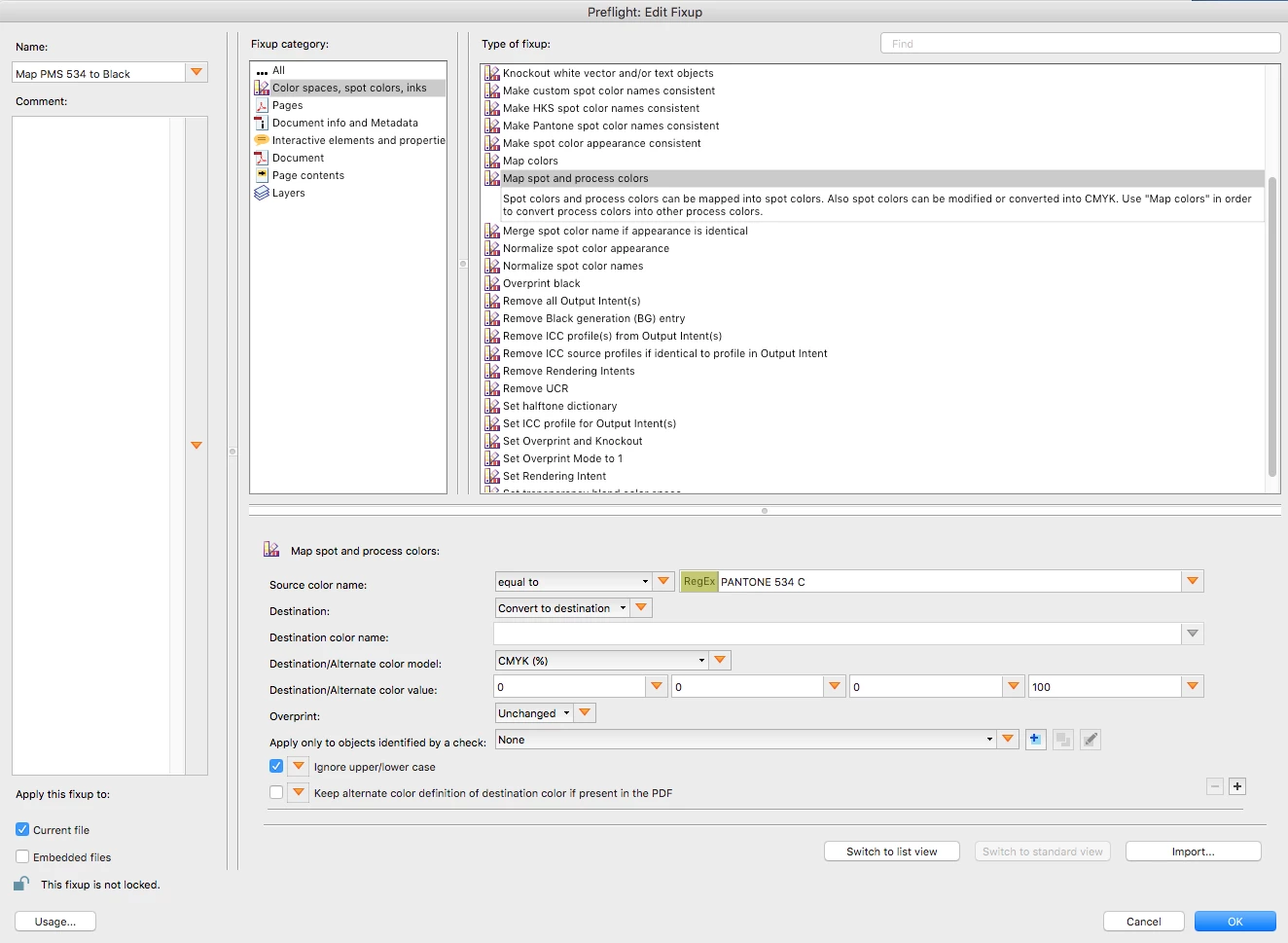
You can make a custom preflight profile to do this. When you view the original PDF in Acrobat with output preview on, is the blue type a spot color, 4C, or RGB? If spot, go to Tools> Print Production> Preflight> and click on the blue wrench icon (changes), go to the fly-out menu in the upper right corner and select "create new preflight profile", select Map Spot colors and follow my first screen shot for settings. Save.

If your PDF has 4C blue type, follow my 2nd screen shot settings.

1 reply

Luke Jennings
Luke JenningsCorrect answer
Inspiring
July 13, 2017

You can make a custom preflight profile to do this. When you view the original PDF in Acrobat with output preview on, is the blue type a spot color, 4C, or RGB? If spot, go to Tools> Print Production> Preflight> and click on the blue wrench icon (changes), go to the fly-out menu in the upper right corner and select "create new preflight profile", select Map Spot colors and follow my first screen shot for settings. Save.

If your PDF has 4C blue type, follow my 2nd screen shot settings.

Inspiring
July 26, 2017

Thing is the blues are both supposed to be Pantone 534 C. The logo shows as Pantone 534 C in the PDF, but the headings (which are Pantone 534 C in FrameMaker) show as 4C in the PDF.

But you pointed me in the right direction, though I think you're showing screens from a newer version of Acrobat. I'm on XI and don't see "Map colors" under Preflight: Edit Fixup. But I used Create New Preflight Fixup to convert the headings to PANTONE 534 C spot color, so then in Print Production, the Convert Colors function sees both the heading and the logo as Pantone 534 C and converts them to process black.

It's still a two-step process, but faster than making two sets of PDFs. Thanks Luke!