
Participating Frequently
August 14, 2023
Answered

How do I turn a JavaScript in the JS Console into a permanent macro?

  • August 14, 2023
  • 2 replies
  • 2507 views

Courtesy of member @try67, I now have this JavaScript running in the JavaScript (JS) Interactive Console:
[See:  https://community.adobe.com/t5/acrobat-discussions/identifying-all-hidden-hyperlinks-in-a-pdf-using-acrobat-pro-for-mac/m-p/14004336#M423908 ] 
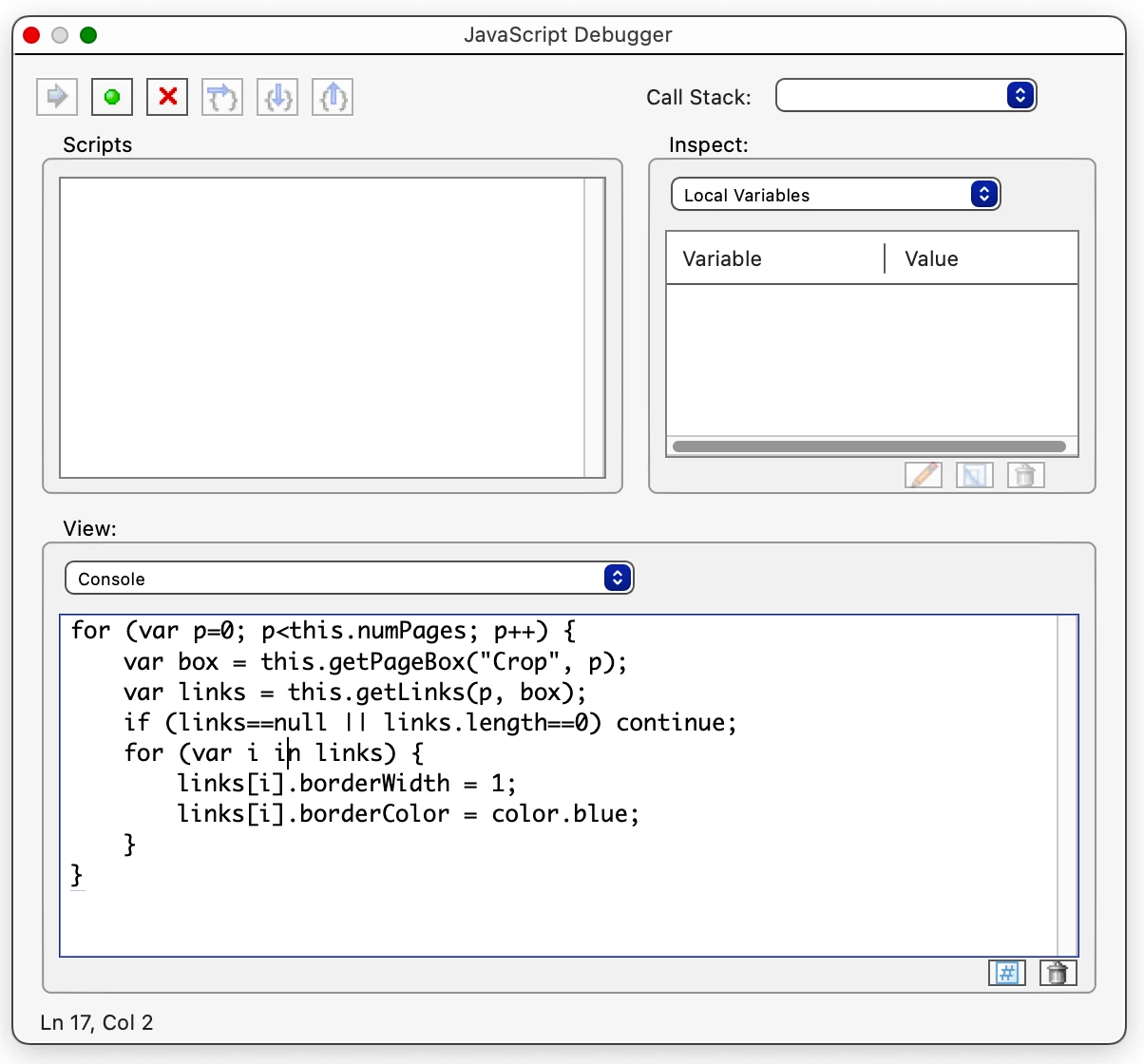
However, as I've this is my first time using the JS Console, I don't know how to convert this to a permanent macro.  Ideally I'd like to be able to add it as a button to my Ribbon.  But barring that, I'd like to save it wherever these scripts are stored, so that I can call it up as needed.  Please note that I don't want it to be tied to any specific document.  Rather, I'd like it to be runnable in any PDF.

Can anyone either explain how to do this, or provide an instructional link?  

I looked through Adobe's JavaScript materials, and wasn't able to find specific instructions.
This topic has been closed for replies.
Correct answer Nesa Nurani

If you want it to be placed in a 'ribbon' you can add custom tool.

Save js file with this script:

var rLinks = app.trustedFunction(function()
{
app.beginPriv();

for (var p=0; p<this.numPages; p++) {
	var box = this.getPageBox("Crop", p);
	var links = this.getLinks(p, box);
	if (links==null || links.length==0) continue;
	for (var i in links) {
		links[i].borderWidth = 1;
		links[i].borderColor = color.blue;
	}
}


app.endPriv();
});

app.addToolButton({
    cName: "Remove links",
    cLabel: "Remove links",
    cExec: "rLinks()",
    cTooltext: "",
    nPos: 0});

Then place file in JavaScript folder.

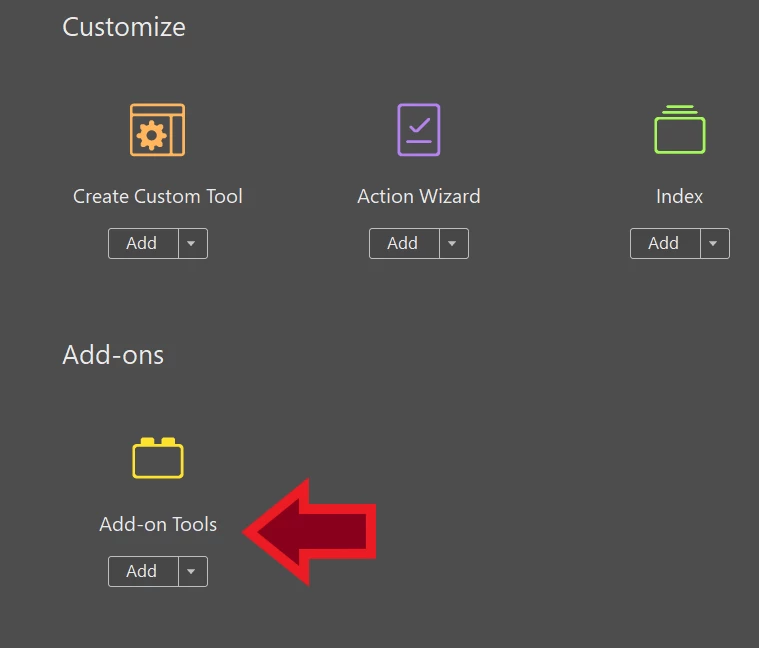
Now open acrobat and go to tools, you should see this:

Select it and now you should have new tool in your ribbon:

2 replies

Nesa Nurani
Community Expert
August 14, 2023

You can also add a custom menu item, read this:

https://acrobatusers.com/tutorials/add_custom_menu_items/ 

Participating Frequently
August 14, 2023

I looked through those instructions.  I ran this code...

app.getPath("app","javascript"); 

.... and got the path where my Javascript folder is stored.  

And I understand I'm supposed to create a text file, Config.js, and add this to it:

app.addMenuItem({cName:"-", cParent:"Help", cExec:" "}); 
app.addMenuItem({cName:"JS Ref", cParent:"Help", cExec:"app.openDoc('/C/Acrobat Docs/YourFile.pdf');"

....where I substitute the desired name of the menu item for "JS Ref", and substitute my own path for the path shown above. 

However, I'm stumped by this...
"app.openDoc('/C/Acrobat Docs/YourFile.pdf');"
The documentation says:
"This code assumes the JavaScript Reference is stored on the C drive in the Acrobat Docs subfolder. You will need to modify this path to the specific location on your system where this file exists."

What does Thom mean by "Java Script Reference"?   And doesn't this code need to refer back to my JavaScript file (which it seems I'd still need to create and store as a .js text file), rather than to a PDF?


Bernd Alheit
Community Expert
August 14, 2023

The JavaScript Reference is part of the Acrobat SDK.

Bernd Alheit
Community Expert
August 14, 2023

You can create an action in the Action Wizard for this.

Participating Frequently
August 14, 2023

The documentation I found is limited.  This talks about creating custom commands using the Action Wizard, but not much specifically about JavaScripts: https://helpx.adobe.com/acrobat/using/action-wizard-acrobat-pro.html

Nevertheless, after stumbling about, I think I managed to create a new action using a Javascript&colon;

And now it actually seems to be there, as evidenced by this:


Is there anywhere that the sequence of steps I just took is actually documented?  And, more importantly, how do I actually run this Action, and/or add it as a button to my ribbon or menu?  I can't figure out that step, and I can't find any documentation that says "Once you've saved your JavaScript as an Action, to run it you....."

Bernd Alheit
Community Expert
August 14, 2023

Look at the help for instructions to run the action.
