

Correct answer creative explorer

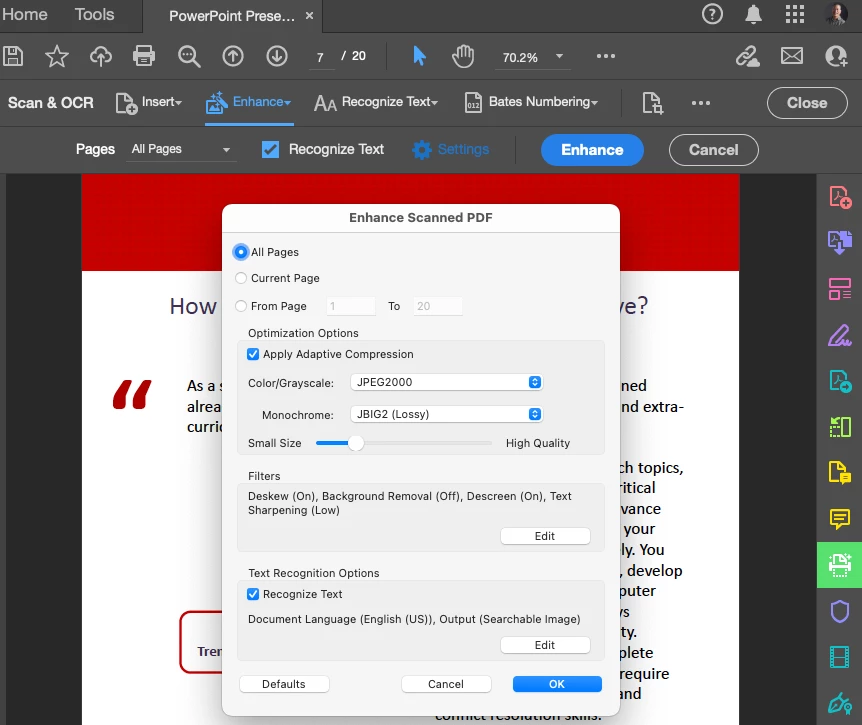
@Mayer25656451v1qt One method within Acrobat is to use the "Enhance Scanned File" tool, which can be found under the "Scan & OCR" section in the "All tools" menu. 
 

3 replies

creative explorer
Community Expert
creative explorerCommunity ExpertCorrect answer
Community Expert
April 22, 2025

@Mayer25656451v1qt One method within Acrobat is to use the "Enhance Scanned File" tool, which can be found under the "Scan & OCR" section in the "All tools" menu. 


m
JR Boulay
Community Expert
Community Expert
April 22, 2025

See "Enhance scanned file settings" on this page: https://helpx.adobe.com/acrobat/using/enhance-camera-images.html


Acrobate du PDF, InDesigner et Photoshopographe
gary_sc
Community Expert
Community Expert
April 22, 2025

If the scan is too light, it's mostly too late. You can do it in Photoshop, but it will never be as good as it could have been if adjustments were made during the scan. 


Sadly, too many people use the scanner in the following manner: you place the paper in the scanner, tap the button, and you're good to go. I'll not say that doesn't work if the original copy is good, but often it isn't.


Here is a blog I wrote for Adobe a number of years ago. Everything you see here "can" be done in Photoshop, but the results will be better if they are done in the scanner at the time of the image's creation. If you do this in Photoshop, get ready for a tedious project. You have to do every page separately and combine them afterward. Also, the size of a Photoshop PDF tends to be very large, so after you've reassembled everything, open the final document in Acrobat and resave the file to decrease the size. 


Good luck!


https://community.adobe.com/t5/adobe-community-professionals/scanning-clean-searchable-pdfs/m-p/4785435?page=1#M89
