New Participant
November 4, 2020
Answered

How to remove Digital Signature

  • November 4, 2020
  • 5 replies
  • 265033 views

How to remove Digital Signature

I need to remove the digital signature that I created so I can edit the document.  When I right-click on my signature there is no option to clear the signature. 

Correct answer AnandSri

Hi!


Hope you are doing well.


If you have forgotten the digital id password, then you can detach the digital id.

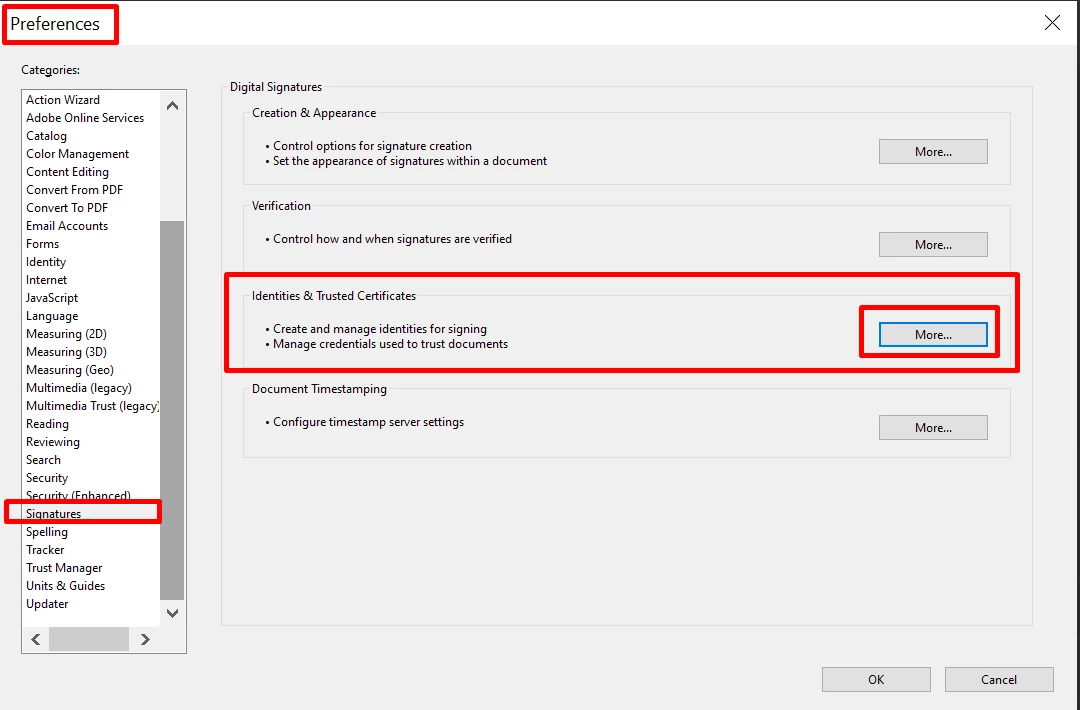
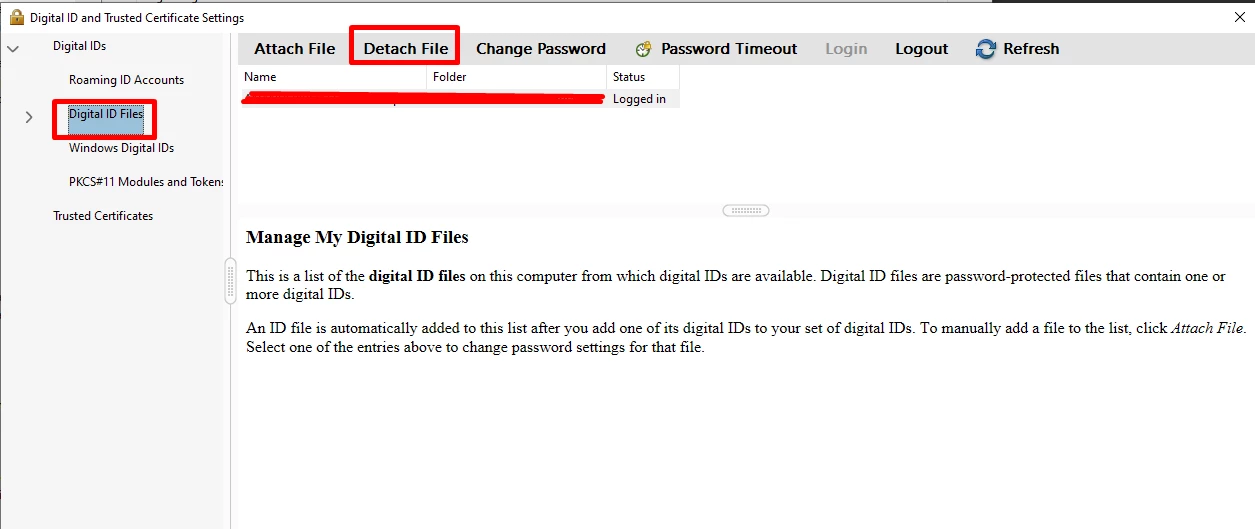
Navigate to Edit -> Preferences (Win), or Acrobat -> Preferences (Mac), then select Signatures -> Identities & Trusted Certificates -> More, Click on Digital ID Files, select the one you want to detach, and click Detach File. After that, you can delete the .pfx file.


Note:

You can delete only self-signed digital IDs that you created in Acrobat. A digital ID obtained from another provider cannot be deleted.


To know more about the Digital Ids, see this article: Manage Digital IDs


I hope this helps.


Thanks,

Anand Sri,

5 replies

New Participant
November 29, 2023

Hi everone,

When I try to Remove ID, I got this error, what should I do about it?


Kr,

Ibrahim


Amal.
Community Manager
Community Manager
December 5, 2023

Hi there


Have you tried the steps provided in the correct answer shared above?


Let us know how it goes.


~Amal

New Participant
December 6, 2023

Hi Amal,

Thank you for your reaction.

There are no items in the Digital ID Files. However, when I try to sign a document, I have several people (whoever ever used my computer to sign a document) that show up in the list. But some of them are not working here anymore for example.

How can I remove theses suggestions from the list?


Kr,

Ibrahim


New Participant
January 3, 2023

No correct answer for my issue. Did not come close to working

Amal.
Community Manager
Community Manager
January 4, 2023

Hi @Daren27786920w346 


We are sorry to hear that.


What happens when you try to follow the suggested steps from the correct answer above ? Do you get any error message? If yes, please share the screenshot of the same for a better understanding.  A small video recording of the same would be very helpful.


Please note that you can delete only self-signed digital IDs that you created in Acrobat. A digital ID obtained from another provider cannot be deleted.


Regards

Amal

New Participant
January 4, 2023

Adobe cloud SUX

I want my Adobe STD back.

How do I get my ADOBE std out of this licensae ?

Says it's available but NOooooo 

Raveendra Babu V
New Participant
July 13, 2022

Hi,


It might help You.


Right Click on Digital Signature -->Validate Signature --> Signature Properties -->Show Signatur's Certificate -->Trut -->Add to Trusted Certificates -->ok

Participating Frequently
December 23, 2020

Before reading this my issue has been solved. I found this very helpful thank you so much, sir.

Participating Frequently
December 29, 2020

wow its Awesome Thank you.

AnandSri
Community Manager
AnandSriCommunity ManagerCorrect answer
Community Manager
November 4, 2020

Hi!


Hope you are doing well.


If you have forgotten the digital id password, then you can detach the digital id.

Navigate to Edit -> Preferences (Win), or Acrobat -> Preferences (Mac), then select Signatures -> Identities & Trusted Certificates -> More, Click on Digital ID Files, select the one you want to detach, and click Detach File. After that, you can delete the .pfx file.


Note:

You can delete only self-signed digital IDs that you created in Acrobat. A digital ID obtained from another provider cannot be deleted.


To know more about the Digital Ids, see this article: Manage Digital IDs


I hope this helps.


Thanks,

Anand Sri,

New Participant
December 23, 2020

Please help! My mac does not show the exact same screen as you and so the options at the top look different. 

 I don't know how to procede from here because I am unable to find the "detach file" option. I tried clicking Remove ID, but that still requires a password to continue.