

KazuT
Inspiring
March 3, 2017
Beantwortet

Hyperlink rectangle no border Acrobat

  • March 3, 2017
  • 1 Antwort
  • 15871 Ansichten

I finally figured out how to make a hyperlink rectangle without a border. It makes no sense, but:

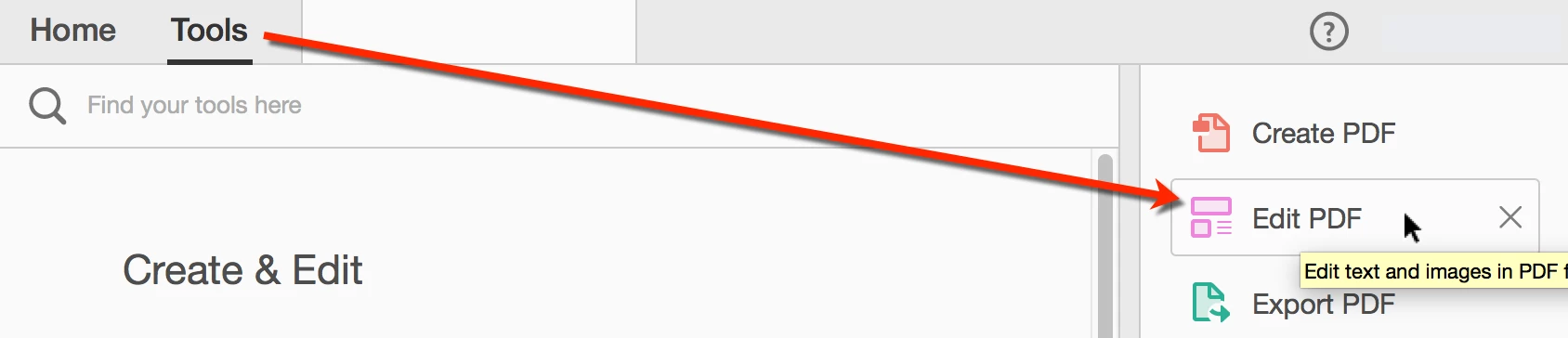
1.) Go to "Tools" / "Edit PDF":
2.) Under "Link" menu, select "Add/Edit Web or Document Link":
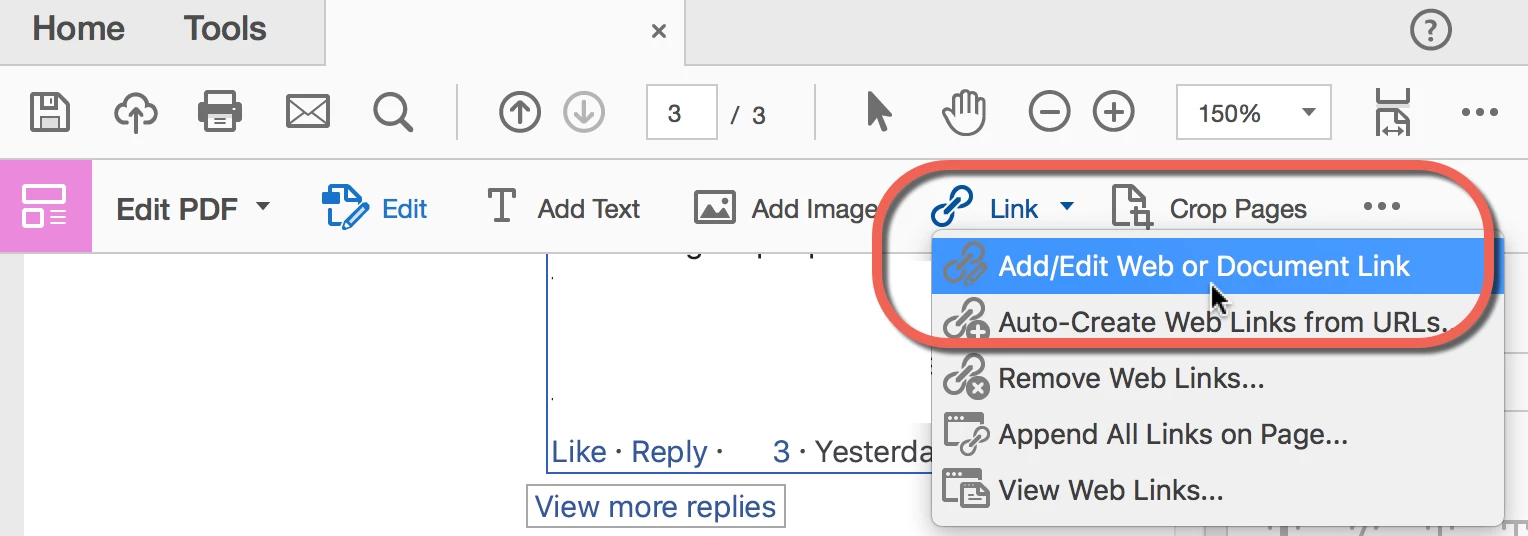
3.) Highlight where you want the link to be:

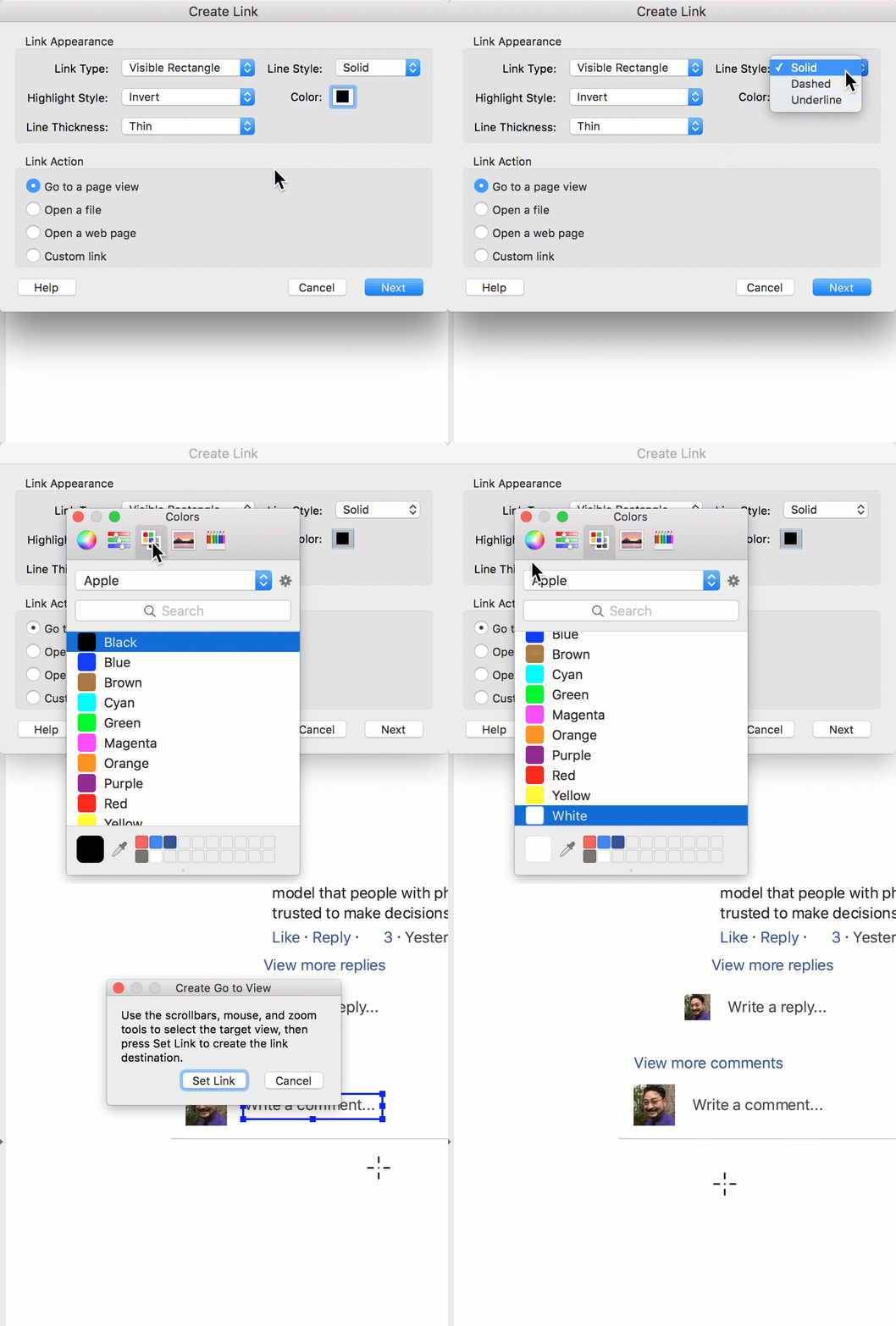
4.) See GIF below:
      a.) Link Type = VISIBLE rectangle (makes no sense)

     b.) Line Style = SOLID

     c.) Color = Your page's color (ex. white)

          I like to use the Color Palettes, though I have to SCROLL DOWN to find "White"

     d.) CLOSE the Color Pop Up Window. There is no helpful "OK" button.
Dieses Thema wurde für Antworten geschlossen.
Beste Antwort von try67

That's only in the edit mode (so that you can see the object)... If you switch back to view mode (by selecting the Hand tool, for example), it should disappear.

1 Antwort

try67
Community Expert
Community Expert
March 3, 2017

What's wrong with selecting Invisible Rectangle under Link Type?

KazuT
KazuTAutor
Inspiring
March 5, 2017

For some reason, selecting "Invisible Rectangle" makes the border of your link shape black (no matter what color you pick). Selecting "Visible Rectangle" doesn't make the shape opaque (counterintuitive); but it lets you pick the border color (since "no border" is not an option).

try67
Community Expert
try67Community ExpertAntwort
Community Expert
March 5, 2017

That's only in the edit mode (so that you can see the object)... If you switch back to view mode (by selecting the Hand tool, for example), it should disappear.