First, thank you for responding. I found preflight but I don't see an option to search for content based on unique properties nor do I see an option regarding layer properties. I click on preflight but there is no option for "preflight check." Could you give me a bit more information?
And, really, thank you so much for your advice. I appreciate it!
If you've never worked with the Preflight tool, this gets a bit complicated.
When you open Preflight, you will see three different categories: Profiles, checks and fixups:

For what you want to do, we need one new "Check", and one new "Fixup". So, first select the "Check" category (that's the magnifying glass in the middle), and then use the menu under "Options" to select "Create Check".
Before we create the check, let's take a step back to what Stephen said: You want to search for text in e.g. a certain font that is only used for your Bates numbers, so that you can then move the text that is set in that font to a dedicated layer. This means that you first have to select what font you want to use (this should be a font that does not appear anywhere else in your documents). I selected "Baskerville" for my example. We now need to create a new "Check" that identifies all "Baskerville" text.
The first thing we do with your new check, is to give it a meaningful name. I named mine "Font is Baskerville". Here is how I set it up:
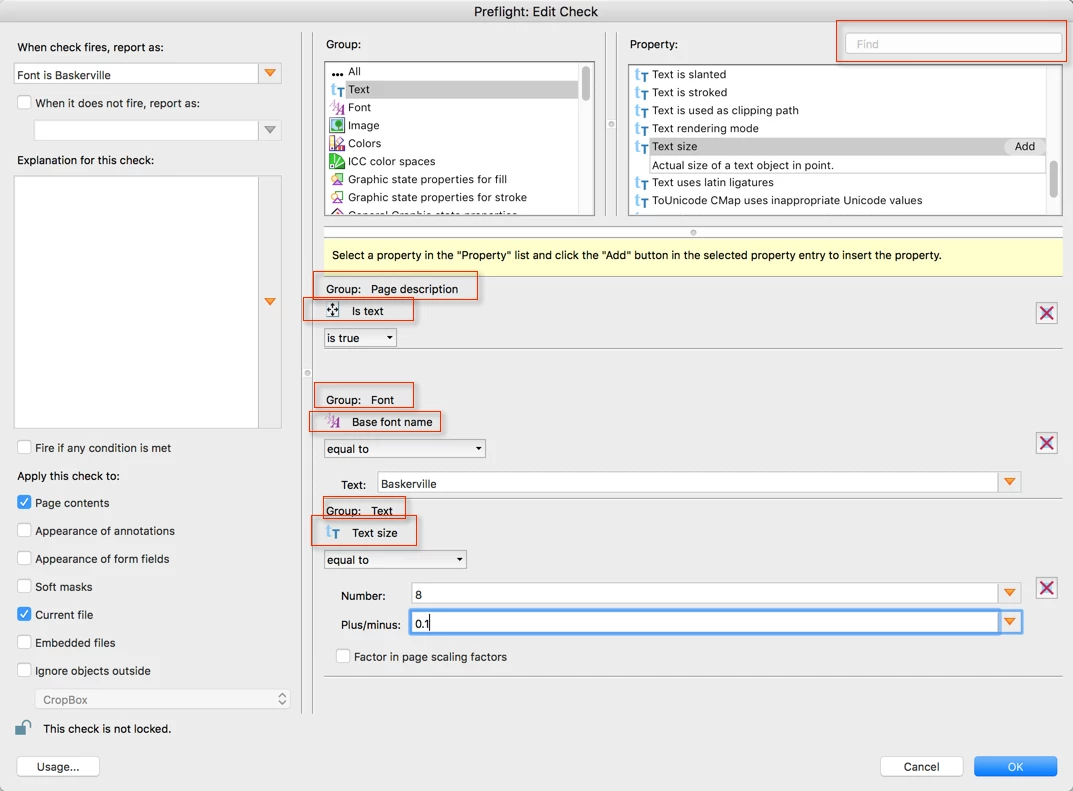
As you can see, we need a "Group" and a certain "Property" to add an item. I've highlighted the group/property information for the three steps. You first select e.g. "Page Description" in the list of groups, and that then filters what gets shown in the property list. So, we are looking for:
- objects that are text
- with a font that matches "Baskerville"
- with a font size of about 8pt (+/- 0.1pt)
You can use the search field at the top to e.g. find the "Base font name" property without having to scroll thorough the whole list.
When you are done, click on the "OK" button to save this check.
Now we create a new fixup. Click on the Wrench button, and then select to create a new Fixup under the Options menu. Give it a good name (e.g. Move "Baskerville" text to "Bates" layer).
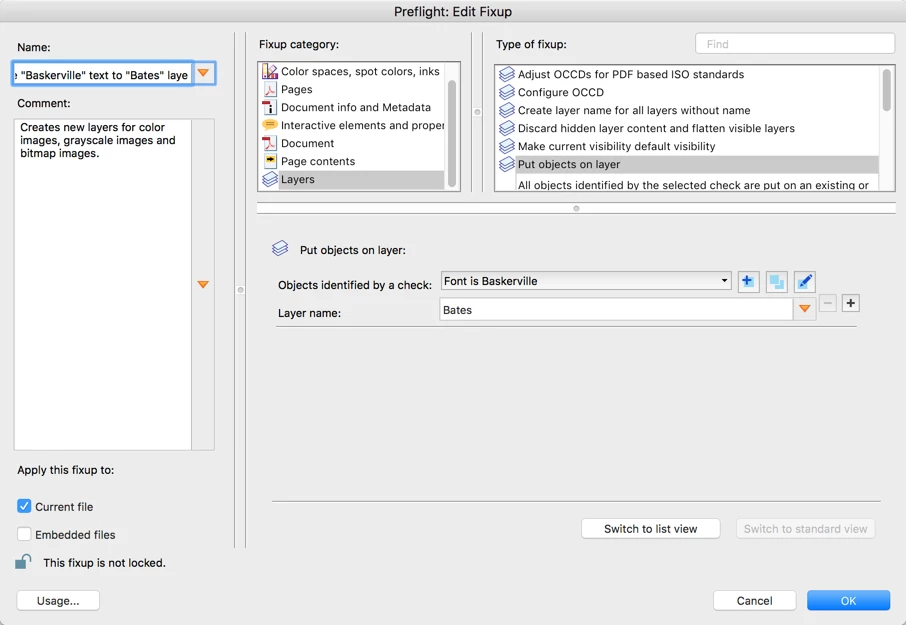
Once the fixup is created, you can use it. In the following screenshot, I am filtering all Fixups by searching for only those that contain "bask":
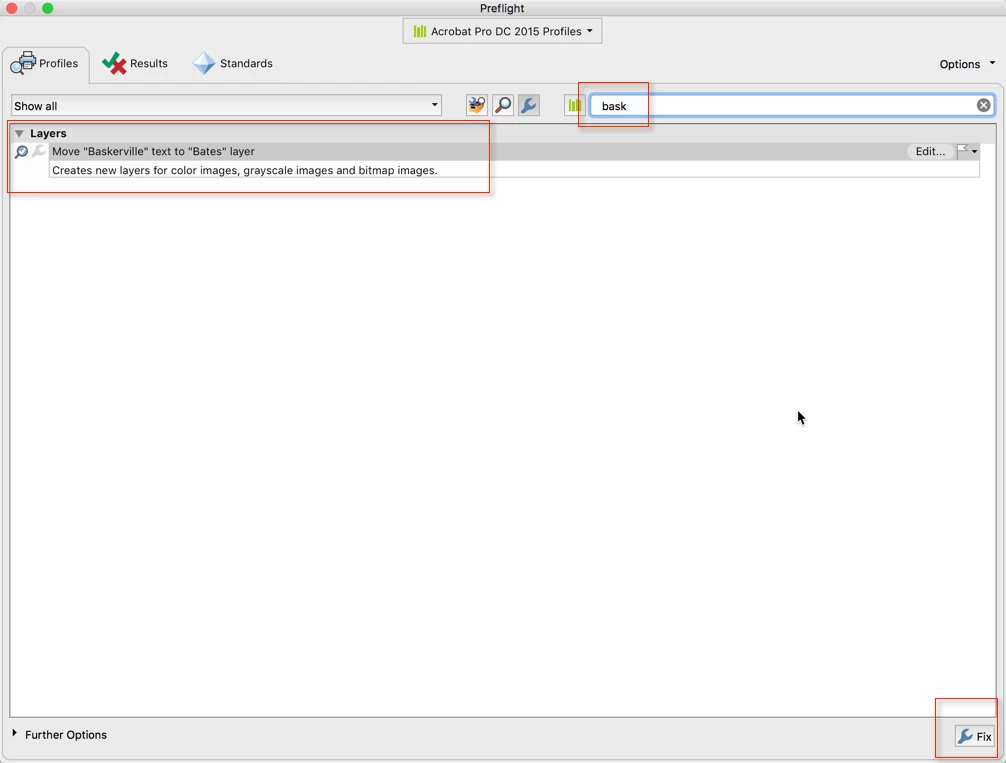
Once located, select the fixup and then click on the "Fix" button at the bottom of the dialog. This will create the new layer and will then allow you to go into the layer configuration as demonstrated by Stephen and configure it to not print.

 AdChoices