Participating Frequently
February 17, 2024
Answered

Mask and save PDF

  • February 17, 2024
  • 1 reply
  • 4089 views

Hello All,


I have an issue.

I need to cover some areas on a pdf file so they will not be possible to read/shown when someone opens the file.

I need to do it batchwise and mostly the markings are on the same spot/area.

But depending on format, for example a A3 and A4 or landscape or portrait are different also for the allignment  ( A3 and A4 or landscape or portrait).


Currently I import all pdf files in a photoshop program named gimp and I have save a transparent layer with on different areas some black squares and then print as PDF and save etc.
 

Would it be possible to do it easier/quicker in Acrobat?
I have tried to draw black boxes and save them, but unfortunately someone else can drag them away when opening the file.

Also when I print them as a pdf through acrobat it shortly shows when opening the file.


I am really looking for a quick solution were I for example do the steps in below:


1.Open the drawing in acrobat

2.Push mask button (each format a3,a4,landscape,portrait has a different button which I setup once)

3.Save (the file will be saved and nothing can be removed or will be shown opening the file)


Hopefully someone can help me with this.


Thanks in advance.


Ben



Correct answer try67

Hi, I have tried several times to figure out how this works with no succes.
I simply do not understand were I need to at the custom commands.


Is there someone who can show me detailed what to do? I will pay a fee if neccesary?


Thanks again.


Here's the Custom Command file. To import it into Acrobat go to Tools - Action Wizard - Manage Custom Commands - Import, and select it. It should appear in the list as "Apply Redactions and Save".

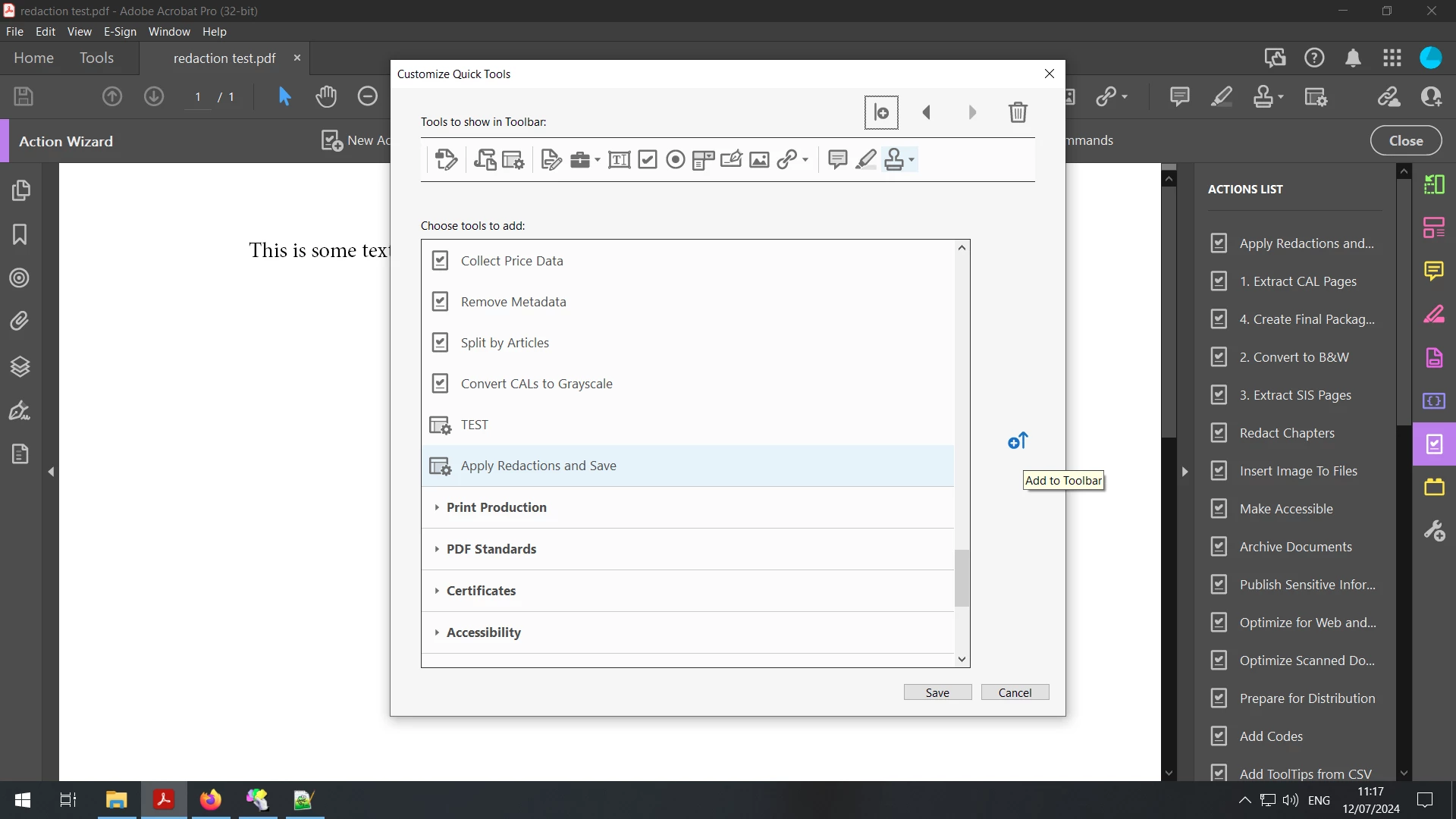
Now you can add it to the toolbar above the document, like this: Right-click the toolbar and select "Customize Quick Tools", then collapse the "Action Wizard" section and scroll down. You should see the new CC at the bottom of the list:


Select it and click the Add to Toolbar button on the right, and it should be added to the list of quick tools after you click Save.

Click it to apply the redactions in the current file and save it under its current path, without any prompts.

1 reply

try67
Community Expert
Community Expert
February 17, 2024

The only safe way to do it is with the Redaction tool.

Participating Frequently
July 6, 2024

Hi, 

It has being a while.

I use the redaction tool and it works fine with me.

The only thing I do not like is when I have marked the areas and want to save and overwrite I get 4 questions which i must click and aprove (apply and over write) I want just one click overwrite.


Is that possible in some way?


Thanks again

try67
Community Expert
try67Community ExpertCorrect answer
Community Expert
July 12, 2024

Hi, I have tried several times to figure out how this works with no succes.
I simply do not understand were I need to at the custom commands.


Is there someone who can show me detailed what to do? I will pay a fee if neccesary?


Thanks again.


Here's the Custom Command file. To import it into Acrobat go to Tools - Action Wizard - Manage Custom Commands - Import, and select it. It should appear in the list as "Apply Redactions and Save".

Now you can add it to the toolbar above the document, like this: Right-click the toolbar and select "Customize Quick Tools", then collapse the "Action Wizard" section and scroll down. You should see the new CC at the bottom of the list:


Select it and click the Add to Toolbar button on the right, and it should be added to the list of quick tools after you click Save.

Click it to apply the redactions in the current file and save it under its current path, without any prompts.