
Participant
March 27, 2025
Question

Noto Sans Fonts Unavailable for Editing in Adobe Acrobat After Update

  • March 27, 2025
  • 2 replies
  • 1125 views

Hi everyone


I’m reaching out for help after searching extensively for answers and trying multiple troubleshooting steps.


Our company’s corporate identity relies on the full Noto Sans font family. However, after the latest Adobe Acrobat update, I can only use Noto Sans CJK JP, while all other variations of the font are marked as unavailable for editing. These fonts work perfectly fine in other Adobe programs, so I’m unsure why Acrobat won’t recognize them.

When I check my fonts in Acrobat, I see this:
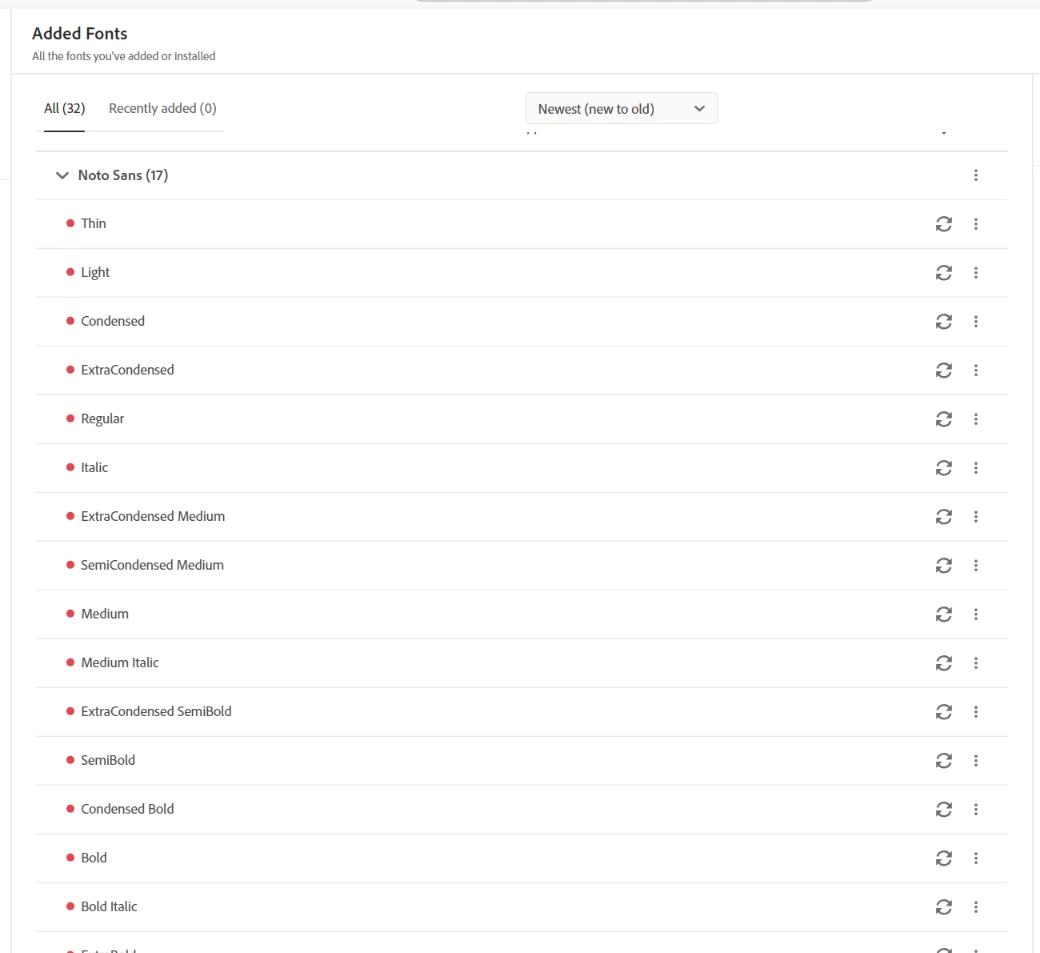
 

If I try to synchronize the fonts, I get an error, and Acrobat won’t sync them with “In Adobe Apps.”


Does anyone know how to fix this?

We rely heavily on quick editing in PDFs, so this issue is becoming quite frustrating. Any help would be greatly appreciated!


Thanks in advance!

2 replies

Participant
September 2, 2025

This is a known issue with the recent Acrobat update. Unlike other Adobe apps, Acrobat only recognizes fonts if they are installed system-wide and embedded in the PDF. That’s why you only see Noto Sans CJK JP.

Fixes to try:

Install the full Noto Sans family locally (from Google Fonts
), not just via Adobe Fonts sync.

In Acrobat, check File > Properties > Fonts to see if Noto Sans is embedded — if not, re-export the PDF with fonts embedded.

In Preferences > Page Display, toggle “Use Local Fonts.”

Update Acrobat to the latest patch — or roll back to the previous version if the issue started after the update.

Until Adobe patches this, local install + proper embedding is the most reliable workaround.

S_S
Community Manager
Community Manager
March 27, 2025

Hi @rachaelm64974508,


Hope you are doing well. Sorry for the trouble.


I tried using the fonts on my end, and it worked. I am currently on the latest version (2025.001.2043x).


Would you mind going to https://adobe.ly/43p2hMF and search for the Noto Sans font family-> remove them from your account-> add them back.


Once done, check on the Creative Cloud Desktop App again, and try to work with them on Acrobat.


Hope this helps.


Regards,
Souvik.

Participant
April 27, 2025

Good day, @S. S, I am having a similar problem. I am unable to edit my document using Noto Sans font. When I click edit and put the cursor over the word I want to edit, it shows noto sans font, but when I start typing, the font changes to Minion Pro, which looks completely different. Can you please advise? You can see in my screen shots below the before and after edit attempt. 

S_S
Community Manager
Community Manager
September 1, 2025

Hi @Adorable_developer7970,


Hope you are doing well. Sorry for the trouble and the delayed response.


The two screenshots show two different stories. 


The first screenshot shows the scenario where you have selected the text box, and Acrobat recognizes the font in your list.

The second screenshot shows where you are editing the text, and Acrobat redirects to the default font set for editing.


Have you checked if you changed the font to Noto Sans once before you start typing and checking if the font still changes? 


Let us know if that is the case, and we can investigate further.


Also, ensure that you are on the latest version (25.1.20643) for the best experience.

To check for updates, go to Menu > Help > Check for Updates.


Regards,
Souvik.