Participant
November 11, 2025
Answered

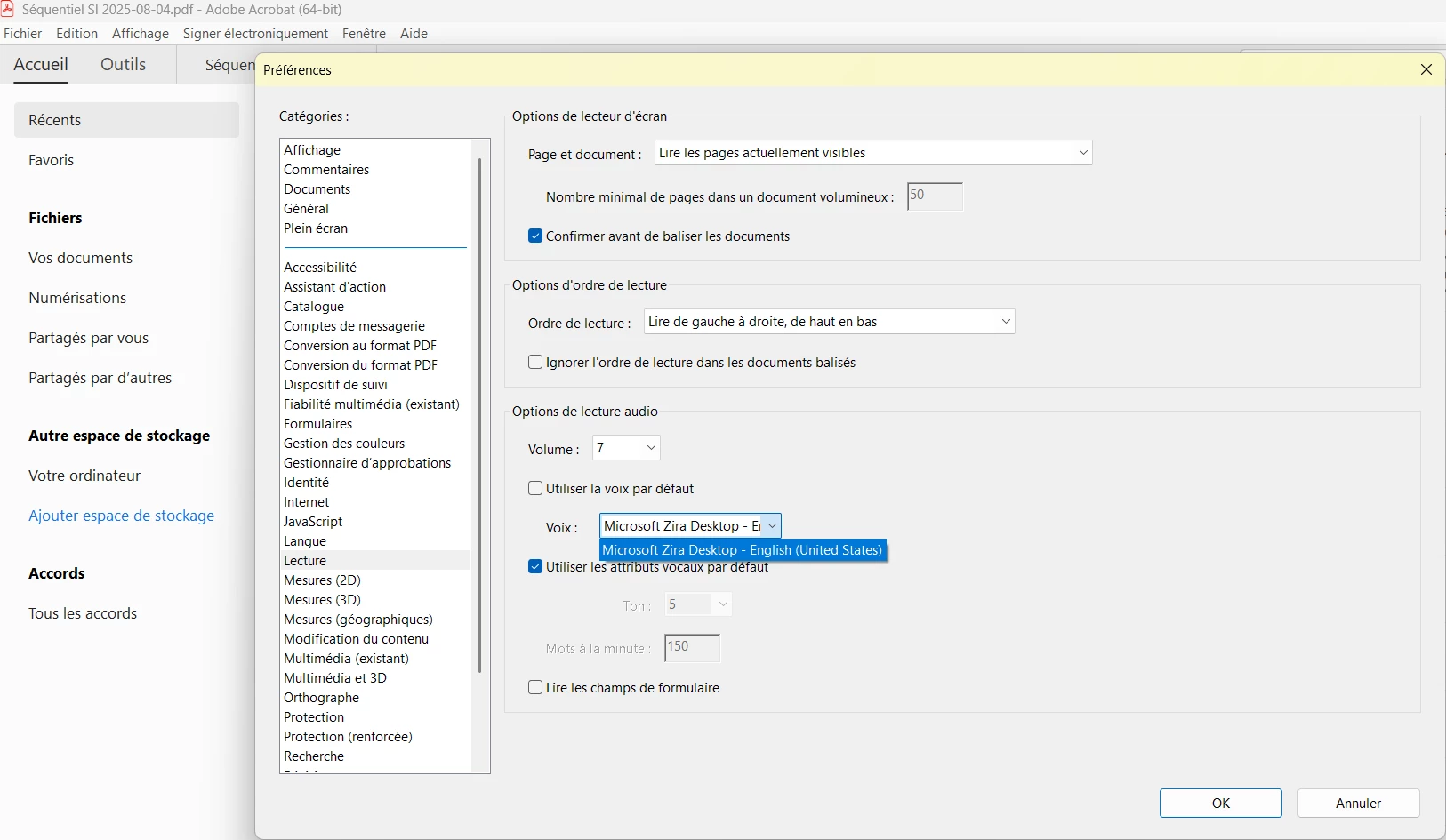
Option de lecture Audio, comment ajouter des voix

  • November 11, 2025
  • 2 replies
  • 145 views

Bonjour, j'ai Adobe Acrobat d'installer sur mon portable. J'ai Windows 11 français. J'aimerais activer la lecture audio et me faire lire mes PDF en Canada Français. Malheureusement quand je vais dans les options de lecture audio et dans la voix, j'ai qu'une seule option en Anglais.
Je cherche comment ajouter des voix dans cette option.
Est-ce que quelqu'un pourrait m'aider s'il vous plait ?


Correct answer francois_1996

J'ai trouvé la solution à mon problème. Je l'écrit ici en français si jamais cela peut aider quelqu'un.
Il faut ouvrir Power Shell ISE en mode administrateur
Il faut Copier/Coller les lignes ci-dessous :

$sourcePath = 'HKLM:\software\Microsoft\Speech_OneCore\Voices\Tokens' #Where the OneCore voices live
$destinationPath = 'HKLM:\SOFTWARE\Microsoft\Speech\Voices\Tokens' #For 64-bit apps
$destinationPath2 = 'HKLM:\SOFTWARE\WOW6432Node\Microsoft\SPEECH\Voices\Tokens' #For 32-bit apps
cd $destinationPath
$listVoices = Get-ChildItem $sourcePath
foreach($voice in $listVoices)
{
$source = $voice.PSPath #Get the path of this voices key
copy -Path $source -Destination $destinationPath -Recurse
copy -Path $source -Destination $destinationPath2 -Recurse
}

Par la suite on exécute ce code.
Fermer PowerShelle et aller dans vos préférences de lecture dans Adobe Acrobat French - (Canada) est apparue dans mon cas après cela.

2 replies

Participant
November 11, 2025

Bonjour, j'ai Français Canada, je suis au Québec. Je ne comprend pas trop ou aller pour ajouter un autre Langue Français Canada.

Amal.
Community Manager
Community Manager
November 12, 2025

Hi there 


Hope you are doing well, please go through the correct answer marked in the similar discussion https://adobe.ly/3LJCFTL and see if that works. 


~Amal

francois_1996AuthorCorrect answer
Participant
November 12, 2025

J'ai trouvé la solution à mon problème. Je l'écrit ici en français si jamais cela peut aider quelqu'un.
Il faut ouvrir Power Shell ISE en mode administrateur
Il faut Copier/Coller les lignes ci-dessous :

$sourcePath = 'HKLM:\software\Microsoft\Speech_OneCore\Voices\Tokens' #Where the OneCore voices live
$destinationPath = 'HKLM:\SOFTWARE\Microsoft\Speech\Voices\Tokens' #For 64-bit apps
$destinationPath2 = 'HKLM:\SOFTWARE\WOW6432Node\Microsoft\SPEECH\Voices\Tokens' #For 32-bit apps
cd $destinationPath
$listVoices = Get-ChildItem $sourcePath
foreach($voice in $listVoices)
{
$source = $voice.PSPath #Get the path of this voices key
copy -Path $source -Destination $destinationPath -Recurse
copy -Path $source -Destination $destinationPath2 -Recurse
}

Par la suite on exécute ce code.
Fermer PowerShelle et aller dans vos préférences de lecture dans Adobe Acrobat French - (Canada) est apparue dans mon cas après cela.

Amal.
Community Manager
Community Manager
November 11, 2025

Hi there


Hope you are doing well and thanks for reaching out.


It seems that Acrobat is currently using only an English voice for Read Aloud because your Windows system does not have a French (Canada) voice installed. Acrobat relies on the voices available in your Windows settings.

Please try the steps below to add the French (Canada) voice:

  • Open Windows Settings > Time & Language > Language & region.
  • Select Add a language, then choose French (Canada) and install it.
  • Once added, click the three dots next to French (Canada) and select Language options.
  • Under Speech, click Download to install the voice pack.
  • After installation, restart your computer.
  • Next, open Adobe Acrobat and go to Preferences (Ctrl,Cmd+K) > Reading > Voice. You should now see the French (Canada) voice available for selection.

If the voice still does not appear, please make sure both Windows and Acrobat are updated to the latest versions. Go to Help > Check for updates and reboot the computer once. 


~Amal