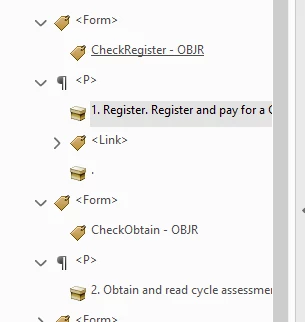
Forgot to mention that the "CheckRegister-OBJR" had a tooltip that was shortened to "Check if Registered" or something like that (just the Bold Title). I had hoped to leave the extremely long paragraph after that as a separate thing, but it is important that the end user hears it.
Note: Lengthy instructions follow. @laurar79508600 you probably already know these next details, but I'm adding them to this thread for anyone else who gets here in the future.
How a screen reader user reads a form:
- All of the body text that appears before the first form field will be read by the user.
- But after they enter the first form field, the screen reader is now in Forms Mode and all bets are off. From that point on, they tab tab tab through the various form fields and hear only the tooltips. We forms developers have no control over whether they will hear the labels or instructions.
- It is very rare that our testers exit Forms Mode and drop back to the normal body text and labels, so they miss a helluva lotta information that you and I build into the forms. That's unfortunate.
- This has been the protocol since the mid-1990s, so it's unlikely it will be changed in the future. Screen reader users want all of the important information they need in the tooltips.
- Personally, I think this protocol is not in anyone's best interests: it creates a ripping mess for those of us who create forms (we're forced to repeat everything, once in normal printed text and once in the tooltip, and there often are discrepencies between the two), and it creates an even bigger mess for those who use screen readers because they miss critical information.
Testing your form in JAWS, it should kick into Forms Mode when it hits the first <Form> and then skip to the next <Form> and the next, and of course, voice the specific tooltip for each <Form>.
Since you're hearing the same tooltip repeated for each checkbox, I'm wondering how the properties for the <Form> tags has been set.
Are they set up to be mutually exclusive? That is, acting like radio buttons where only one option can be selected. (Note that both checkboxes and radio buttons can have whatever shape/symbol you want, so "radio buttons" can look like squares with checkmarks, and "check boxes" can look like round buttons.)
Radio Buttons
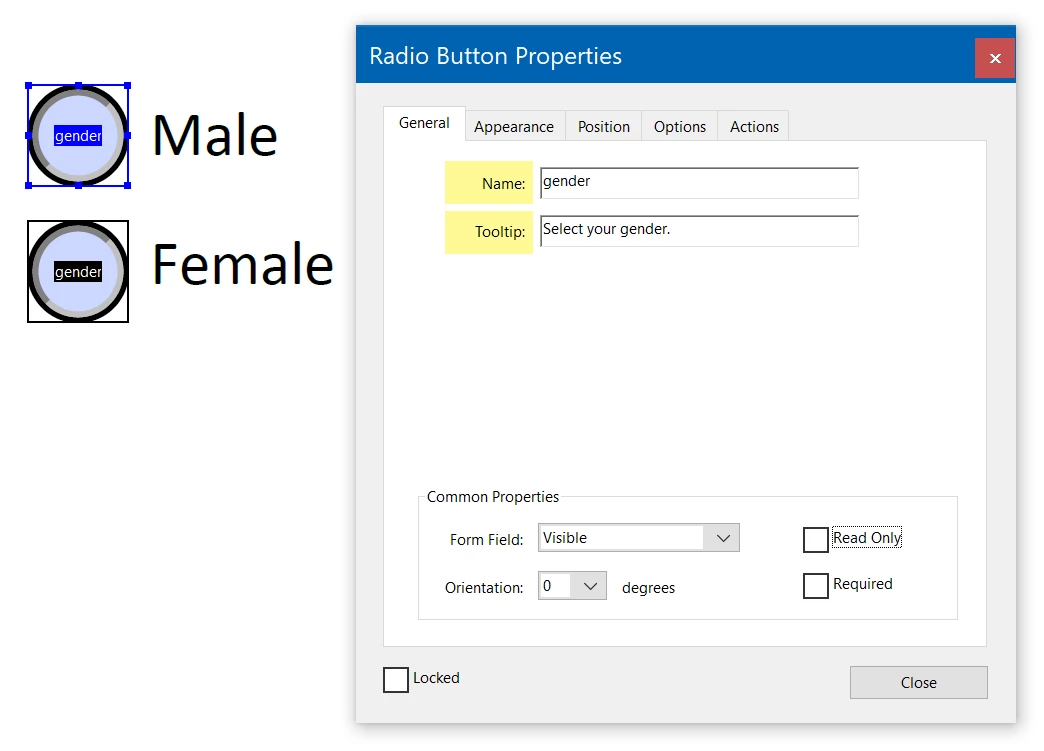
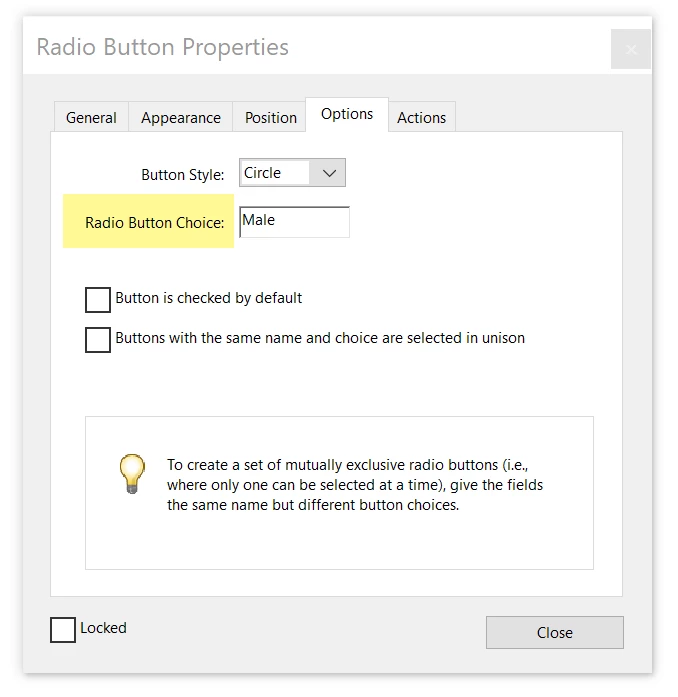
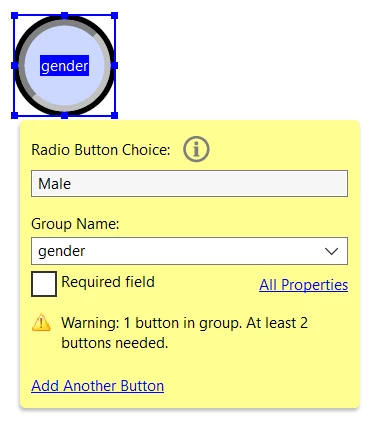
In a radio button group (regardless of what the symbol looks like), every <Form> will have the same Name (or Group Name) and the same Tooltip. It's the <Form>'s Option/Choice that is unique, like yes, no, male, female. These settings create the exclusive selection that allow only one option to be chosen...yes or no, not yes and no.
But they force the ToolTip to be repeated for each <Form> in the button group.
Check to see how yours are coded. The settings for exclusive buttons look like this:
Checkboxes
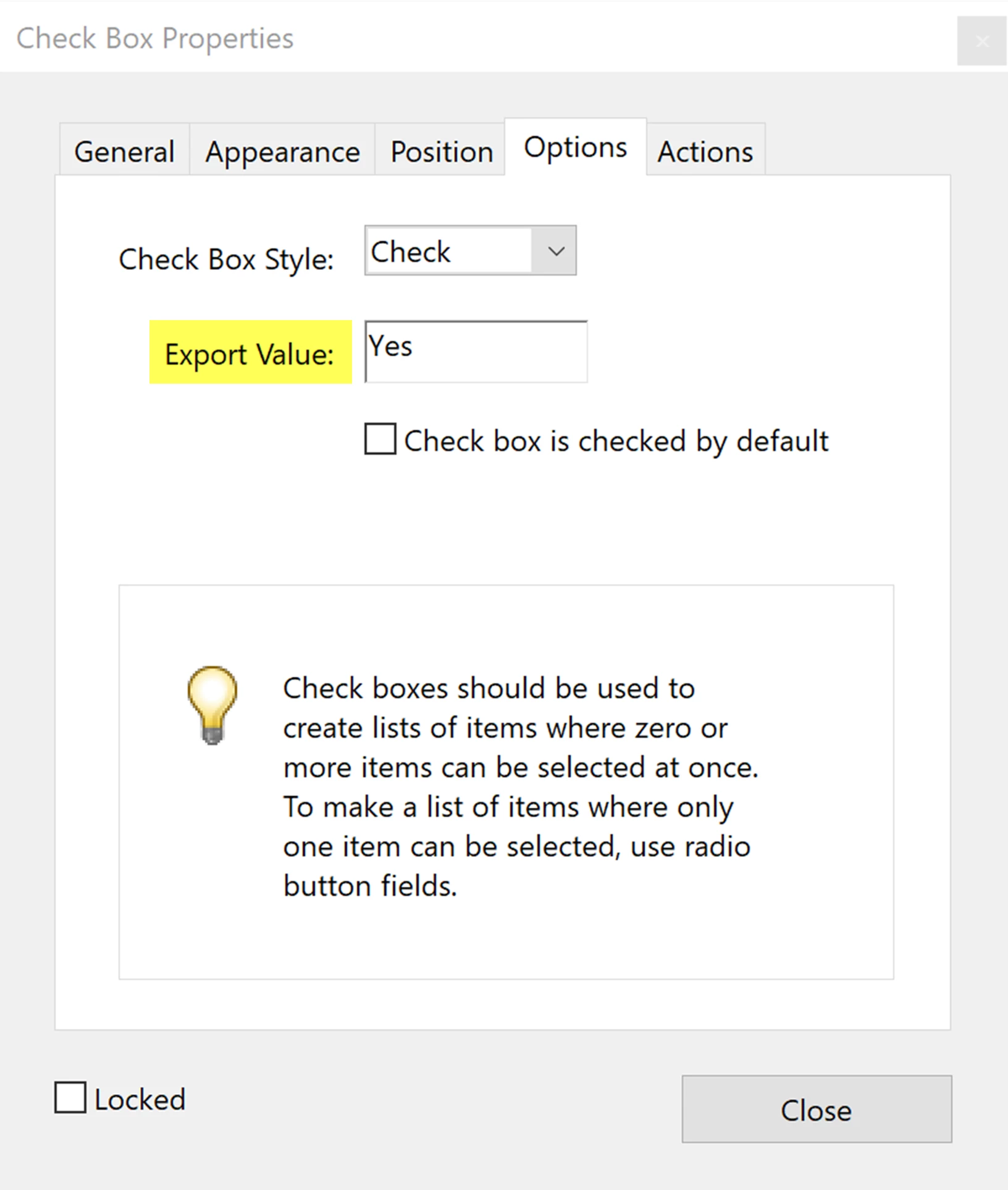
On the other hand, Checkboxes are not exclusive and the user can select 1 or more of them.
This is what I think you want in your checklist, correct?
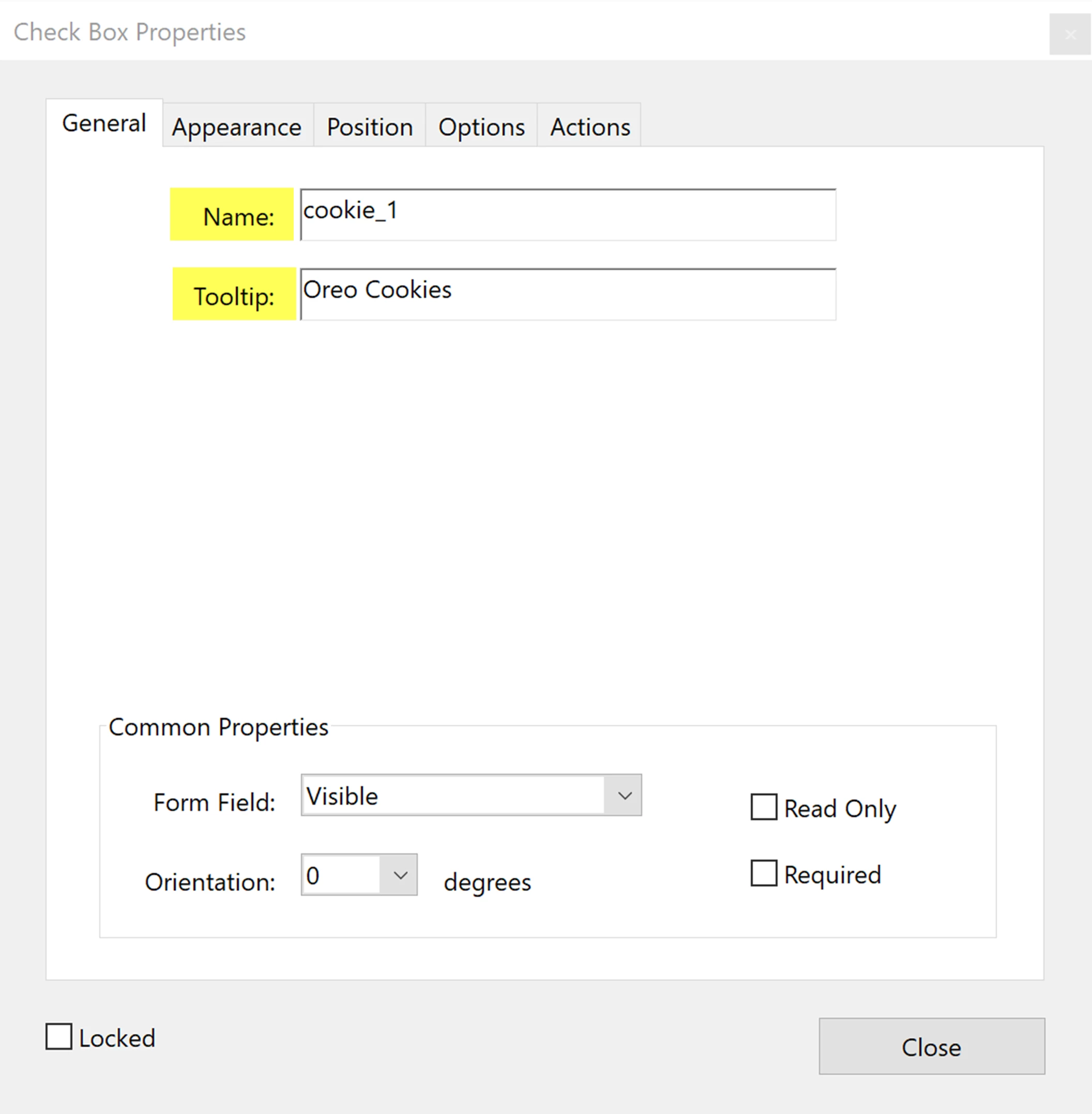
- Each <Form> has a unique Name.
- Each <Form> has a unique Tooltip.
- Each <Form> has a unique Export Value
Their settings look like this:
The problem is that the text following each checkbox is very long and wouldn't it be obnoxious to cram it all into a tooltip?
By @laurar79508600
I agree, but I'm not blind and don't use a screen reader so my opinion in nearly worthless. IIRC, some screen readers have a maxmum number of characters that can be in a tooltip, similar to Alt-text on graphics, and any overage is clipped.
However, putting all that information is what the community has asked us to do.
One option we've used in forms with similar lengthy instructions/tooltips is to put an informational statement at the top of the form that advises all assistive technology users (don't single out screen reader users) to exit out of forms mode in between the form fields. And of course, you should still write a tooltip, just with a brief amount of the info.
Here's a sample we wrote recently for a client's form:
<H2>Note to those who use assistive technologies:
<P>This form has extensive detailed instructions for most form fields that can't be put into a tooltip. After checking a form field, be sure to exit your technology's forms mode to make this important information available to your technology.
If none of the above corrects the problem, then try these last 3 ideas:
- Make sure your JAWS is up to date. Download the newest version if it isn't.
- You might have a corrupted version of JAWS. Uninstall it, shut down your computer and reboot (aka, a cold boot) so that JAWS' system settings are cleared out. Then install a fresh copy of JAWS.
- Double-check the keyboard settings for JAWS. Maybe they were changed. Reset the preferences to defaults if necessary.
FYI, you might want to download a copy of Ted Padova's excellent guide to forms. A former Adobe Acrobat guru on the various forums, he's now retired. He graciously put this publication into the public domain. Although written for Acrobat X, little has changed since then for forms, only the interface here and there. http://tedpadova.com/
Good luck, and let us know what you discover.



 AdChoices