Hello @dominick_0917!
I hope you are doing well. Thanks for reaching out. We're sorry for the trouble you had with the app.
Could you please provide more details about the issue? Are you using a Mac or a Windows machine, and what version is it? Are you using the paid version of Adobe Acrobat or the free Acrobat Reader? This thread is quite old and pertains to an outdated operating system.
If you have the same issue and are on a Windows machine, tell Explorer to show icons, not thumbnails. Open File Explorer, click the View tab, then select Options → Change folder and search options. In the Folder Options dialog, go to the View tab. Check “Always show icons, never thumbnails”, click OK.
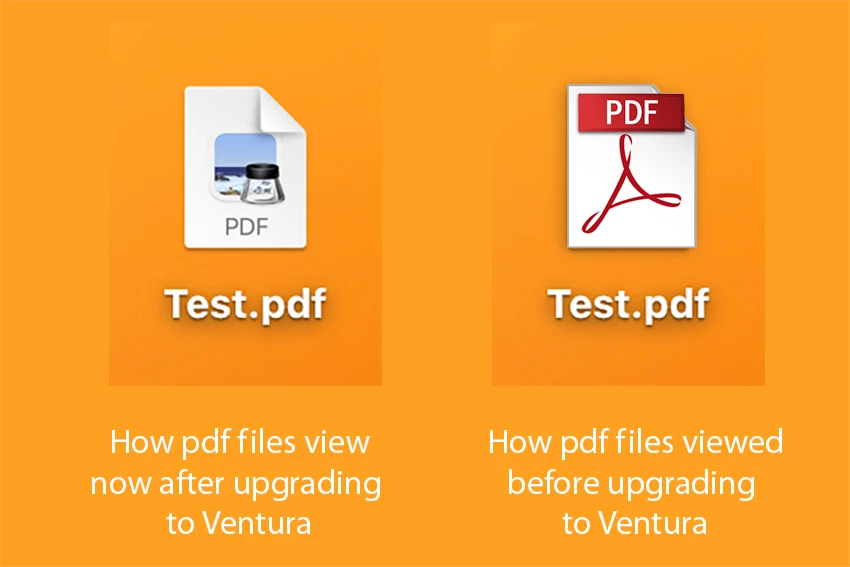
Your PDFs will now display the default file-type icon (Acrobat’s red logo) instead of a preview thumbnail.
If you are on a Mac, in Finder, select any PDF file and press Command + I (or right-click → Get Info). In the “Open with:” section, choose Adobe Acrobat Reader (or Adobe Acrobat Pro) from the dropdown. Click “Change All…” and confirm. Close the Info window.
Please ensure you have the latest version of Acrobat installed on the machine: 25.001.20474 (Win) | 25.001.20476 (Mac), Apr 28, 2025. Check for any pending updates from the Menu > help > check for updates, install the updates, restart the app and the machine, and try again.
Let us know how it goes.
Thanks,
Anand Sri.

 AdChoices