

Sidd_Veer
Participant
June 24, 2020
Question

Place holder text

  • June 24, 2020
  • 2 replies
  • 3812 views

Hello, I have made a fillable PDF form with place holder text inside the text field. The place holder text is in light grey color.

My issue is when someone types inside the text field, it comes out a light grey. I would like the typed text to be of the color black.
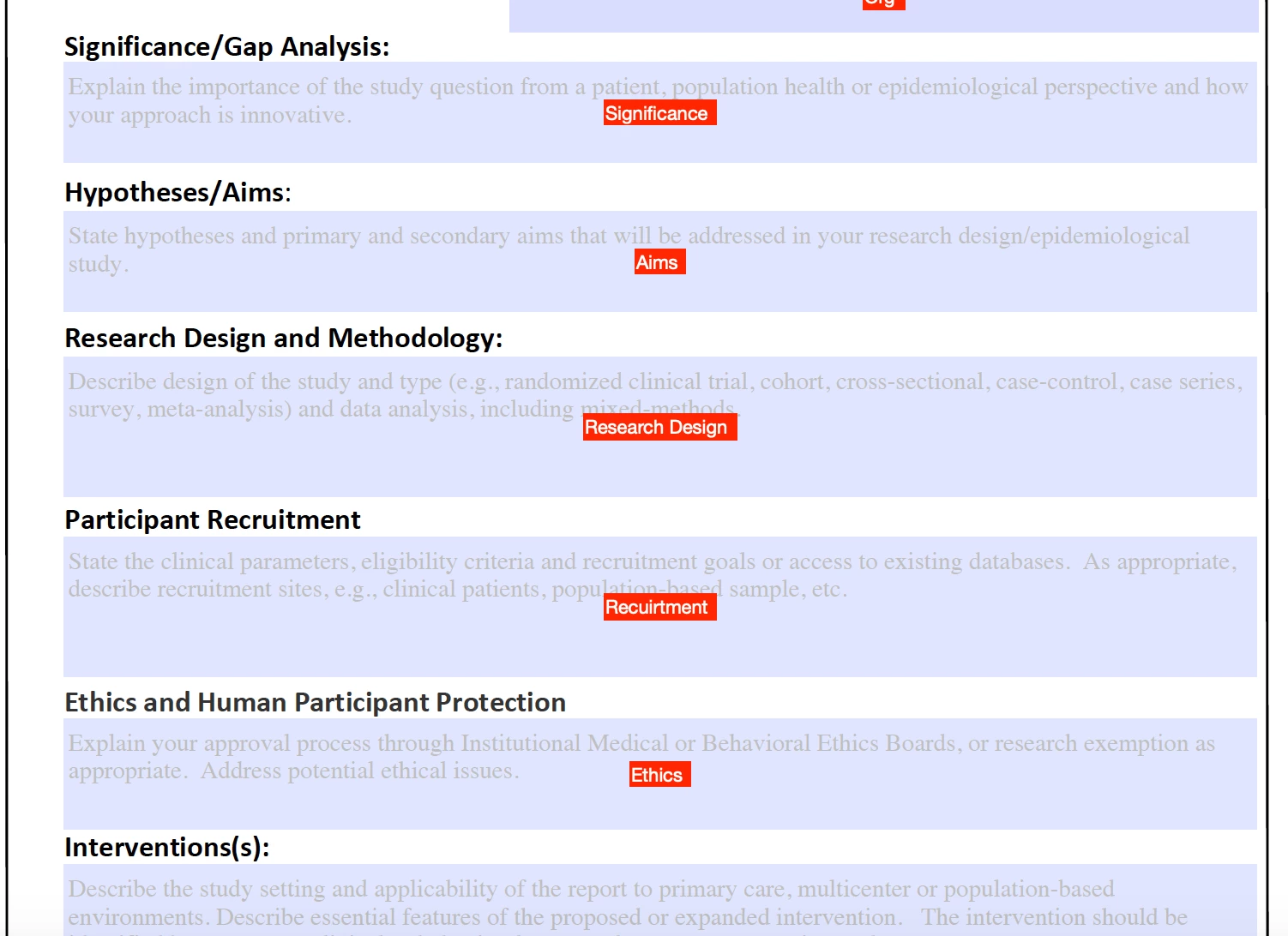
 

I am using the following Custom format JAVASCRIPT code - 

if (!event.value) event.value = "Describe design of the study and type (e.g., randomized clinical trial, cohort, cross-sectional, case-control, case series, survey, meta-analysis) and data analysis, including mixed-methods." {event.target.textColor = color.ltGray;}


Please help me out here, Thank you. 


This topic has been closed for replies.

2 replies

Old_Salt
Participating Frequently
June 24, 2020

I have accomplished what you're trying to do with a single text field. The field has it's default value set to whatever you want as the place holder text and the default text color to gray. Just make your colors as you desire. I have an "on focus" action and an "on blur" action as follows:


On Focus:


if (event.target.value==event.target.defaultValue) {
	event.target.value = "";
	event.target.textColor = color.black;
}


On Blur:


if (event.target.value=="") {
	event.target.value = event.target.defaultValue;
	event.target.textColor = color.gray;
}


Sidd_Veer
Sidd_VeerAuthor
Participant
June 24, 2020

Thank you rjunke,


I get your point.  But where should I copy and paste these Javascript codes? Look at the screenshot. Should I just copy both the codes and paste them in the 'Create and edit Javascripts' box? And then insert my placeholder text in quotation only for on BLUR code?  Can you please show the actions with a screenshot or an image. That would be very helpful to me. 


I appreciate your reply, 

Thank you.

Old_Salt
Participating Frequently
June 24, 2020

I assume you are using Acrobat Pro and not some other Adobe product the creates PDFs.


They are action scripts. One is an On Focus action and the other is the On Blur action. They are applied as actions for the text field in question. When you're in your "Prefare Form" you can select all the fields at the same time, open the properties, and apply these actions all at once.


Joel Geraci
Community Expert
Community Expert
June 24, 2020

There's no good way to accomplish this using a single field. You can't modify a field's properties while it has focus. You'll need to set up two perfectly overlapping fields. This is actually relatively simple to do if you author the form in InDesign. The placeholder is read-only and below the editable field. The placeholder visibility is then dependent on the editable field having a value.

Sidd_Veer
Sidd_VeerAuthor
Participant
June 24, 2020

Thank you for your reply, Joel.


Please take a look at the screenshot. As you can see #1, I have one text field box (name: significance) with Placeholder text which I have marked as Form field: visible and checked read-only.


And text field box #2 ,(name: title) I have marked as Form field: hidden but printable and unchecked read-only.


The issue I am having is the Title field box is always overlays the Significance text field box and therefore, the placeholder text is not visible. Is there a way or a button (bring to front) so that he placeholder text field box is brought to the front and is visible and then when someone clicks the text field they actually type in the title text field box (this is text printable) as I have kept the Significance text field box to read-only!


Too late to switch to adobe In-design now.