Inspiring
March 8, 2025
Answered

Problems scanning into Acrobat from Canon PIXMA TR8620 iMac

  • March 8, 2025
  • 2 replies
  • 536 views

iMac

Catalina 10.15.7

Acrobat Pro 2024.004.20272

Canon PIXMA TR8620 wireless printer/scanner/fax


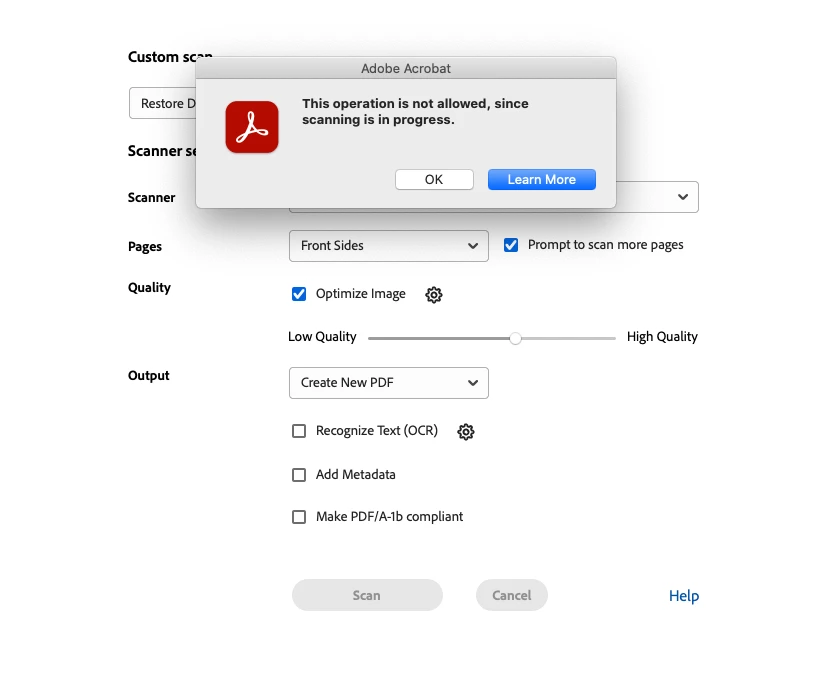
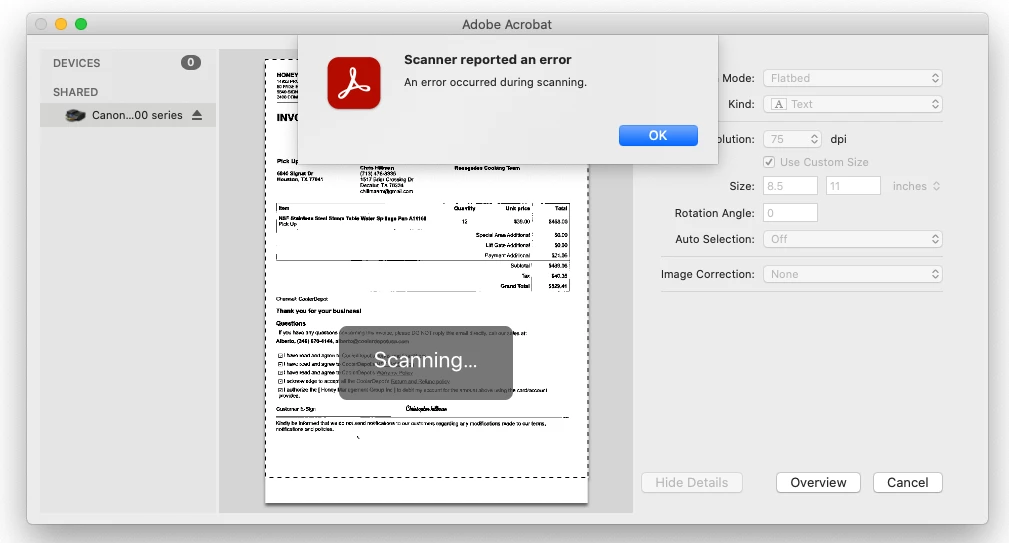
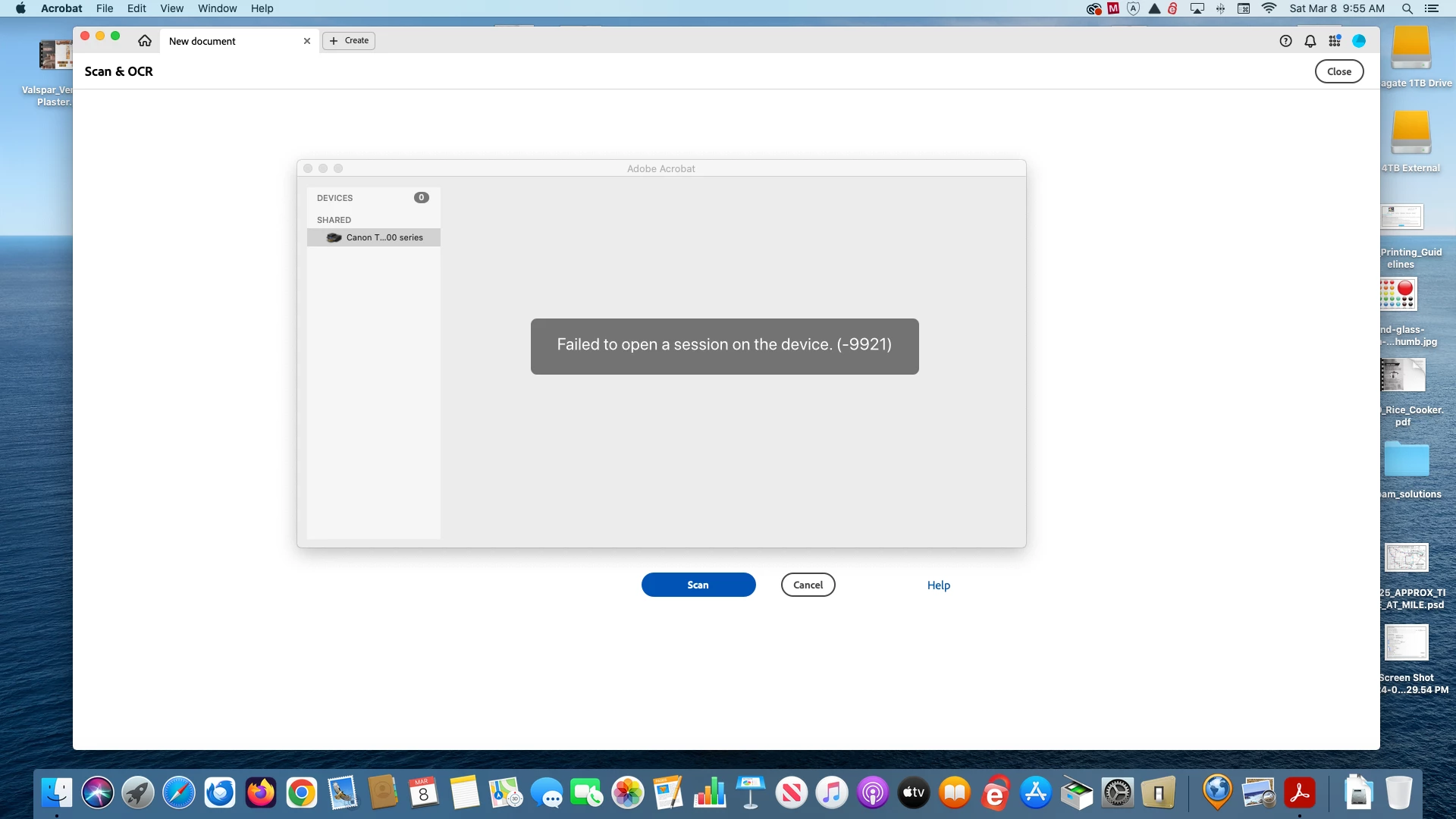
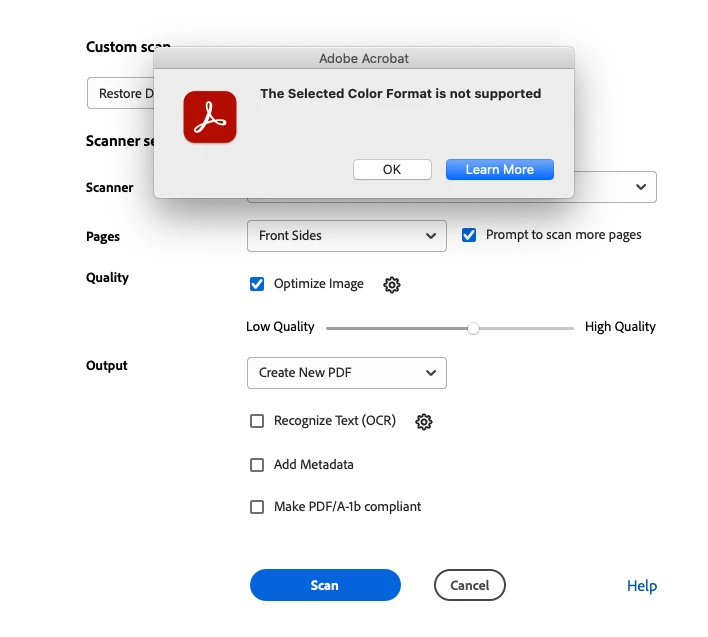
I'm getting all kinds of messages when trying to create a PDF from scanner. I will go to "Create" from scanner and click "Scan". I immediately get an error "Failed to open session on device (-9921) and then it will scan. In the next screen, I will select the item I wish to scan and select "Color" and click "Scan". Again I get another error, "The Selected Color Format is not supported". I could not do anything except Force Quit out of Acrobat since it would not let me do anything. After restarting, I went through the same scenario and when I got to the same spot that it locked up, I was able to click "Ok", but then it threw another error when I selected "Scan" stating "The operation is not allowed, since scanning is in progress", but the printer/scanner is sitting idle.

I am able to accomplish the scanning using the utility program that came with the scanner, but I would prefer not having to go through extra steps. Any help would be greatly appreciated.
Correct answer gary_sc

Hi, @jodmcc49, I just happened to relook at your original message and you state you're on Catalina OS?


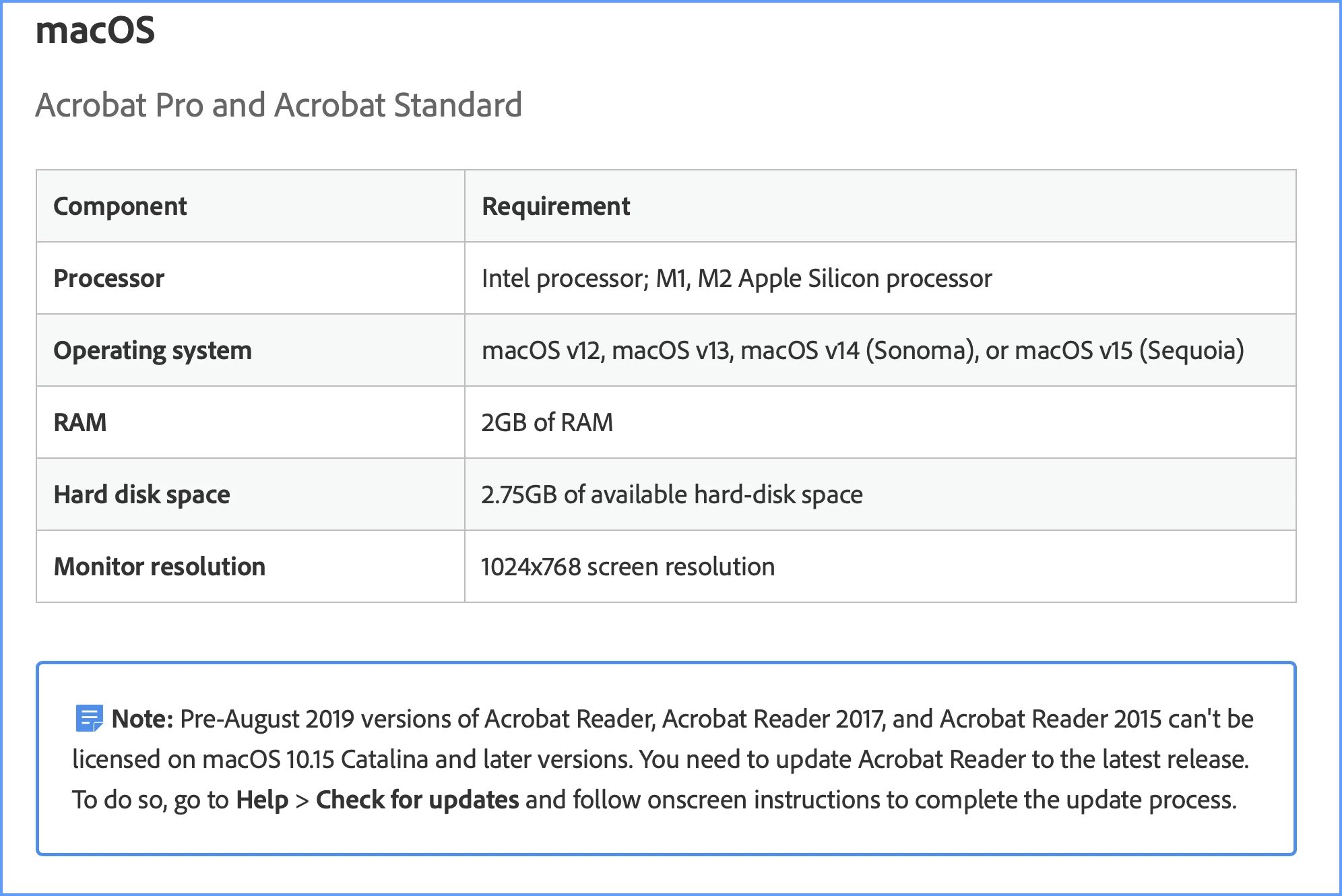
There's a problem there. As shown on https://helpx.adobe.com/acrobat/system-requirements.html


Here's a screenshot:

 Sorry I didn't notice that earlier.


2 replies

Participant
June 16, 2025

Hi jodmcc49,   I'm also facing this problem with my HP Envy 6152e printer: error -9921 and 'Color format not supported'.   Did you make any progress so far?

Thanks - 

gary_sc
Community Expert
Community Expert
March 8, 2025

Hi, @jodmcc49, Good information and screenshots. Always helpful.


But we have to back up a bit. Acrobat has no scanning capability whatsoever. Rather, Apple provides a link from its scanning application, Image Capture, to other applications, such as Photoshop or Acrobat. This is different from what PCs have, which is software called Twain that provides a link between applications and the scanner's software. There's a big difference because just about any scanner's software is better than Image Capture. I've been on Macs since '86 and have used scanners since around '90. When you compare what Image Capture can do versus what your scanner's software can do, you'll probably never look at Image Capture again. 


So, the next question is, how do I digitize my documents, photos, or anything else I need to scan? The answer is simple: Use your scanner's software. Here's a basic process. 

Scan with your scanner’s software, save your scans in the TIF format, and leave the files on your desktop (or wherever convenient). Then, you can drag the files onto the Acrobat icon in the Dock. If you save the files as TIF images, Acrobat will automatically OCR them; there's nothing else you have to do. If you drag more than one file onto the Acrobat icon, Acrobat will ask you if you want all of these files merged into one document or to remain separate.  (If you save in any other format, the auto OCR dynamic will not happen, and you'll need to add to your workload by adding an OCR step to your activities.)


Some extra tips and bits of information: A full-page, 300 ppi, 8-bit TIF file will be about 8 MB. (16-bit will be about 16 MB); once they are processed into a PDF, they will drop down to about 100-150 kb, so do not worry about the size. Assuming that you've done a pre-scan to set the Levels settings to get a clean image and you're doing a stack of pages from the same source, there's no need to do subsequent pre-scans. The first scan will be “document.tif.” The 2nd document will be “document (2).tif,” the third will be “document (3).tif.”, etc. When you process those in Acrobat, the first scanned page will end at the end of the PDF as the last page. You can either fix this in the "Organize Pages" or, before processing in Acrobat, change the name in the Finder for “document.tif” to “document (1).tif."*


* There's no way around this because it is up to Finder or Explorer to name it, not the scanning software. FWIW, I use this latter approach.


Lastly, if you want to get into the details of this and learn how to get the best-quality scan and, thereby, the best-quality OCR, check out this blog I wrote for Adobe a number of years ago.

https://community.adobe.com/t5/adobe-community-professionals/scanning-clean-searchable-pdfs/m-p/4785435?page=1#M89


Good luck.


gary_sc
Community Expert
gary_scCommunity ExpertCorrect answer
Community Expert
March 8, 2025

Hi, @jodmcc49, I just happened to relook at your original message and you state you're on Catalina OS?


There's a problem there. As shown on https://helpx.adobe.com/acrobat/system-requirements.html


Here's a screenshot:

 Sorry I didn't notice that earlier.