March 15, 2017
Answered

"Auto" font size in text field

  • March 15, 2017
  • 4 replies
  • 14914 views

In an Acrobat Pro X fillable form, if I set the "Auto" font size the text is too small. Can I set the font size to 12, or something larger than auto, and still have the text shrink to fit the text field?

Most fields in the forms I make are large enough to accept font size 12, but some of the fields might on occasion require shrinking text--only on those occasions would I want font size smaller than 12.

This topic has been closed for replies.
Correct answer Cari Jansen

As a work-around you could set a character-limit on the text field that causes the 'Auto' font size not to be reduced beyond a size you find acceptable.

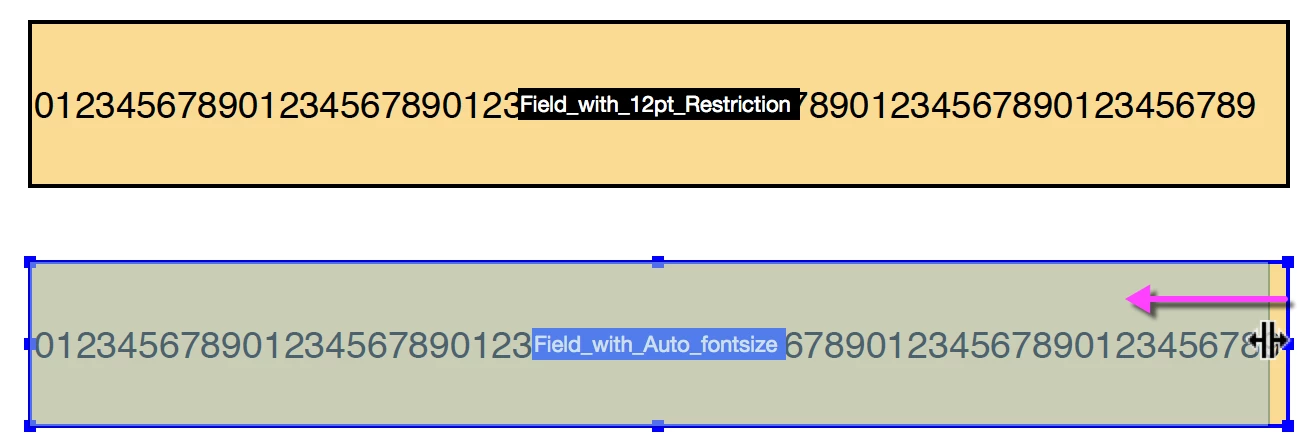
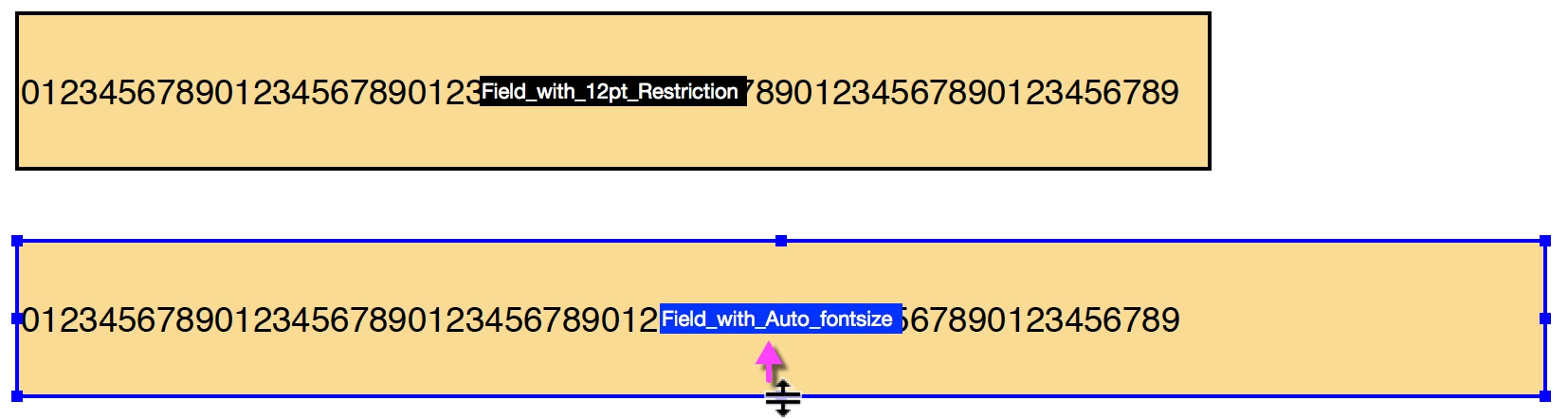
  1. You'd design the height of the field so the by default the font entered is 12pt.  The easiest way to do this is to have TWO fields that are left aligned to each other and the same width. In one you set the font-size locked to 12 pt. In the other to 'auto'.
  2. In Preview enter same text in both fields. I normally add 0123456789 repeatedly as it's easy to use this for character count purposes.
  3. Return to Edit mode reduce the HEIGHT of the auto text-size field until the font size matches the field above it (this assumes that your fields all have a different width by the way).


    NOTE: If the fields have a very similar width, you can also increase/reduce the width of the auto text-size field until the font size matched the field with 12pt font size set.
  4. Once you've got the field size of the auto font-size text field sorted, return to Preview mode and continue adding more characters inside this until you reach a visual limit to how small you want to allow the text to become. Record the number of characters in the field.
  5. In the Text Field Properties for the Auto font-size field, click the Options tab, and set the number recorded in step to as the Limit of 'x' Characters.

4 replies

JR Boulay
Community Expert
Community Expert
March 25, 2021

The automatic size is relative to the height of the field, an image is better than 1000 words:


Champ = field

cm= centimeter

hauteur = height

corps = text size


Acrobate du PDF, InDesigner et Photoshopographe
Pedro_Mugaburu
Participant
March 25, 2021

SUGERENCIA: Sería bueno al modo 'auto' poder indicar un tamaño ideal deseado y recien cuando se supere el limite de espacio del campo comience a ajustarlo. Actualmente sucede que al poner en modo 'auto' el texto se achica innecesariamente.

March 16, 2017

Thanks, Cari. I can't, however, seem to get this to work. I must be missing something. I'm thinking perhaps my trouble lies with this instruction in step 1:  

then in Edit mode reduce the HEIGHT of the auto text-size field till the font size matches the field above it.

Can you expand on that at all?

Legend
March 16, 2017

I've updated the instructions I wrote-up in my original response, and added some screenshots for you that will hopefully show you what I am referring to.

There's also two scenarios:

  • where fields have very different width, you can control the default font-size entered by adjusting the height of field.
  • where field have similar width, you could reduce/increase width of auto text-size field marginally to ensure the font sizes are similar, it would mean the field sizes of fields with font size locked to 12pt will be marginally different in size.
March 17, 2017

Thanks--I'll try again!

Cari JansenCorrect answer
Legend
March 16, 2017

As a work-around you could set a character-limit on the text field that causes the 'Auto' font size not to be reduced beyond a size you find acceptable.

  1. You'd design the height of the field so the by default the font entered is 12pt.  The easiest way to do this is to have TWO fields that are left aligned to each other and the same width. In one you set the font-size locked to 12 pt. In the other to 'auto'.
  2. In Preview enter same text in both fields. I normally add 0123456789 repeatedly as it's easy to use this for character count purposes.
  3. Return to Edit mode reduce the HEIGHT of the auto text-size field until the font size matches the field above it (this assumes that your fields all have a different width by the way).


    NOTE: If the fields have a very similar width, you can also increase/reduce the width of the auto text-size field until the font size matched the field with 12pt font size set.
  4. Once you've got the field size of the auto font-size text field sorted, return to Preview mode and continue adding more characters inside this until you reach a visual limit to how small you want to allow the text to become. Record the number of characters in the field.
  5. In the Text Field Properties for the Auto font-size field, click the Options tab, and set the number recorded in step to as the Limit of 'x' Characters.