
Participant
June 18, 2025
Answered

Rectangle without filling. PLS HELP

  • June 18, 2025
  • 1 reply
  • 2013 views

HI
I have a seemingly silly question , but I'm getting sick of it 😉
how to draw a rectangle without filling ?
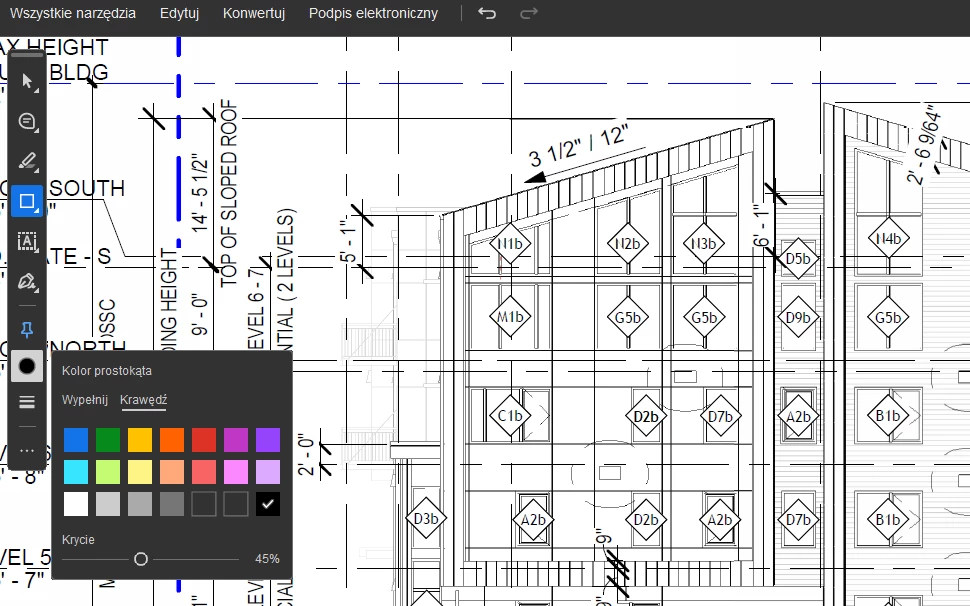
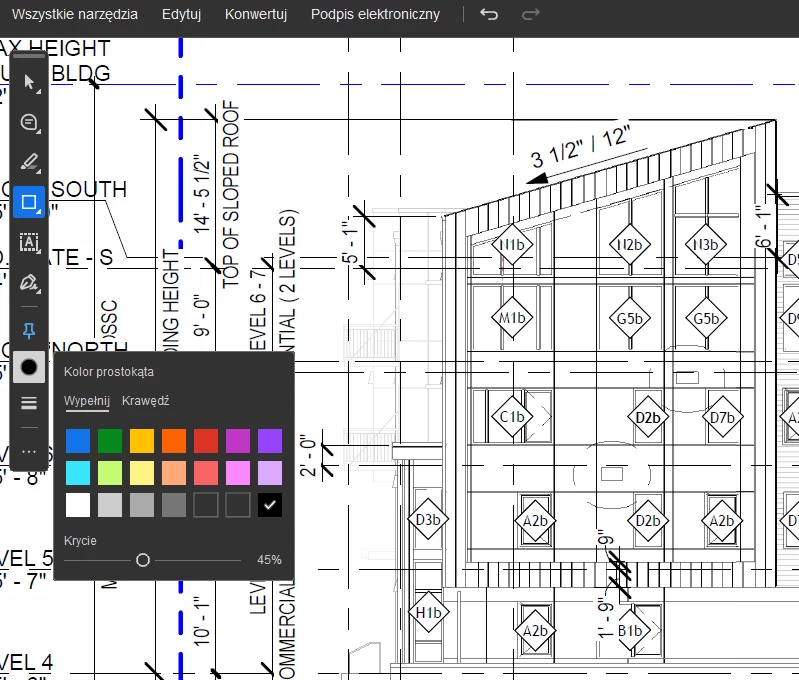
-when I change the coverage % in the tab “fill” , it changes at the same time in the tab "edge" - I have no option to set, for example, in one 0% and the other 100%
-I do not have the option to deselect one or the other either
-I don't see the option of unchecking the color in any of the tabs either
-attached are pictures of my tool panel
Correct answer Tariq Dar

Hi @Mario922,


Thanks for reaching out! If you’re looking to draw a rectangle in Adobe Acrobat without any fill color, you can do so by adjusting the properties of the drawing tool. Here’s how:


Steps to draw a border-only rectangle:

1. Open your PDF in Adobe Acrobat (Pro or Standard).

2. Go to the Comment tool (Tools > Comment).

3. Select the Rectangle tool from the toolbar.

4. Draw your rectangle on the PDF.

5. Right-click the rectangle > choose Properties.

6. Set:

  • Fill Color: No color (click the color box and select the white box with a red line through it).

  • Border Color: Choose the desired border color.

  • Line Thickness: Adjust as needed.


7. (Optional) Check “Make Properties Default” to reuse this style next time.


This way, only the border will appear—no background fill.


Let us know how it works at your end.

~Tariq

1 reply

Tariq DarCorrect answer
Legend
June 18, 2025

Hi @Mario922,


Thanks for reaching out! If you’re looking to draw a rectangle in Adobe Acrobat without any fill color, you can do so by adjusting the properties of the drawing tool. Here’s how:


Steps to draw a border-only rectangle:

1. Open your PDF in Adobe Acrobat (Pro or Standard).

2. Go to the Comment tool (Tools > Comment).

3. Select the Rectangle tool from the toolbar.

4. Draw your rectangle on the PDF.

5. Right-click the rectangle > choose Properties.

6. Set:

  • Fill Color: No color (click the color box and select the white box with a red line through it).

  • Border Color: Choose the desired border color.

  • Line Thickness: Adjust as needed.


7. (Optional) Check “Make Properties Default” to reuse this style next time.


This way, only the border will appear—no background fill.


Let us know how it works at your end.

~Tariq

Mario922Author
Participant
June 18, 2025

Thanks a lot , it worked 😉