Answered
setting default apps in Google Chrome
When trying to choose a default app in Google Chrome for file type ".pdf", Acrobat is not a choice even though the desktop version has been downloaded.
When trying to choose a default app in Google Chrome for file type ".pdf", Acrobat is not a choice even though the desktop version has been downloaded.
@singerdo The problem you're encountering is common because Google Chrome manages its own behavior for opening PDFs and doesn't directly offer local desktop applications like Adobe Acrobat as a "default app" choice in the way your operating system does. Chrome has a built-in PDF viewer, and the solution is to tell Chrome to stop viewing the PDF itself and instead download the file, which will then open using your operating system's default program (which should be Adobe Acrobat). Click the three-dot Menu in the top-right corner of Chrome, then go to Settings. Navigate to Privacy and security, then click on Site Settings. Scroll all the way down to the Content section and select PDF documents. You will see a setting labeled "Default behavior." You must select the option to "Download PDFs" instead of "Open PDFs in Chrome."
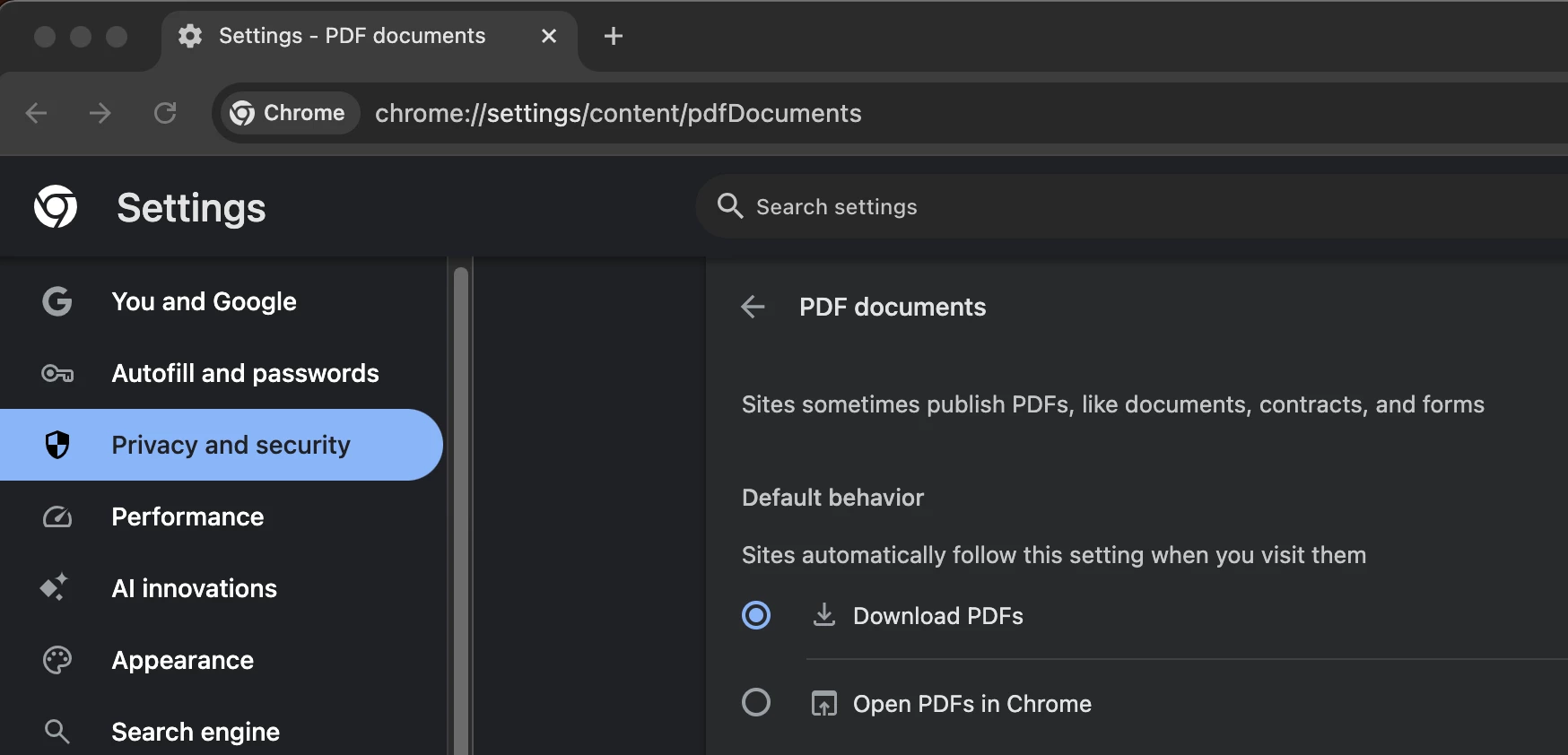
By making this one small change, you are essentially telling Chrome to step aside and stop using its built-in viewer. Now, when you click on a PDF link, it will automatically download to your computer, and when you open that file, your computer's own default setting (which you can set to your Acrobat desktop app) will take over, finally letting you use the robust tools you intended!
Already have an account? Login
Enter your E-mail address. We'll send you an e-mail with instructions to reset your password.
 AdChoices