
Exit
  • Global community
    • Language:
      • Deutsch
      • English
      • Español
      • Français
      • Português
  • 日本語コミュニティ
  • 한국 커뮤니티
0

Setting Preferences in Acrobat Pro DC

New Here ,
May 23, 2018 May 23, 2018

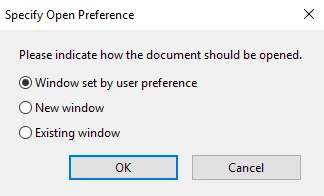
Hi there. I'm new here and have a question. I am creating a huge amount of internal links in several large documents. I have attached all of the appendices which I'm creating the links to. Right now, I need to also Edit each link after it's created, in order to choose "Open in New Window". Does anyone know of a way to change the preference so that the link will automatically open in a new window without having to do this extra step for each link?

Thanks for your thoughts on this.
TOPICS
General troubleshooting
602
Translate
Report
Community guidelines
Be kind and respectful, give credit to the original source of content, and search for duplicates before posting. Learn more
community guidelines
1 ACCEPTED SOLUTION
Adobe Employee ,
Jun 08, 2018 Jun 08, 2018
LATEST

Hi Dz,

As per the issue description mentioned above, you want to set the preferences for internal links in the pdf, is that correct?

Go to Edit PDF  > select one of the links > right-click > Properties > Actions > under Actions > click on Open a file > Edit

Select the files > and select New Window.

Let us know if you need any help.

Shivam

View solution in original post

Translate
Report
Community guidelines
Be kind and respectful, give credit to the original source of content, and search for duplicates before posting. Learn more
community guidelines
Adobe Employee ,
Jun 08, 2018 Jun 08, 2018
LATEST

Hi Dz,

As per the issue description mentioned above, you want to set the preferences for internal links in the pdf, is that correct?

Go to Edit PDF  > select one of the links > right-click > Properties > Actions > under Actions > click on Open a file > Edit

Select the files > and select New Window.

Let us know if you need any help.

Shivam

Translate
Report
Community guidelines
Be kind and respectful, give credit to the original source of content, and search for duplicates before posting. Learn more
community guidelines