Participant
September 26, 2019
Answered

Text changes to special symbols with saving PDF in Acrobat

  • September 26, 2019
  • 2 replies
  • 80900 views

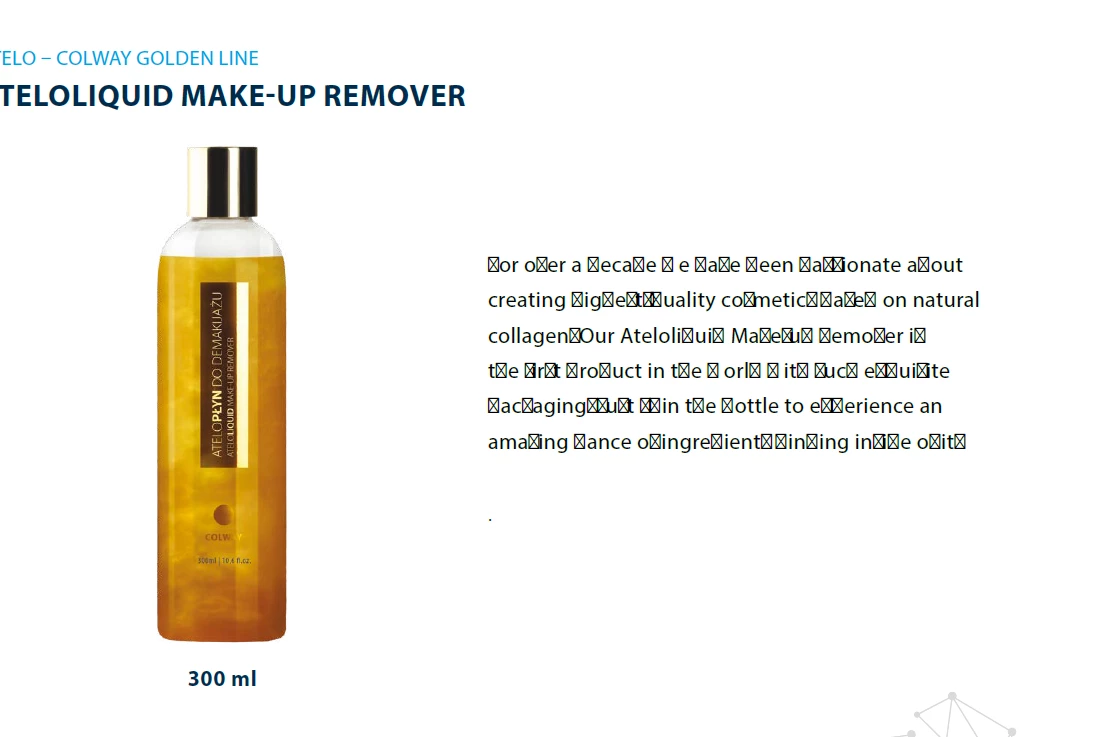
When I recently saved a PDF I was editing in Acrobat Pro DC -- many of text characters changed to an odd symbol. Attached is a sample. Any ideas on how to avoid this issue next time I save the doc? Thx.

    This topic has been closed for replies.
    Correct answer Bevi Chagnon - PubCom.com
    Yes. thanks. The orignal document I am editing is a PDF -- The problem occurred when saving the PDF -- as a PDF using Adobe Acrobat Pro DC 19.012.20040

    To embed fonts in a PDF...

    First, the ideal method is to embed them when the PDF is made (ie, saved as a PDF or exported to PDF) from the source document (ie, Word, PowerPoint, Adobe InDesign, etc.). Look at the conversion options, settings, or preferences to set the conversion to embed the fonts.


    If you're dealing with an existing PDF, you can embed the fonts using Adobe Acrobat Pro. NOTE: This process should work OK if you have the same fonts on your computer system that the author had when the PDF was made. However, if the author used a special font or a special character that is not on your system, then it won't work for that portion of the PDF.


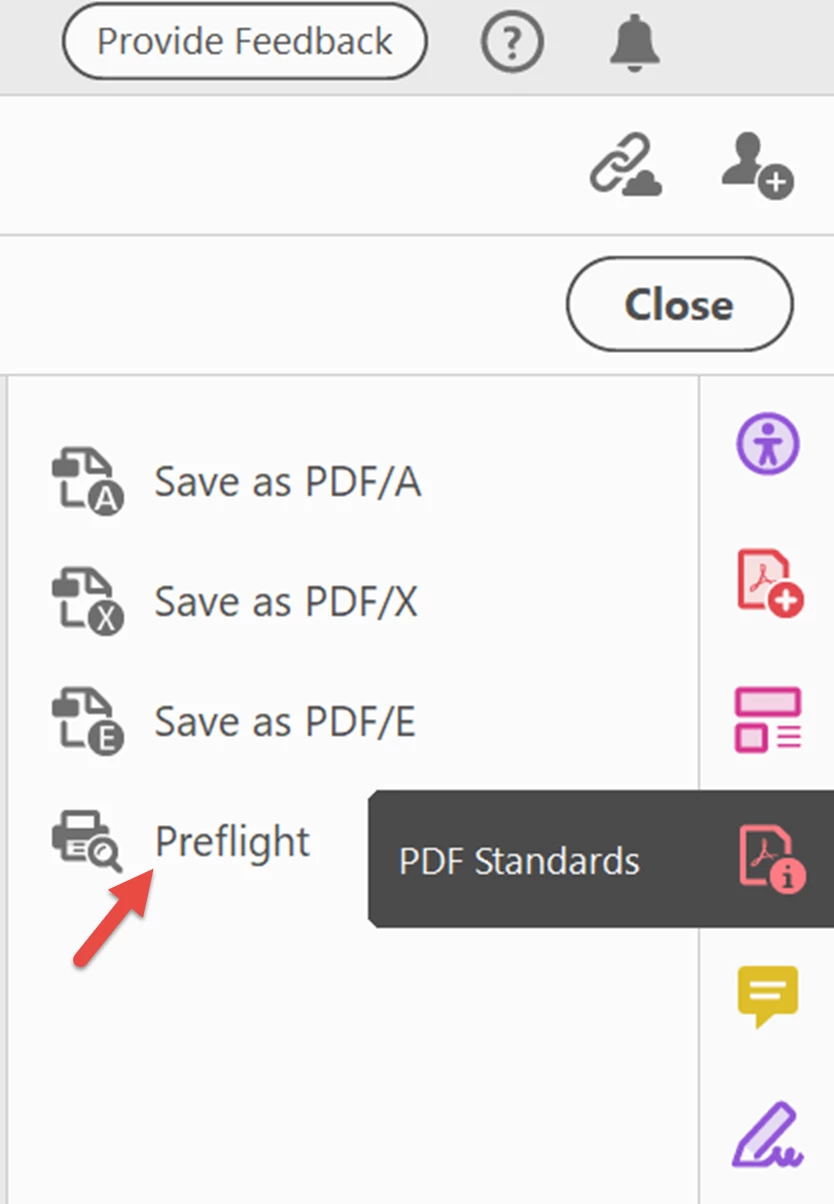
    1. Open the PDF Standards tool panel (if it's not already in your right-side tool set, then open it via the Tools Tab in the upper left of the Acrobat window).
    2. Open the PDF/UA Standards section.
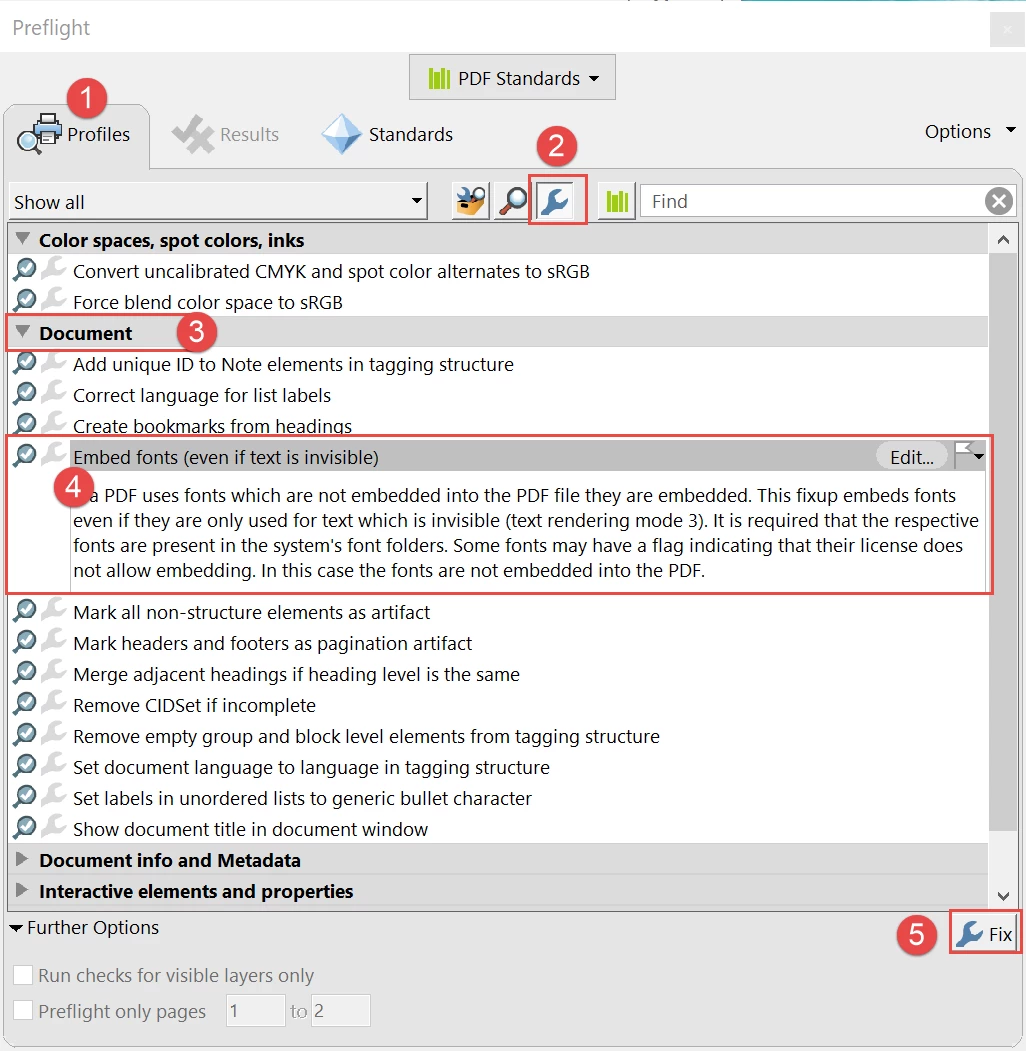
    3. From the Profiles tab, select the blue wrench in the upper menu bar.
    4. Expand the Document section.
    5. Select the Embed fonts utility and then click the FIX button in the lower right (has another blue wrench in the button).


    Open the Preflight panel from the PDF Standards tool.
     

    Run the Embed Fonts utility from the PDF/UA profile.
     

    Hope this helps.

    --Bevi



    2 replies

    Participant
    September 28, 2023

    I tried the Preflight fix and got the following results


    Bevi Chagnon - PubCom.com
    Legend
    September 28, 2023

    It means that the Geneva and 2 weights of Helvetica are not on your computer. Without them installed, they can't be embedded into the PDF.


    Either go back to the source file and re-export the PDF correctly (selecting the options to embed all fonts into the PDF), or install Helvetica and Geneva on your system and try the Preflight tool again.


    |    Bevi Chagnon   |  Designer, Trainer, & Technologist for Accessible Documents ||    PubCom |    Classes & Books for Accessible InDesign, PDFs & MS Office |
    Bevi Chagnon - PubCom.com
    Legend
    September 26, 2019

    You need to embed the font into the PDF when you set the export options.

    Look deeper at the conversion/export options.


    The odd symbol is called a tofu box (like a brick of tofu).

    |    Bevi Chagnon   |  Designer, Trainer, & Technologist for Accessible Documents ||    PubCom |    Classes & Books for Accessible InDesign, PDFs & MS Office |
    Bevi Chagnon - PubCom.com
    Legend
    September 26, 2019
    Yes, there's a difference. Let us know what your source program is (that's the program you're exporting/saving the PDF from) and we can give you guidance on what to click.
    |    Bevi Chagnon   |  Designer, Trainer, & Technologist for Accessible Documents ||    PubCom |    Classes & Books for Accessible InDesign, PDFs & MS Office |
    Participant
    August 16, 2020

    To embed fonts in a PDF...

    First, the ideal method is to embed them when the PDF is made (ie, saved as a PDF or exported to PDF) from the source document (ie, Word, PowerPoint, Adobe InDesign, etc.). Look at the conversion options, settings, or preferences to set the conversion to embed the fonts.


    If you're dealing with an existing PDF, you can embed the fonts using Adobe Acrobat Pro. NOTE: This process should work OK if you have the same fonts on your computer system that the author had when the PDF was made. However, if the author used a special font or a special character that is not on your system, then it won't work for that portion of the PDF.


    1. Open the PDF Standards tool panel (if it's not already in your right-side tool set, then open it via the Tools Tab in the upper left of the Acrobat window).
    2. Open the PDF/UA Standards section.
    3. From the Profiles tab, select the blue wrench in the upper menu bar.
    4. Expand the Document section.
    5. Select the Embed fonts utility and then click the FIX button in the lower right (has another blue wrench in the button).


    Open the Preflight panel from the PDF Standards tool.


    Run the Embed Fonts utility from the PDF/UA profile.


    Hope this helps.

    --Bevi


    Hi - I have a similar problem - I have created a pdf from scratch and use if for a mainly text project. I have just recently instered pages with JPG's and decided to put text labels on the pictures. When I save the document (intermittently) I get a similar problem described above -  some of the text (only on the photos) gets garbled and I've tried to follow the process above - but it won't actually complete the processing of saving (it creates the new file). Any ideas? I'm using a different (but std font) for the JPG labelling and even have used the same font as in the main part of the text but reducing the size. My document is 500+ pages so its a little frustrating if I have to go back and manually edit each label again! Thanks for any help! Warren.