


Known Participant
September 15, 2021
Question

text disappear when using reading order in acrobat pro

  • September 15, 2021
  • 2 replies
  • 5100 views

Hi,


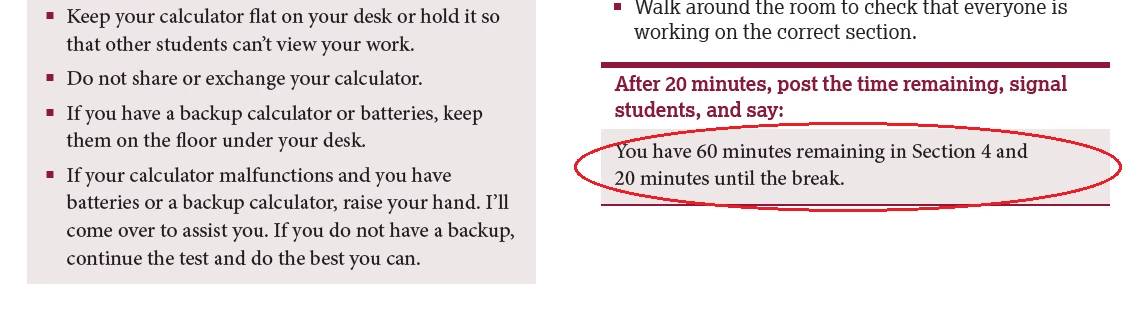
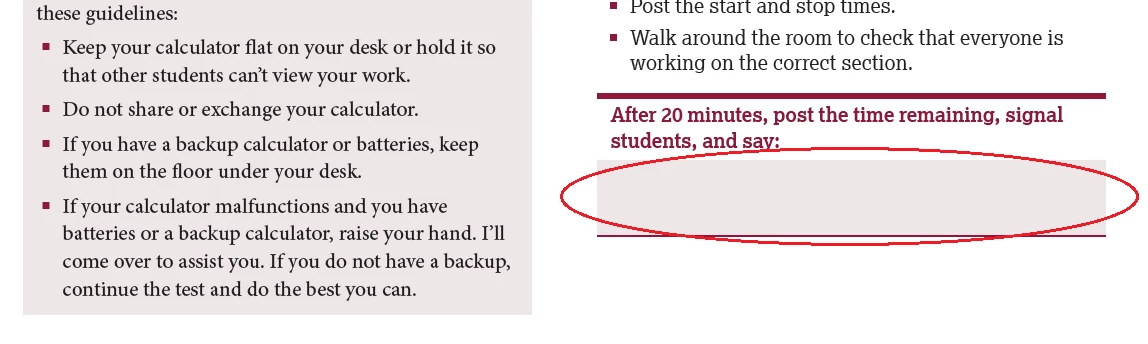
When we change Reading order for Accessibility process using "Order" option in Acrobat Professional XI version, the text was hidden, how we can avoid this issue in future, is this known bug in Acrobat?


This is Accessibility PDF creation process. We are facing this issue when change reading order in pdf. Is there any possiblity to avoid text hidden issue, is it manual process if text hidden in pdf we should go and use "Bring to front" option to show the hidden text. Sometime our user missed to do it and customer complaint also receiving for this text hidden issue. Could you please solve or advice.


Note: Source is PDF, we dont have any application file like InDesign. Input is PDF and output is Accessible PDF


Input:
Output:
 

Regards

Jayesh

This topic has been closed for replies.

2 replies

Participant
October 9, 2024

I’ve also been struggling with this. The text and elements keep disappearing. I’ve attended lectures on creating accessible PDFs from InDesign, but everyone seems to have the same opinion—it’s horrendous! When you set the reading order in InDesign, it does NOT carry over to the PDF, even if you adjust the settings. This has always confused me, especially now that accessible files are mandatory due to legal requirements. None of my coworkers have figured out why the reading order in InDesign doesn’t transfer to Adobe Acrobat, so we end up manually adjusting it in Acrobat.


I know Bevi is frustrated that we ‘no-brainers’ can’t figure it out. I save the PDF after fixing each page because Acrobat tends to crash when there are more than 80 pages to adjust. But now, after reopening the file, I see the structure order has changed again. Has anyone managed to solve this? It feels like changing the reading order somehow affects the structure order, which doesn’t make sense since it shouldn’t. Now, I have to go back to the “Content” panel, which shows every object in the document, and manually rearrange the order there, moving the text back above other elements.

In the inDesign file I have text always on the top layer, graphics next, images and so on if this is relevant.


Any GOOD guidevideos on this would be much appreciated! 

Participant
October 18, 2024

Hi Alisa,

Reading order of PDFs by assitive technology actually comes from the tag tree not the order panel. Adobe is misleading about this with the Order Panel but there are very good and easy to follow tutorials for fixing the tag tree here and creating tags in InDesign here. Hope this helps!

jonathanw22774588
Participating Frequently
July 21, 2023

Has anybody resolved this? We are experiencing the same thing.

Bevi Chagnon - PubCom.com
Legend
July 21, 2023

@jonathanw22774588 and @Jayesh_Kumar@int, this is caused by incorrect control of the stacking order in Adobe InDesign and can be prevented by better construction methods in the original source layout file.


In the original sample that is posted above, the light gray background box is a separate element from the text. When the architectural order was changed in the PDF (I'm assuming that elements were moved up/down in the order tree), the background box ended up above the text and now hides it. The text hasn't been removed, just covered by the gray box.


The best method is to prevent this from happening at all by using better techniques in InDesign. But that's for another day or class.


If all you have is the PDF, you can remediate the file and unhide the text by using the Content Panel, which shows every element on the page. Locate the element for the background box, it's usually a Path and should be artifacted. Slide it up or down in the tree until it's now out of the way and lets the text show again. Since it's a decorative background box, it really doesn't matter where it ends up in the tree because it's artifacted.


|    Bevi Chagnon   |  Designer, Trainer, & Technologist for Accessible Documents ||    PubCom |    Classes & Books for Accessible InDesign, PDFs & MS Office |
Participant
September 19, 2023

This doesn't solve the issue. 

Even if you clear the page structure and re-define the reading order, it makes text disappear. It's frustrating that this issue has been going on for 12+ years now but Adobe haven't fixed it. What are we paying for?