
Participant
October 4, 2019
Question

The lining of my vector images in Word turn BOLD when I convert to PDF

  • October 4, 2019
  • 4 replies
  • 7937 views

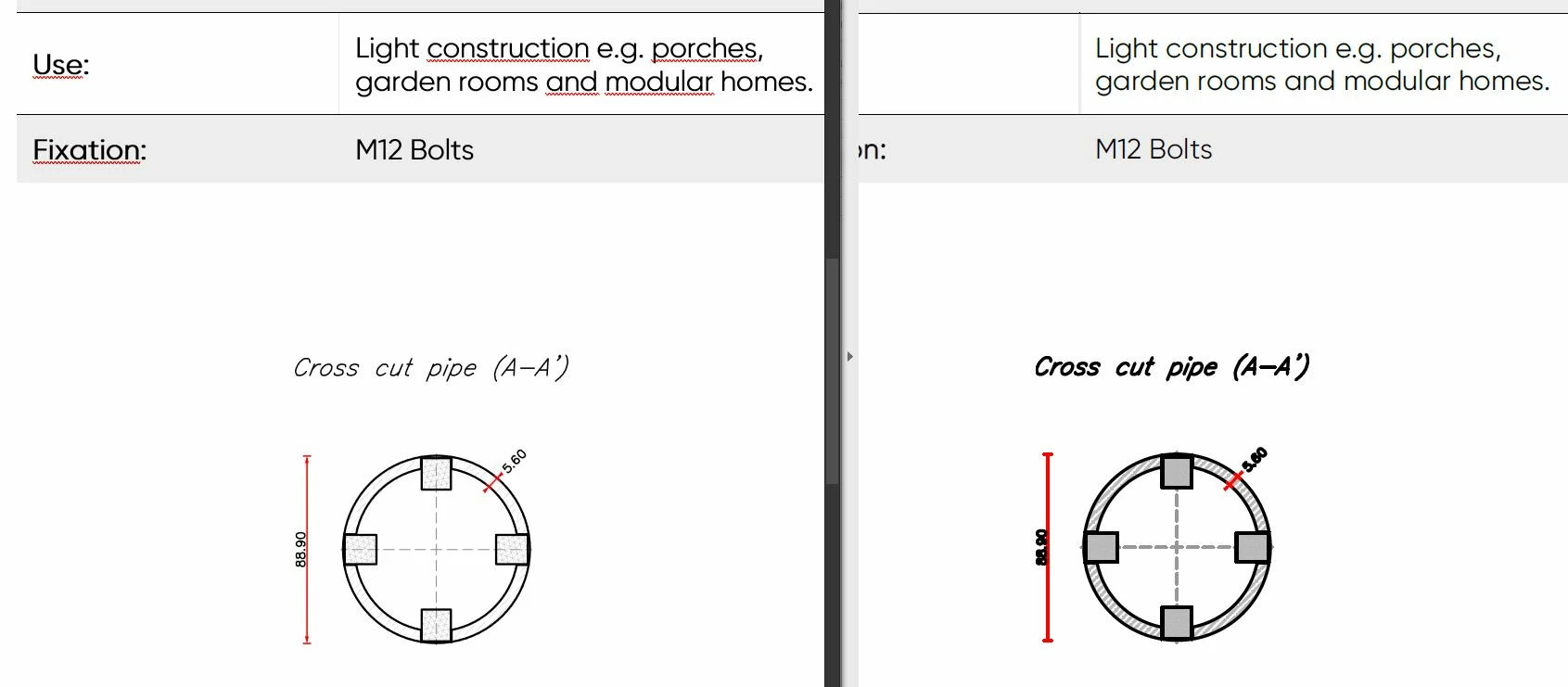
The left picture shows the Word file. The right side of the picture is the PDF file. As you can see the image in the PDF (which is a vector I copied from Illustrator) has a much bigger line thickness. If I place the same image in Word as a JPEG instead of a vector it turns out very unsharp and pixel-like.


Could anyone please help me how I can keep the image as a vector, but keep the original line-thickness in my PDF?

Thank you.
    This topic has been closed for replies.

    4 replies

    ls_rbls
    Community Expert
    Community Expert
    October 5, 2019

    So I did a little more research and based off of the very brief info you've provided I am not sure if the PDF was generated from a CAD software.


    I had another user months ago with a similar issue . In his case he had a blue print of an engineered design which involved a lot of ortographic lines and they were displaying thick like in your case.


    ++Adding to the suggestions recommended above , you can also try this:


    Check the "Measuring 3D Settings as well.

    Faro 90Author
    Participant
    October 7, 2019

    ls_rbls you are right, the images I use have followed quite the path before they reach the final PDF.

    From AutoCAD to PDF, to Illustrator, to Word, to PDF. Remaining the vector propabilities every time it is copied. (So the images are not rasterized and are probably still in the AutoCAD formatting.


    Unfortunately, even after trying the above, only CTRL+5 have changed the Line Thickness so far. I really hope someone will find a solution to set Thin Lines as standard instead.

    ls_rbls
    Community Expert
    Community Expert
    October 7, 2019
    One small step for Acrobat, one giant leap for users. 😄
    JR Boulay
    Community Expert
    Community Expert
    October 4, 2019

    Try unchecking one of these two options in the Preferences.


    Acrobate du PDF, InDesigner et Photoshopographe
    Faro 90Author
    Participant
    October 4, 2019

    I have found the solution to my problem. But unfortunately this just lead me to my next question.

    Under: View > Show/Hide > Rulers and Grids there is an option called Line Weights. This makes my PDF image so BOLD!

    Is there a way how I can save my file so the Line Weights are OFF standard?


    ls_rbls
    Community Expert
    Community Expert
    October 4, 2019

    Yes hitting Ctrl+5 in your keyboard pad is also another way to enable and disable the visibility of the weight lines.workflow is a lot faster when using keyboard shortcuts combined with the point and clikcing features of pointing devices.


    I personally have not found some setting that will make this dissappear. What really matters is if when you click on print, and your print preview displays these thick lines you can uncheck show Line Weights and they won't print like that.


    I will continue to check but n any case, you can submit a feature request to Adobe.


    In my personal case I use the grids a lot in my forms. And very frequently I have to switch to " snap to grid" when I want certain objects to measure exactly the same and get them lined up in precise locations. But in order for me to switch back to normal I have to click all the way back to View, Showhide etc etc ... it seems like there is no keyboard shortcut for that and it is quite annoying to abandon one hand out of the keyboard, to grab the mouse, find where the mouse pointer is in the screen, and then aim, point and click in a menu item, scroll down somewhere and finally clikc on that item

    ls_rbls
    Community Expert
    Community Expert
    October 4, 2019
    Faro 90Author
    Participant
    October 4, 2019
    Hi there ls_rbls, thanks for your reply. These 2 links contain a lot of information on the difference of a rasterized and vector image. I know the difference between these two. Unfortunately this doesn't help me with the convesion issue. Did you find anything in these 2 URL's which solves my stated issue?
    ls_rbls
    Community Expert
    Community Expert
    October 4, 2019
    Not really, I included them for reference because I was not very clear at the moment what you were asking. At this time all I can think of is for you to try and hit the "Ctrl" key + 5 in your keyboard to get rid of the line weights in your PDF document