


Known Participant
June 9, 2021
Answered

Transparent PNG file pasted into Acrobat Pro has a black background

  • June 9, 2021
  • 14 replies
  • 48032 views

I've been pasting a specific PNG file with transparency in Acrobat Pro for several years with no issues. After an Adobe upgrade, the same image copied then pasted on the following page is reduced in size, has a black background and pastes in the center of the page. Before the upgrade, it would paste the image as it appeared on the prior page and place it in the same location on the page on which my cursor is located.


I don't see a solution that addresses this issue. The best solution so far has been to right click and select Replace Image, then move to the proper location and enlarge.


I thought this would clear up when I upgraded my PC and loaded all new software. Nope. Same result.


My System - Lenovo ThinkPad X1 Carbon, Windows 10 (Version 2004 build 19041.985); Adobe Acrobat Pro DC Version 2021.001.20155.


Any ideas? Thank you.


[moderator corrected the subject. Changed "back" into "black"]
Correct answer Ali Lab TN

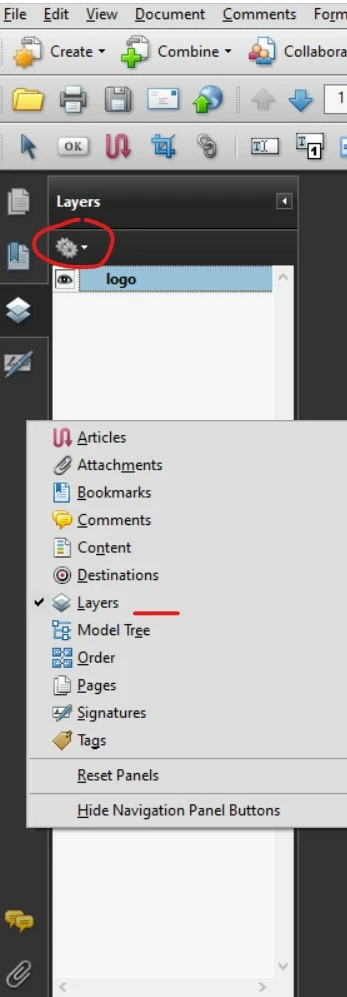
Hi, if this may help, another way to do it is to import image as layer


Import layers

You can import layers from a PDF or image file into a target PDF. Supported image file formats are BMP, GIF, JPEG, JPEG 2000, PCX, PNG, and TIFF.

  1. Click the Layers button in the navigation pane

  2. Choose Import As Layer from the options menu
     
  3. In the Import As Layer dialog box, click Browse and locate the file to import. If the source file is a multipage document, enter the page number you want to import in Page Number. If the target file is a multipage document, specify the Target Page Number in the Preview section of the dialog box.
  4. Select one of the following import options: Create New Layer Creates a single, separate layer from the source document. Enter a name for the new layer.
  5. Adjust the Position and Appearance settings as needed, and then click OK.

14 replies

Participant
March 30, 2022

Have you found a solution to this issue? I've been suddenly getting the exact same problem and I have no idea how to fix it. Uninstalling and reinstalling fixes it for like an hour and then the problem starts appearing again...

Participating Frequently
March 30, 2022

The only solution I have found is to stopy using Adobe. I now use BlueBeam Revu which has (in my opinion) tons of advantages over Adobe Acrobat DC. There are some tradeoffs, but overall it has been an upgrade for me working in Engineering. 

Adobe personnel, if you're reading this and you all figure out a fix for this issue, I would love to know. Maybe we would come back.

Known Participant
March 30, 2022

Colton5E10:

Still no solution from Adobe.


I like your alternative. It makes sense to use a special software for an engineering application. I will begin searching for an Adobe alternative that is able to copy and paste a graphic successfully. I know my projects that require this capability beforehand so I it is not a difficult workaround. Thanks.

JR Boulay
Community Expert
Community Expert
December 24, 2021

"Neither Photoshop Elements 2020 nor Photoshop CS5 give the option to Save As or Export as a PNG-8 format"

You can find it in Photoshop CS5 under the "Save for Web" (or Export for Web) feature.

May be in Photoshop Elements too.

Acrobate du PDF, InDesigner et Photoshopographe
Known Participant
January 5, 2022

Thank you for your patience. I converted my PNG with a transparent background to PNG-8. The image maintained the transparency when opened in Photoshop but lost transparency when opened in Acrobat. Any other suggestions?


Reminder: The PNG maintains transparency when the file is initially inserted but loses it when I attempt to copy and paste on the next page. As I mentioned earlier, the pasted PNG files maintained transparency until about 4-5 months ago when this issue spontaneously appeared.  [Version 21.007.20099]

Participant
February 24, 2022

I'm probably late to the party, but I was having the same issue and I got it figured out.  In edit mode, (tools -> edit pdf) just click "add image" on the toolbar.  Then browse for your transparent png and click to place in the document.  Drag the handles to resize and move.

JR Boulay
Community Expert
Community Expert
November 29, 2021

Try to use PNG-8 (bits) instead of PNG-24 (bits).

It works fine for me.


Acrobate du PDF, InDesigner et Photoshopographe
Participant
December 23, 2021

I'm trying this and will see if it works for client. Anybody else besides JR tried this who can verify it worked?

Known Participant
December 23, 2021

I was encouraged by a response from an Adobe Professional. Neither Photoshop Elements 2020 nor Photoshop CS5 give the option to Save As or Export as a PNG-8 format. I am puzzled that Copy-and-Paste within a single document worked great for at least several years until it spontaneously began pasting black rectangles. I appreciate the response, Thom. Colton, misery loves company. Sure wish Adobe would offer a successful suggestion. I, likewise, paste an image throughout a document but on different locations on each page. Increase effort exponentially. Maybe once the Adobe elves come back to work after the holidays, a response will appear under our tree.  Happy Holidays.

Thom Parker
Community Expert
Community Expert
June 9, 2021

Did you also notice that the image quality was drastically reduced as well. At some point months ago, extra processing was added to imported images. If you import an icon for a button or an image for a stamp, the image is reduced and jpeged. It's quite bad for small images. I think this feature was targeted at large images. JPeging and scaling a 20x20 PNG is just wrong.


I hadn't noticed the copy and paste ignoring transparent pixels, but I just verified this new feature.   This appears to be an unintended screwup.  

Thom Parker - Software Developer at PDFScriptingUse the Acrobat JavaScript Reference early and often
Known Participant
June 9, 2021

Thanks for the input, Thom. My PNG is about 75K, 778 X 474, not giant at all. The image worked well being copied and pasted within Acrobat Pro then spontaneously the transparent pixels became black, but only when copied and pasted within Acrobat.

Participating Frequently
November 1, 2021

Did you ever get this resolved? I am having the same problem. Have a PDF where I have copied/pasted the same image with a transparent background into many different PDFs in Adobe Acrobat DC Pro. Never had any issues. Now all of the sudden, it pastes with a black background, every time, everywhere, including in the same PDF I am copying it from. So frustrating... I did not intentionally do any updates to Adobe between when it worked fine to when it started doing this.

Thanks! - Colton