


Known Participant
June 9, 2021
Answered

Transparent PNG file pasted into Acrobat Pro has a black background

  • June 9, 2021
  • 14 replies
  • 48032 views

I've been pasting a specific PNG file with transparency in Acrobat Pro for several years with no issues. After an Adobe upgrade, the same image copied then pasted on the following page is reduced in size, has a black background and pastes in the center of the page. Before the upgrade, it would paste the image as it appeared on the prior page and place it in the same location on the page on which my cursor is located.


I don't see a solution that addresses this issue. The best solution so far has been to right click and select Replace Image, then move to the proper location and enlarge.


I thought this would clear up when I upgraded my PC and loaded all new software. Nope. Same result.


My System - Lenovo ThinkPad X1 Carbon, Windows 10 (Version 2004 build 19041.985); Adobe Acrobat Pro DC Version 2021.001.20155.


Any ideas? Thank you.


[moderator corrected the subject. Changed "back" into "black"]
Correct answer Ali Lab TN

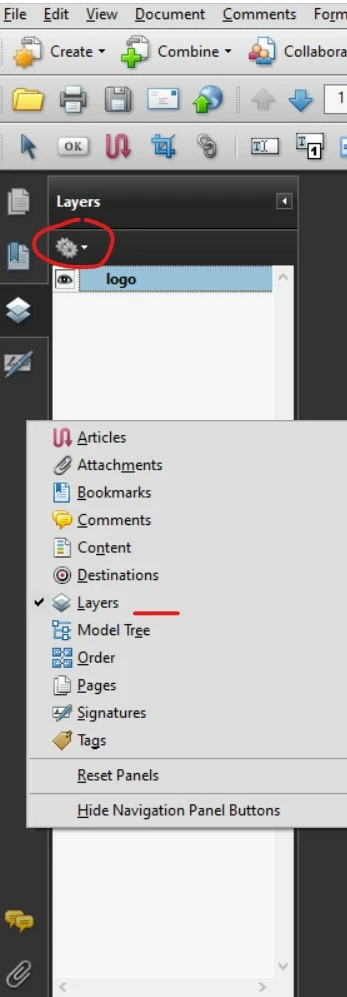
Hi, if this may help, another way to do it is to import image as layer


Import layers

You can import layers from a PDF or image file into a target PDF. Supported image file formats are BMP, GIF, JPEG, JPEG 2000, PCX, PNG, and TIFF.

  1. Click the Layers button in the navigation pane

  2. Choose Import As Layer from the options menu
     
  3. In the Import As Layer dialog box, click Browse and locate the file to import. If the source file is a multipage document, enter the page number you want to import in Page Number. If the target file is a multipage document, specify the Target Page Number in the Preview section of the dialog box.
  4. Select one of the following import options: Create New Layer Creates a single, separate layer from the source document. Enter a name for the new layer.
  5. Adjust the Position and Appearance settings as needed, and then click OK.

14 replies

Participant
January 8, 2025

After finding this thread today, I experimented with changing the bit depth of a PNG file saved with transparency. Using 32 bit appears to restore functionality for me.

ls_rbls
Community Expert
Community Expert
January 11, 2025

Interesting!


Thank you @neil_3317  for updating this thread.

Participant
January 23, 2024

I found the way

Copying the PNG from web browser to Adobe Reader, without black background.

MisterAnonymous
Participant
January 31, 2024

I literally tried every other solution posted here but only this one worked! Thank you!

Ali Lab TNCorrect answer
Participant
September 4, 2023

Hi, if this may help, another way to do it is to import image as layer


Import layers

You can import layers from a PDF or image file into a target PDF. Supported image file formats are BMP, GIF, JPEG, JPEG 2000, PCX, PNG, and TIFF.

  1. Click the Layers button in the navigation pane

  2. Choose Import As Layer from the options menu
     
  3. In the Import As Layer dialog box, click Browse and locate the file to import. If the source file is a multipage document, enter the page number you want to import in Page Number. If the target file is a multipage document, specify the Target Page Number in the Preview section of the dialog box.
  4. Select one of the following import options: Create New Layer Creates a single, separate layer from the source document. Enter a name for the new layer.
  5. Adjust the Position and Appearance settings as needed, and then click OK.
Participant
July 11, 2023

I was able to have a transparent background exporting from Photoshop by turning off converting the color space to sRGB.

ls_rbls
Community Expert
Community Expert
February 25, 2023

Hi all, 


I got absorbed in this interesting discussion and wanted to add some additional insight.


After reading much, is hard to tell what is going on at each individual level, but I will say that it  seems to be a direct relationship wether an vector image source is copied from an open web page with  web browsers.


That said, it is worth noting that operating systems (Microsoft Windows and macOS) have also evolved in  regard to the "clipboard" and how it has also changed over the years.


In addition, I overlooked the issue thinking that ( maybe) the users are copying and pasting images from Illustrator or Photoshop that were exported with the Artboard . See the following discussions:


But then, I read in another article online in which the editor mentioned something about adding vector elements to a rasterized image. In which case, this  also would (or could) produce the black background when an image file is  copied from one program and pasted directly onto another program.


This didn't fully convinced me, plus I am not a content creator at this time.


I've only fiddle enough with the Adobe Express mobile app and have no experience whatsoever with Adobe Illustrator or Photoshop (just some very very basic skills using GIMP and Inkscape).


So I went ahead and did the following, I  opened the same tab for a vector .png image on five different web browsers. And copied the image from each tab and pasted it directly on a blank PDF document in Acrobat.


Surprisingly, the results shown below revealed that this had nothing to do with how the clipboard (managed by the operating system) respects a transparent background or not when an image is copied from a source with a transparent background.


See slide below:


As you can see, there are certain conditons that affect this black or white background using the copy and paste method directly from a web browser. I had no problems also testing this condition with Mozilla Firefox Developer's edition (64-bit).


The same black background condition happens with Microsoft Paint, Microroft Word, Microsoft Excel... so it appears not to be exclusively a bug in the Adobe Acrobat software. It does happens with other programs too.


See next slide where I am copying and pasting an image (which was advertised as having a transparent background) onto Adobe Acrobat and Microsoft Paint.


The result? No issues in Adobe Acrobat but in Microsft Paint:


Same thing happened when pasting my original test image with  another image that were both saved in the clipboard's history and pasted directly on an opened document of  Microsoft WordPad. 


In this particular program note how one image appears with a white background (not black or transparent and cutting off the text that I typed) while the other image below appeared with the black background:


And here is when it got tricky. Just for kicks, I wanted to push the envelope. So,  I decided to  download an image from a Walmart website that was advertising some men's footwear.


I made a screenshot out of a picture that I took with an Android phone, saved it, edited the image with Adobe Express mobile app and in the "Download options"  =>  "Choose Export"  =>  "Transparent images", then clicked "DOWNLOAD".


I sent the image to myself via email, and downloaded it to a desktop computer with Adobe Acrobat Pro DC(32-bit) on Microsoft Windows 10(64-bit).


The next slide shows the result when using "Add Image" in Adobe Acrobat and also opening the same image file on Google Chrome web browser and copying and pasting it directly to an open PDF document in Adobe Acrobat:


In both methods the transparent background was honored, but if you notice in the image to the right (above), the smaller picture of the black boot produced a white background if you use "Prepare Form" tool and add an "Image Field".


Clicking on that image field will upload your saved image fine except for the white background that it produces automatically.


Another interesting observation, if you are working with images in Adobe Acrobat, ensure that you turn off  the Scan & OCR => "Recognize Text" in that document or it will become a world of hell (perfect to discuss in a different thread during the next ten (or more) years).


But here's the thing, as I was performing tests with each web browser I observed that there are image properties on a web page that also affect an image that is ready for download with a transparent background.


For instance, the following image(from the same website) was giving me problems with every web browser that I tested:


NOTE:

If you are using the Internet as your download source for images with transparent backgrounds you need to open the Developer's Console (F12 key) on your web browser to spot exactly where the issue is with the black/white backgrounds.


See next set of consecutive slide:


I hope this gives additional insights for those of you who have been struggling with this particular issue.

Known Participant
February 25, 2023

ls_rbls:

Wow! Fantastic analysis. You are amazing. Thank you so much. Users like me appreciate such attention.


I originally posted this issue. Somewhere on this stream, a user recommended I edit the security settings. That simple solution has enabled me to paste successfully ever since. 


It's reassuring to know experts like you are out there in the community to fill the gaps left by Adobe.

ls_rbls
Community Expert
Community Expert
February 25, 2023

That means a lot, thank you ! and you're very welcome.

abeld17097172
Participant
February 11, 2023

The way we finally got this to work was to export the PNG's from Photoshop instead of Illustrator. For some reason the illustrator PNG's did not include transparency when dragged or imported into Acrobat. Photoshop PNG's worked. 

Participant
July 29, 2022

The only thing I've found works is to copy and paste two PNGs with transparent backgrounds at once, and for some reason then the transparent background doesn't turn black. Hold down shift to select two PNGs on one page, and paste onto another page. Then you can delete the second one. This is really wacky and ADOBE NEEDS TO FIX!!!!!!!

Participant
October 4, 2022

Very usefull comment. Thank you

Participant
July 27, 2022

Hi, I have found out that this issue have already been resolve in another post. Go to edit, then preferences. Under Security (Enhanced), make sure enable enhanced security is uncheck, enable protected mode at startup is unchecked, and protected view is off. After checking these settings, you might want to close and reopen Acrobat. It works for me so far.


Participating Frequently
July 27, 2022

Nice! That seems to have done the trick for me as well. How random and wild.... but thanks so much for taking the time to share!

JR Boulay
Community Expert
Community Expert
June 15, 2022

This is heresy!

Don't convert to PNG.

If you have vector graphics in Illustrator use vector graphics in Acrobat and in PDF documents.
You will have lighter files, better quality (independent of resolution) and no more transparency problems.

Acrobate du PDF, InDesigner et Photoshopographe
Known Participant
June 15, 2022

The image in the original 1/1/21 post was a scan that was photoshopped then saved as a PNG with a transparent background. It inserts from a file successfully. The black background appears when it is copied from the original location then pasted elsewhere. Because this suddenly occurred after years of successful cutting-and-pasting, I would hazard a guess that it is an unexpected (maybe) consequence of a program update. It would be an inspiring show of corporate support for a member of the Acrobat team to acknowledge an awareness of this bug. My solution now is to insert the file from my local drive into all 25 locations in the document.

Participant
June 15, 2022

I truly hope this helps you/anyone else that is also dealing with this issue still.

I also tried everything that everyone suggested here, it didn't matter which way I decided to import my transparent png whether it was replacing an image or adding one is fresh - that annoying dark background still appeared. 


What I found worked for me was exporting my artwork from illustrator (save for web) and experimenting with the colour export settings and seeing which worked. I know PNG-8 was suggested here somewhere but what actually worked for me was PNG-24. I've attached screenshots of everything, the one with the black background was exported as PNG-8 128 - what worked for me might not work for someone else so my advice is to experiment.


Hope this helps!