
Participating Frequently
January 25, 2018
Question

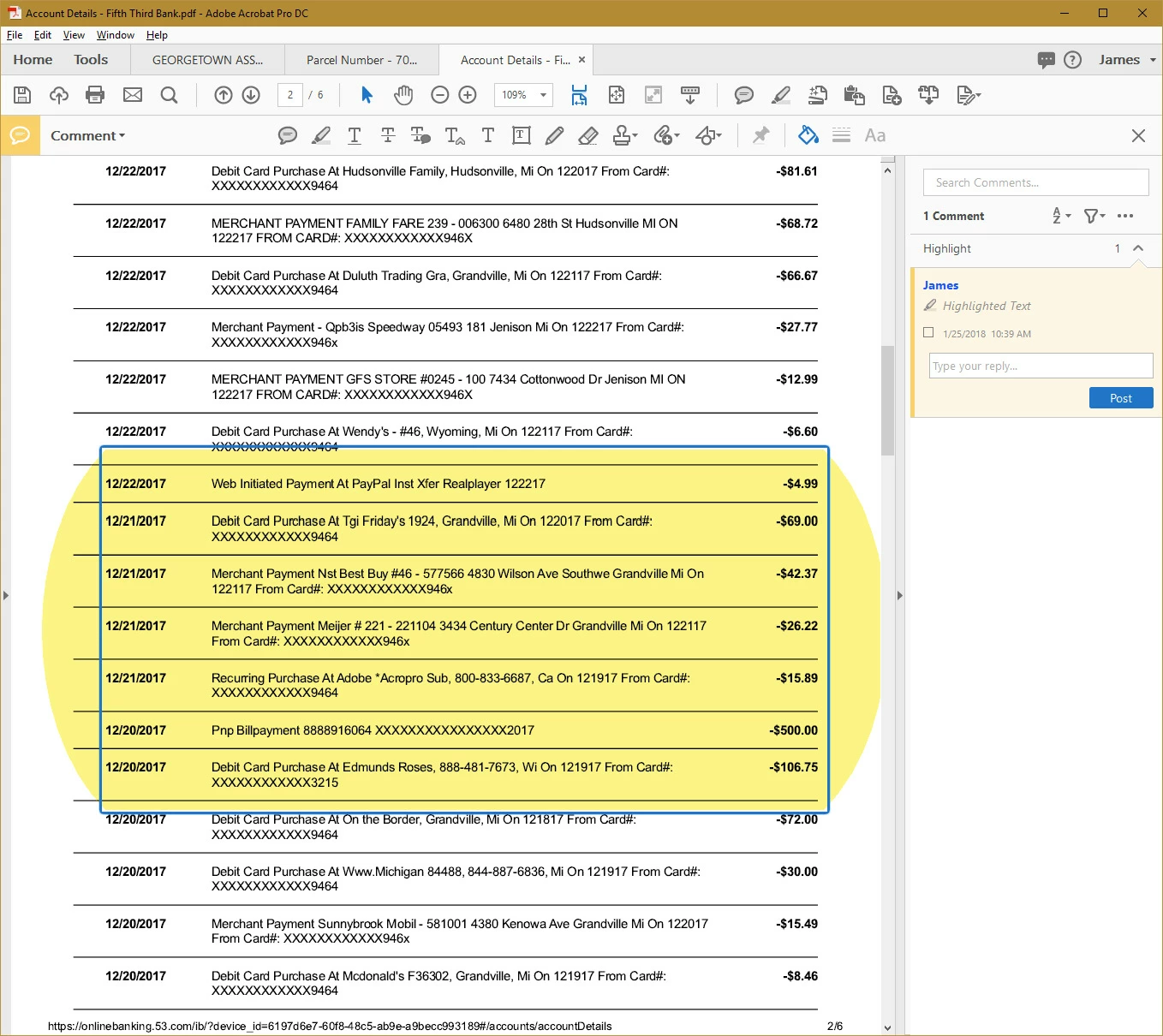
Unable to change select tool or highlighter size, therefore, unable to select single line of text

  • January 25, 2018
  • 7 replies
  • 32776 views

Using Adobe Acrobat DC Pro, intending simply to highlight a single line of text, the selection frame is HUGE and I'm unable to select a single line of anything.
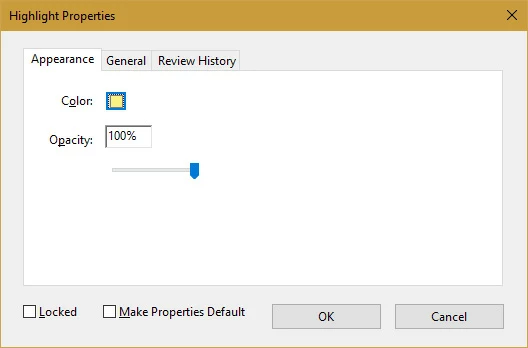
When accessing selection properties (right-click>properties), the only (Appearance) options available are for color and opacity - not sizing.
What little I find in tutorials, self-help support, and community forums indicates I should be able to "grab handles", but no handles ever show up or become available.

Suggestions?  Solutions?

Thanks!

This topic has been closed for replies.

7 replies

Jeff370
Participating Frequently
September 28, 2023

YES. The Highlighter selection area needs a preference to make it smaller or the ability to resize the selection area. When I am working on single lines with no spacing, I have to enlarge the screen, where it looks like 96 96-point size to highlight. 

 
Something Adobe needs to work on. 

Does Adobe ever listen to their customers? 

Participant
August 16, 2019

I was still having the same issue as reported above (huge cursor/highlighter) when trying to print a web page as a PDF.  I have figured out that it only happens when I use "Print to PDF".  If I switch to "Save as PDF" (for the same exact web page), it seems to work fine...I am then able to highlight only one line at a time in the resultant PDF (and also select one line at a time with the cursor/selection tool ).   Hope this somehow helps someone.  

Participant
March 23, 2021

I encountered this issue suddenly yesterday. Prior I was able to print or download or save without any highlighting issues. Today I have found that I have to use the Pring to PDF function in order to be able to select lines of text for highlighting or copying. I hope this helps someone else.

Participant
July 10, 2021

After lots of frustration and experimentation with this issue, here are my observations.

The problem usually occurs with "Print to PDF" from a web page or other non-Adobe source. 

If you select "Edit PDF" in the saved document, you will see that there are multiple overlapping text boxes often with different size/types of text in each box.

If you try to "select" text from one of these overlapping text boxes, it apparently puts the program into a state of uncertainty about what it being selected, so you get bizarre results.

Best solution is to print the orignal document to a non-Adobe source, e.g., Microsoft XPS Document Writer. 

Once that is done, you can "Print to PDF" from the converted, non-Adobe document and, from my experience, always get a "normal," text-selectable PDF.

Participating Frequently
April 29, 2019

Has any one resolved this issue? I am having the same issue...

Sail East West
Participant
September 3, 2018

I also have this problem as described by the other above and it began within the last 2 weeks.  Today I selected "Save as PDF" instead of printing.  The resulting PDF seems to behave normally now. 

niftynici
Participant
August 21, 2018

I have the same issue!! The highlighter tool used to work, and now it's GIGANTIC! Help!!

skyfly99
Participant
August 30, 2018

I'm having the same problem myself. I print a page to PDF then save and then try highlighting and its huge and annoying. Please help with this problem. It worked just fine before.

riazh3739085
Participant
March 19, 2018

I  got the same problem as you.

This problem started around about January 2018. Before that I could highlight single lines.

Document Geek
Community Expert
Community Expert
January 25, 2018

Grab handles do not appear on highlighter marks, only on stamps or drawing markups.

Can you try selecting the text with the hand tool (Make sure  and then right-click, highlight text. Make sure you have your preferences set to allow the hand tool to select text.

Participating Frequently
January 25, 2018

Thanks for responding and asking for details, Document Geek!

No ... although I have the same settings as you, I cannot select text with the hand tool.

I've considered "help>repair installation", just to reset some things back to defaults.  (Perhaps something was changed unintentionally or an add-in feature/update corrupted something.)

Participating Frequently
January 25, 2018

Just FYI ... "Help>Repair Installation" did not change anything.  Still huge.