Participant
August 30, 2017
Answered

unable to type certain letters when filling in a form

  • August 30, 2017
  • 2 replies
  • 37741 views

I am using Adobe Acrobat Reader DC on a Windows 10 Laptop with a UK keyboard.

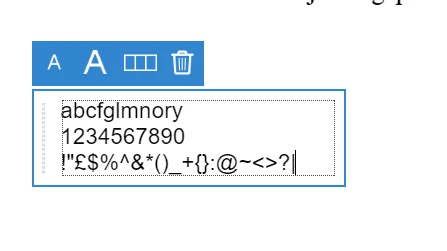
When typing text to fill in a form, pressing many of the letter keys on my keyboard doesn't have any effect.

Below is a screenshot of me trying to type all 26 letters of the alphabet in alphabetical order. As you can see, only 1/2 those letters appear

My keyboard is working fine, and this problem only surfaces when using the Reader program on the desktop. There is a browser version of the program - i can get all letters to appear there.

Anyone else knows how to solve this? I currently have to type each field into MS Word, then copy and paste to fill in the form. It's rather annoying.

Thanks all

Correct answer try67

I recently solved a similar problem for someone else... Maybe it's the same situation here.

Go to Edit - Preferences - General and check if the "Use single-key accelerators to access tools" box is ticked. If so, untick it and try it again.

2 replies

Participant
June 7, 2018

Any update on this @try67?

try67
Community Expert
try67Community ExpertCorrect answer
Community Expert
June 7, 2018

I recently solved a similar problem for someone else... Maybe it's the same situation here.

Go to Edit - Preferences - General and check if the "Use single-key accelerators to access tools" box is ticked. If so, untick it and try it again.

Participant
November 15, 2024

This solved my problem. I wasn't able to type in the comments box and find box in Adobe Acrobat. I had to use MS Word to type and then copy and paste in the the boxes in Adobe. Very annoying. I has been an intermittent problem.

Thanks!

try67
Community Expert
Community Expert
August 30, 2017

Can you post a full window screenshot? This doesn't look like a form field in a Reader...

Participant
August 31, 2017

Hi there, sure, here it is. I've tried typing out all the letters of the alphabets again - same issue.

I'm using the 'Add text" feature in the  'Fill and sign' tool. It's what appears when i double-click on any field in a regular (ie not fillable) PDF.

Hope this helps.