Inspiring
November 15, 2021
Answered

Vectors look horrible

  • November 15, 2021
  • 4 replies
  • 3367 views

I have an illustrator file that I am attempting to put together into a brochure.  My steps below:

1. Create Illustrator file, layers as pages

2.  Create InDesign file and import pages

3.  Export as print-ready, uncompressed, etc., etc.


When I open the PDF the smaller vectors look HORRIBLE.  Totally illegible.  I know Acrobat has been just terrible at this for so many years, but I am hoping that there is something that can be done.  It really makes it useless to send PDF's to clients for proofing/comments when it looks so bad.


What DOES work:

1.  Export from Illustrator as 300dpi JPEGS

2.  Combine JPEGS in Acrobat


Then you can easily see those vectors.  But, of course, they aren't vectors anymore!  

Screen shot below


Am I missing something?  You'd think Acrobat could accurately present vectors by now...



This topic has been closed for replies.
Correct answer JR Boulay

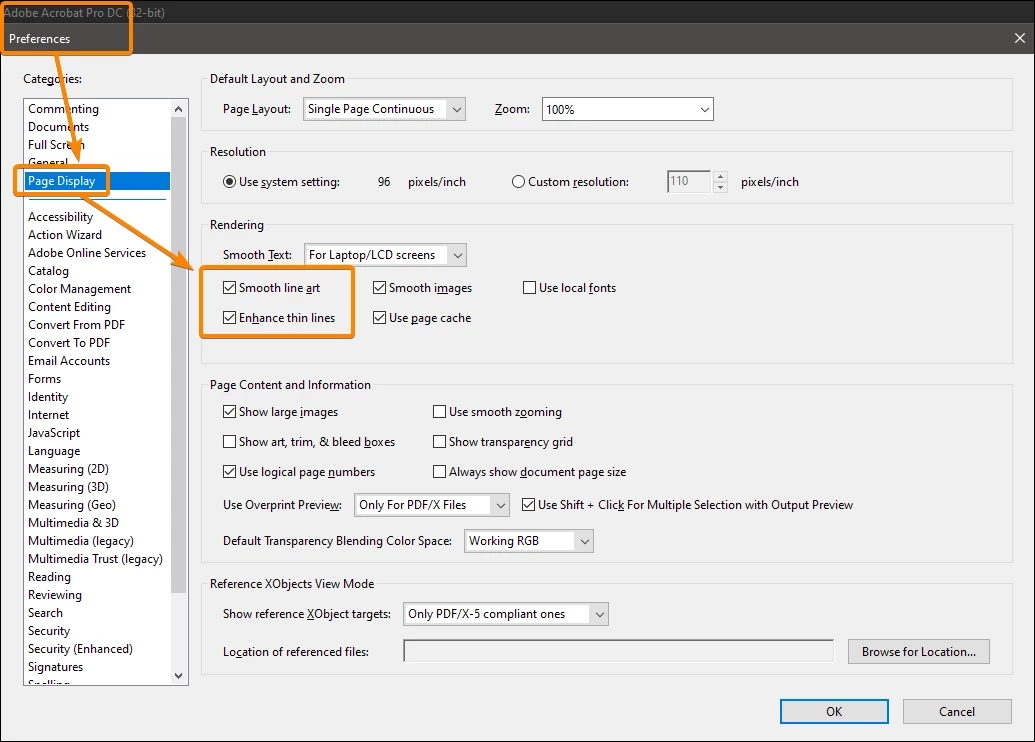
Try to play with these settings:


4 replies

Participant
January 10, 2023

Same issue here... Export all spreads a <600 ppi png from InDesign and recombine in acrobat. Annoying but looks as like it does in InDesign/Illustrator. Hope this helps.


-F

Participant
July 12, 2023

I was just experiencing a similar problem with how small vector icons were displayed in a PDF exported out of InDesign. Line thickness appeared wonky and appeared to vary a lot at different zoom percentages — even within a single icon when I know they had 100% consistent stroke widths in the source files. To be clear, this is only an issue for screen display, not printing.


I took the advice of JR Boulay from higher up in this thread to play with settings in Preferences under Page Display. Turning off "Enhance thin lines" resolved the issue. Now the icons look good however much you zoom in or out. 

JR Boulay
Community Expert
JR BoulayCommunity ExpertCorrect answer
Community Expert
November 15, 2021

Try to play with these settings:


Acrobate du PDF, InDesigner et Photoshopographe
JR Boulay
Community Expert
Community Expert
November 15, 2021

JPEGs are not vectors.

I suppose that in addition these are JPEGs in CMYK mode?

Acrobate du PDF, InDesigner et Photoshopographe
Inspiring
November 15, 2021

No, it's not going to print, no color profiles have been changed (it's all sRGB for web viewing).

try67
Community Expert
Community Expert
November 15, 2021

At which point in that process did you use Acrobat, exactly? Sounds like you use Illustrator and then InDesign, and Acrobat only displays the file as it was created from ID. I suggest you ask in the forums dedicated to those two applications what's the best workflow to achieve your desired result.

Bevi Chagnon - PubCom.com
Legend
November 15, 2021

@displaced7 

Questions:

  1. Why are you using Illustrator to lay out pages? It's a graphics program, not a page layout program.
  2. What format are you using to save the Illustrator files and then importing into InDesign?
  3. Are you copying/pasting from Illustrator into InDesign?


If it any time you use JPEG/JPG file format, you will bitmap your vectors and trash your work. JPEG is a crappy, lossy file format that even at its highest quality settings, will still kill your vectors into bitmaps/dots. The file format was designed for photographs and painting-like illustrations, nothing else.
 

A better, more professional workflow might be to create only the individual graphics in Illustrator.

  • Export them to AI, EPS, PNG, graphical PDF, or some other NON-BITMAPPED format (which is what JPEG is).
  • Place the AI, EPS, PNG, graphical PDF file into InDesign.
  • Complete the remaining design in InDesign, not Illustrator.
  • Export the layout to either PDF-Print or PDF-Interactive (for web-quality distribution). Note that the print- and interactive PDF options aren't available in Illustrator because Illustrator was never intended to create the final PDF.


quote

I know Acrobat has been just terrible at this for so many years, but I am hoping that there is something that can be done. It really makes it useless to send PDF's to clients for proofing/comments when it looks so bad.

By  @displaced7 


Trying to be as kind as possible here, but you're really misuing the software and expecting great results from a limiting workflow.


This is not an Acrobat error or shortcoming: it's a user error because of your workflow.


Learn to use the Creative Suite tools correctly and you'll have gorgeous proofs for your clients.


Look at the pro-training at Linked-In Learning. The folks who teach the Creative Suite design programs are all professionals with decades of experience creating all kinds of materials, from high-end advertising to long books and everything in between. And many of them are ACP/moderators of the InDesign, Illustrator, and Photoshop forums here.


Learn from them.


|&nbsp;&nbsp;&nbsp;&nbsp;Bevi Chagnon &nbsp;&nbsp;|&nbsp;&nbsp;Designer, Trainer, &amp; Technologist for Accessible Documents ||&nbsp;&nbsp;&nbsp;&nbsp;PubCom |&nbsp;&nbsp;&nbsp;&nbsp;Classes &amp; Books for Accessible InDesign, PDFs &amp; MS Office |