acroplex
Participant
September 6, 2025
Answered

Where in the world has the Draw Line tool gone?

  • September 6, 2025
  • 1 reply
  • 329 views

I don't use Adobe Acrobat to create anything, except for when I need to edit existing PDFs. 

I *do export* files from Illustrator though.


That being said, I need to edit a PDF within Adobe Acrobat because it allows me to create custom forms with editable fields. So I wanted to add a couple of lines to existing fields. 


No matter how hard I looked, the Draw Line tool (or other drawing tools) is nowhere to be found. It seems that Adobe moved these tools to Adobe Express. Say it isn't so, as that app is a nightmare. 


Can someone please show me where I can re-access the Draw Line tool when I Edit PDF? Thanks.
Correct answer gary_sc

Hi, @acroplex, the good news is that after you do this a dozen times or so, it will be quite easy! :>)


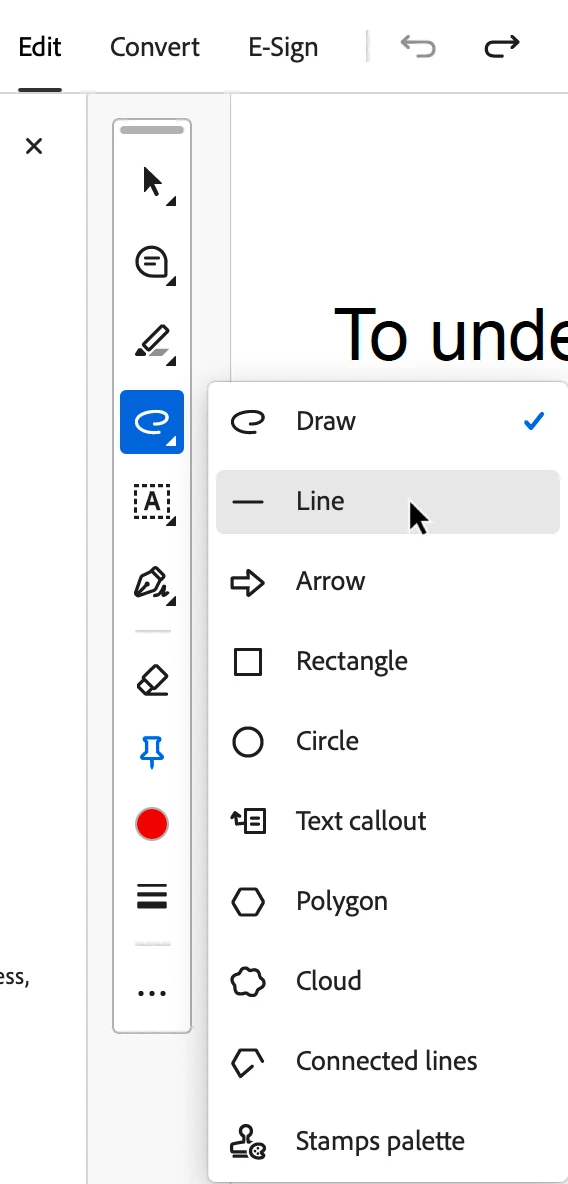
Let's say you're in Edit mode. If you look at the "floating" pallet, there is a squigly line, click on that. Do NOT press and hold that like you would in every other application, Acrobat is "different."

Now you will see the line tool. You can click on it to select.

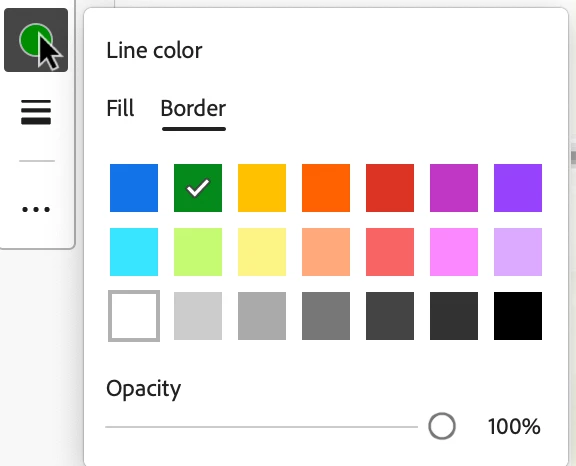
Once selected, you will now see a colored circle and some lines of increasing thickness in the floating panel.


Click on the colored dot and change the color. Note you can also change the Opacity. When very low, you can easily see through the line, when the Opacity is 100%, you cannot see through the line. Unfortunately, you can only see how opaque a line is AFTER you've drawn it. If you want it more or less opaque, change the setting (guess), and try again.


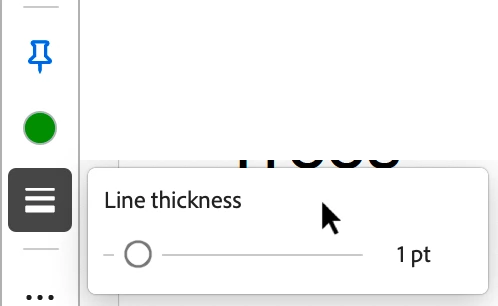
Or, click on the line tool and change the thickness.

I hope this is helpful

1 reply

gary_sc
Community Expert
gary_scCommunity ExpertCorrect answer
Community Expert
September 6, 2025

Hi, @acroplex, the good news is that after you do this a dozen times or so, it will be quite easy! :>)


Let's say you're in Edit mode. If you look at the "floating" pallet, there is a squigly line, click on that. Do NOT press and hold that like you would in every other application, Acrobat is "different."

Now you will see the line tool. You can click on it to select.

Once selected, you will now see a colored circle and some lines of increasing thickness in the floating panel.


Click on the colored dot and change the color. Note you can also change the Opacity. When very low, you can easily see through the line, when the Opacity is 100%, you cannot see through the line. Unfortunately, you can only see how opaque a line is AFTER you've drawn it. If you want it more or less opaque, change the setting (guess), and try again.


Or, click on the line tool and change the thickness.

I hope this is helpful

acroplex
acroplexAuthor
Participant
September 6, 2025

Thank you so much Gary! I can't believe how well the sub-tool was hiding in plain sight! Thanks a billion for your kind help!