Inspiring
February 20, 2022
Answered

Why are my scanned documents so blurry?

  • February 20, 2022
  • 2 replies
  • 19649 views

I vainly spent a lot of time on trying to get text of scanned documents look crispy.

For one reason or the other they look blurry.

Attached 3 examples.

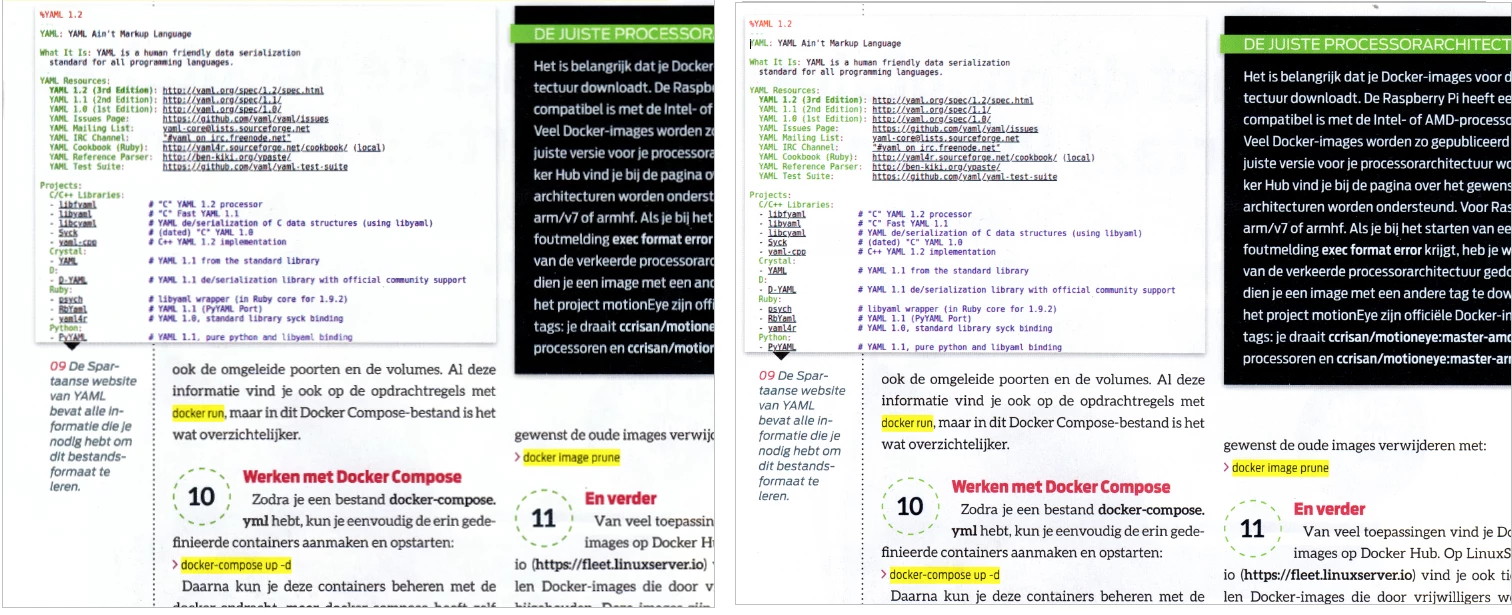
It is screenshot of text from Word, saved as a PNG file

1. Left is the screenshot opened by a viewer
2. In the middle is that screenshot converted to PDF - r-click convert to PDF - no, or no significant, loss
3. I printed the PNG file, printout looked fine, and then scanned it - result on the right.
View is 100%, scan is 300dpi, document size A4 (210x297mm) scanner Epson 5620


FWIW I have put some screenshots here.


Hope someone has a clue...

Thanks in advance.
 

This topic has been closed for replies.
Correct answer adwul62

@gary_sc 
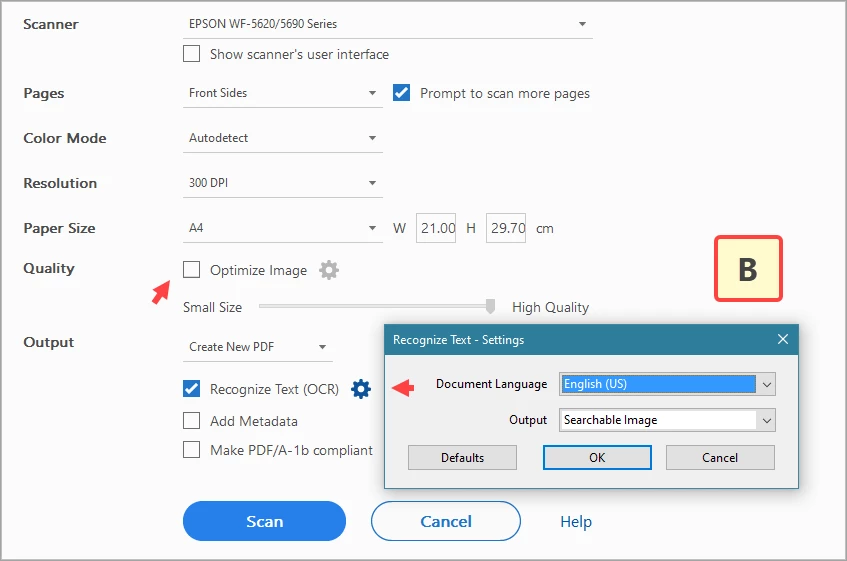
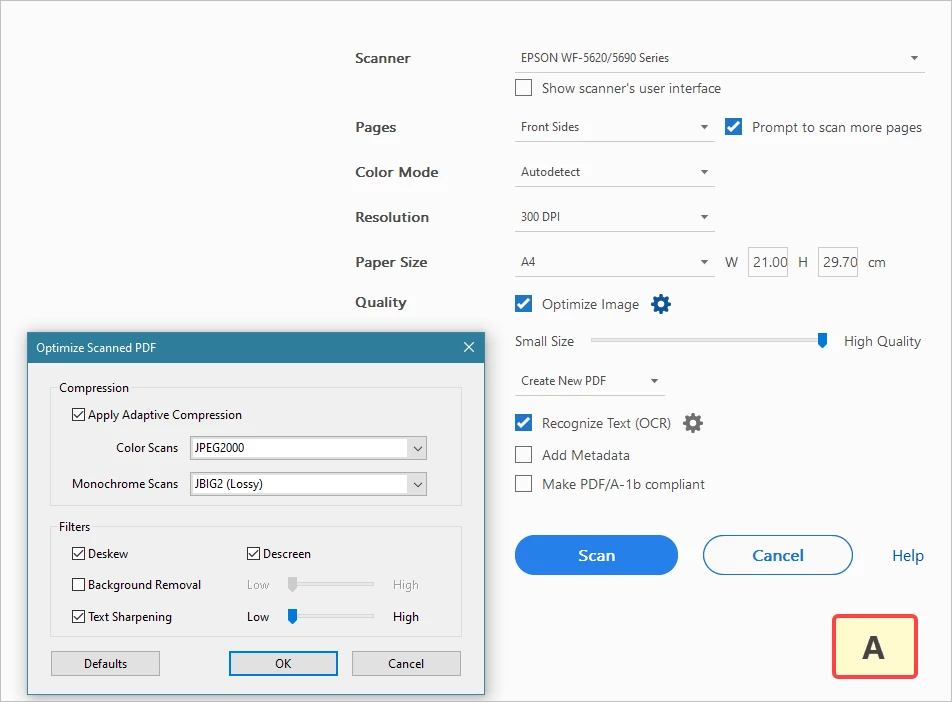
For your info, the settings I am scanning with are in the 4th attachment. 300dpi. At that point there is 'Exact Search'


However, I just found out: I should disable optimize... resulting in a fine scan. 

have added them as an attachment as I believe they don't come thru when pasting in this thread.
Pls do check out the attachments.


2 replies

gary_sc
Community Expert
Community Expert
February 21, 2022

Hi Adwul62,


Quick question for you. First, thanks for showing us your application settings, that helps. However, there was one I did not see. If you go to the Settings in OCR, you can get there one way here (there are several ways to this setting)

After opening that up, there are three ways to process the content, see below:

Which of the three ways is your system set to? Whatever it is set to, please try one of the others.


Also, I noticed that in your 3nd screenshot, you show using PNG format. Please try selecting TIF.


Lastly, In the last screenshot, there is an option to use the Scanner's software ("Show Scanner's User Interface.") Can you show what the default settings are when that box is checked?


Thank you,


adwul62AuthorCorrect answer
Inspiring
February 22, 2022

@gary_sc 
For your info, the settings I am scanning with are in the 4th attachment. 300dpi. At that point there is 'Exact Search'


However, I just found out: I should disable optimize... resulting in a fine scan. 

have added them as an attachment as I believe they don't come thru when pasting in this thread.
Pls do check out the attachments.


gary_sc
Community Expert
Community Expert
February 22, 2022

Hi Adwul62,


Glad you figured out a solution. And, I slapped my head as I should have noticed that.


During the initial scan, if you set Acrobat to Optimize image, it will decrease the quality of an image. Plus, since you had Exact Scan as the setting, it displays the scan of the words as opposed to an overlay of the text, which is what you get from Clear Scan.


IF you have lots of images and wish to cut the size of a document, then you can either use Clear Scan (unless you're a govt. agency), or perform a "Reduce Document Size" after the OCR process. 


Here's a breakdown of the options when performing an OCR for future reference:


#1 - Provides an OCR output whose glyphs have no stroke or fill  -- so, "invisible" or "hidden".

This method also dresses up the image a wee bit. Thus, an altered image rather than the exact image as provided by the scanner.

Consequently, #1 is typically not acceptable to a FedGov agency (or any entity with an interest in a document of record having the proper "provenance").


#2. An OCR output developed as in #1. But, the exact image remains untouched.

Typically this is what a FedGov agency requires if submitting a scanned image of text.

So, the original image out of the scanner maintains its integrity and the OCR output supports find / search.


#3 ClearScan - Introduced a few versions back. When the bit-map of a character's image is recognized that is replaced with a font (character glyph is seen as it has fill and stroke applied).  What is not recognized is left. And more magic...

Bottom line - That image out of the scanner that *was* the exact replica of the hardcopy and thus a valid/legal document of record is blown away, gone, dent de lion in the wind eh. Typically not acceptable for something submitted to a FedGov agency.

Amal.
Community Manager
Community Manager
February 21, 2022

Hi there


Hope you are doing well and sorry to hear that.


Would you mind sharing the version of the Acrobat DC you are using? To check the version go to Help > About Acrobat and make sure you have the recent version 21.11.20039. Go to Help > Check for updates and reboot the computer once.


Also try to create the PDF from the scanner as described here https://helpx.adobe.com/acrobat/using/scan-documents-pdf.html and see if that works for you.


Also check for any missing/pending updates for scanner driver and firmware and try updating it and check.


Regards

Amal