
Known Participant
October 16, 2024
Question

Why does scaling during preflight not work on all documents?

  • October 16, 2024
  • 1 reply
  • 2227 views

Hi,


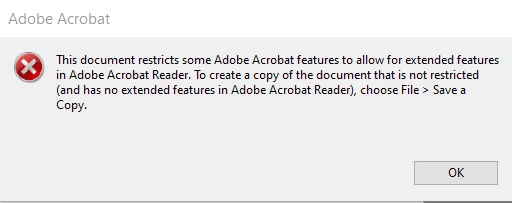
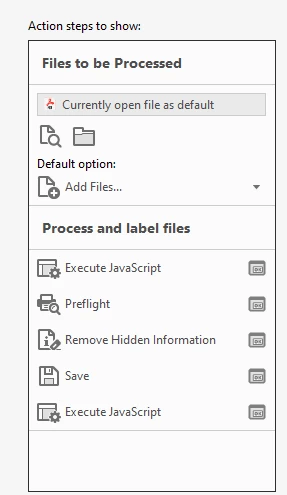
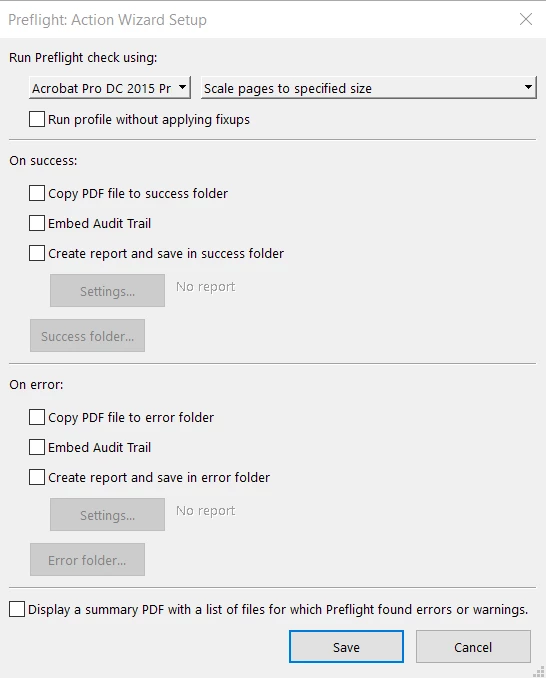
I have an action wizard which scales pages for numerous pdf documents to a specified size (see action wizard below). It is able to scale most of the documents. However, for some documents, it doesn't scale them at all.  I accidentally figured out that the documents that do not scale conjure up the following error when I try to "Edit PDF" from the Tools menu, which leads me to believe the problematic documents have security. Is there a work around for this? Is there something that can be done to the documents ahead of time to prep them for scaling? I need to be able to scale pages for over 50 plus documents so I cannot save a copy of each one separately and then scale. 


Action Wizard:
Here are the settings for the Preflight:


Thx.

Sue


This topic has been closed for replies.

1 reply

PDF Automation Station
Community Expert
Community Expert
October 16, 2024

That error means the document was saved as a "Reader Extended PDF".  Do what the error message says and Save A Copy first.

suemo22Author
Known Participant
October 16, 2024

TY for explaining. Is there a javascript that can sort through all of the documents to see which ones were saved as "Reader Extended PDFs" and then only save a copy of those, without overwriting its respective existing documents, and use the newly saved copies for subsequent steps? If overwriting its respective existing documents is not possible, it's fine as long as it is only making copies of those documents which were saved as "Reader Extended PDFs". 


Sue

PDF Automation Station
Community Expert
Community Expert
October 16, 2024

You can create an Action with a script to "Save A Copy" and then save to a different folder.  It won't overwrite the existing file so you either have to change the file name, or save to a different folder.  The documents that were Reader Extended will be exact copies of the originals with the Reader Extended removed.  Those that weren't Reader Extended will simply be copies of the originals.  So you will end up with a new folder of all your documents and none will be Reader Extended.  You can then run your Action one the new folder.  Here's an example of the Action script to run on the folder of PDFs


//Here's an example of a path to the folder you will run the action on:
//"/C/Users/User/Desktop/Original Folder/Document1.pdf"
//Add another folder ("New Folder") for the output in the same directory as Original Folder (Desktop in this example)
//Use the following script in the action:

this.saveAs({cPath:this.path.replace("Original,"New"),bCopy:true});

//The script above is the only thing you need to do in the action.  Don't create another Save action.