Participating Frequently
August 28, 2012
Question

Word 2010 - .pdf - background image repeating

  • August 28, 2012
  • 4 replies
  • 34982 views

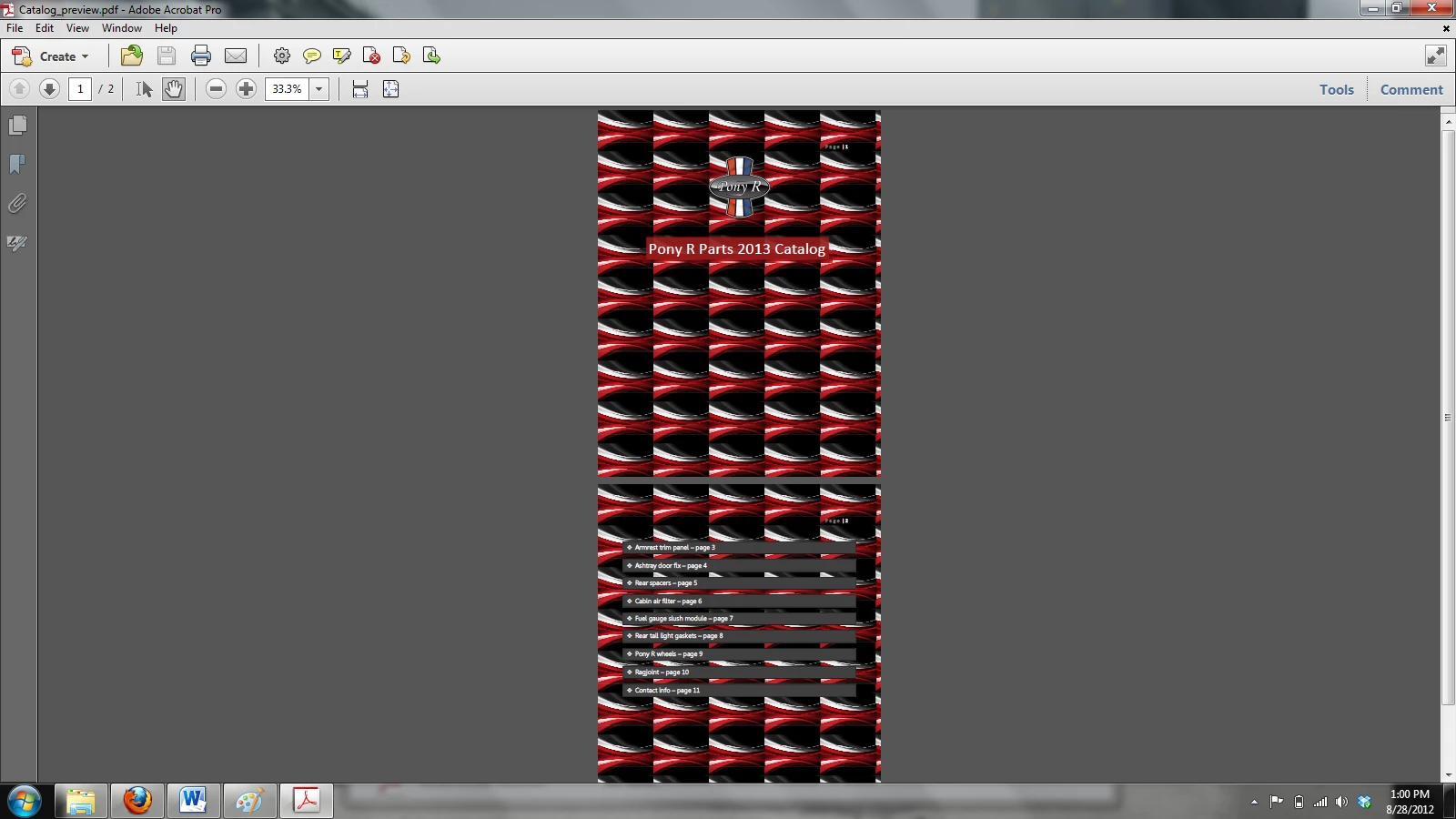
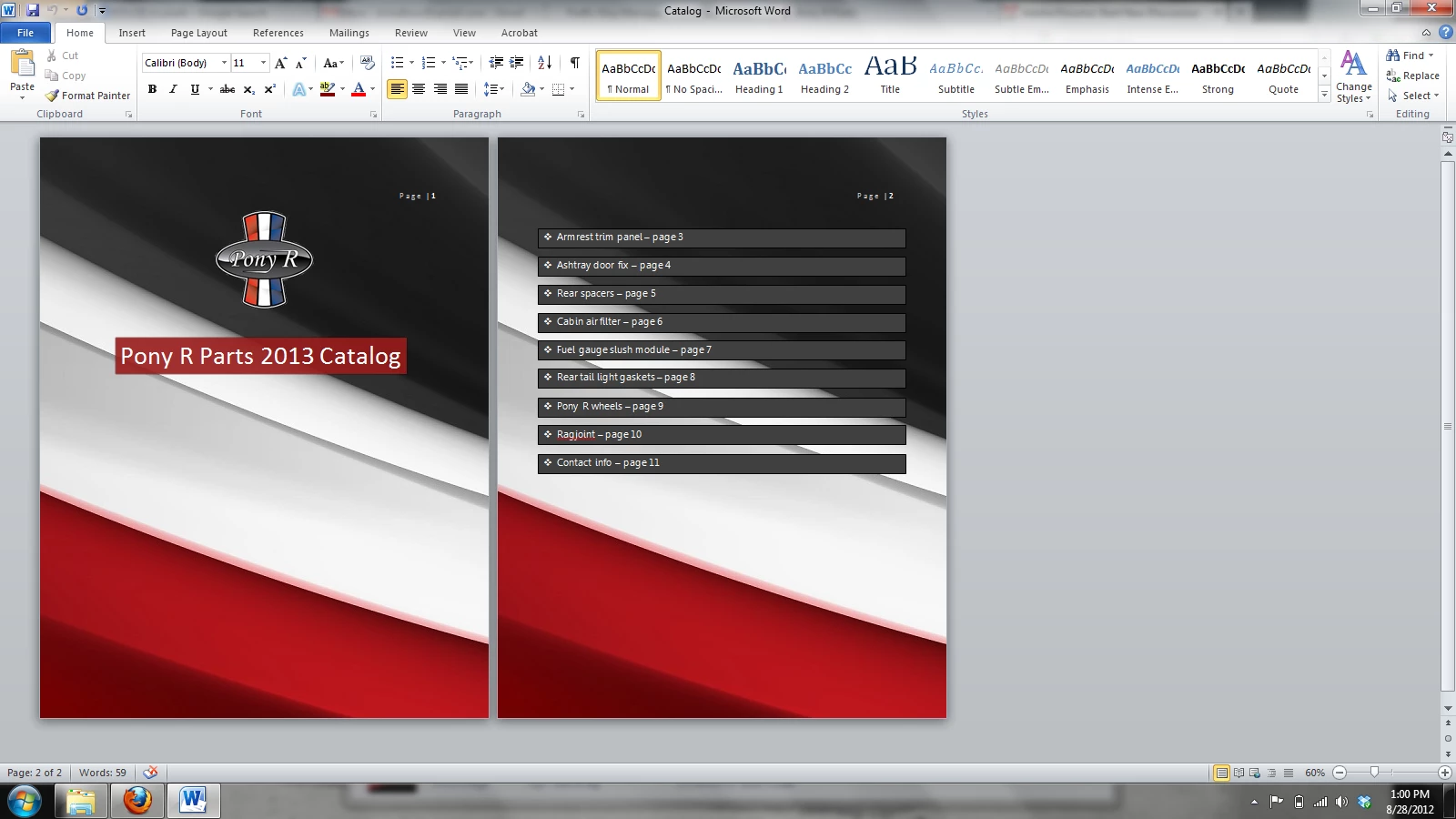
I'm trying to make a catalog using Word 2010, but when I go to convert the document to .pdf, it makes the background image small and repeats it, very annoying.
This topic has been closed for replies.

4 replies

MK. Elbaloshy
Participant
October 28, 2018

Was personally having this issue in Word 2013 where the Print Preview displayed the background image correctly, centering and filling the entire background, yet printing to a PDF or printer results in the background image being tiled repeatedly on the entire page ==> finally figured it out!

Since the Header formatting option presented by others typically is not an appropriate option for many encountering this issue, and the background printing/spooling options don't work, the resolution to prevent the background image from tiling when printing to a PDF or a printer is as follows:

• Open the document in Word 2010/ 2013

• Click on the 'Page Layout' tab

• 'Page Background' section > click 'Page Color' > click 'Fill Effects...'

• 'Fill Effects' window opens > click 'Texture' tab > click 'Other Texture...' button

• 'Select Texture' window opens > navigate to and click on the desired background image > click 'Insert' button

• 'Fill Effects' window opens > click 'OK' button

Since there is a known issue between MS Word and some print drivers resulting in pictures in the background being tiled instead of centered and filled, the trick is to insert the background image as a 'Texture' instead of a 'Picture'. Save your Word document and then edit as needed for any content to be displayed on top of the background image.

- Albaloshy

Participant
December 3, 2019

This IS the solution... look no further!

mohammad_owidat
Participant
March 14, 2017

Old bug and still there with 2016, but there is a workaround for this, please follow the following:

  • Remove the "page background" by replacing it with white solid color.
  • Open the header pane.
  • Insert the image, set its text wrapping to Behind Text, and drag its sizing handles so it covers the whole page. You may want to use the controls on the Picture Tools tab to reduce the contrast and increase the brightness.
  • Close the header.
AbhigyanModi
Community Manager
Community Manager
September 2, 2012

That's how Word prints background with gradients - you should see similar results if you print to a physical printer. Search Office forums for some workarounds. for example:

http://answers.microsoft.com/en-us/office/forum/office_2007-word/background-gradients-print-repeated-or-tiled-how/718d5ffd-d417-4cae-8e59-0dfb583ca572

MichaelKazlow
Legend
August 28, 2012

What version of Acrobat are you using and what method are you using to create the pdf files? What job options file?

Are you  printing to PDF or using the Ribbon? Which ever method you are using, what happens if you try the other method?

Participating Frequently
August 28, 2012

Acrobat X - I just click File, Save as Adobe PDF in Word. I tried both methods and same thing.

dave_m_k
Legend
August 28, 2012

Does the same thing happen if you print to the Adobe PDF printer?

-David
