
Participant
April 11, 2018
Answered

Adobe Reader DC - Digitally Signing PDF's - changes implemented?

  • April 11, 2018
  • 1 reply
  • 888 views

Hello guys,

We are a municipality in Belgium, and our mayor and city-secretary digitally sign a lot of documents with Adobe Reader DC. Until recently we saw the "Signature Panel" to start the digitally sign proces with our e-ID's. This 'Signature Panel' appeared automatically upon opening the PDF. We could click the 'Signature Panel' button, the signatures section opens up left, we click one of two to sign signatures (in our case) we click the square in the document, and we got a dialog box to enter our e-ID pincode and the document was signed.
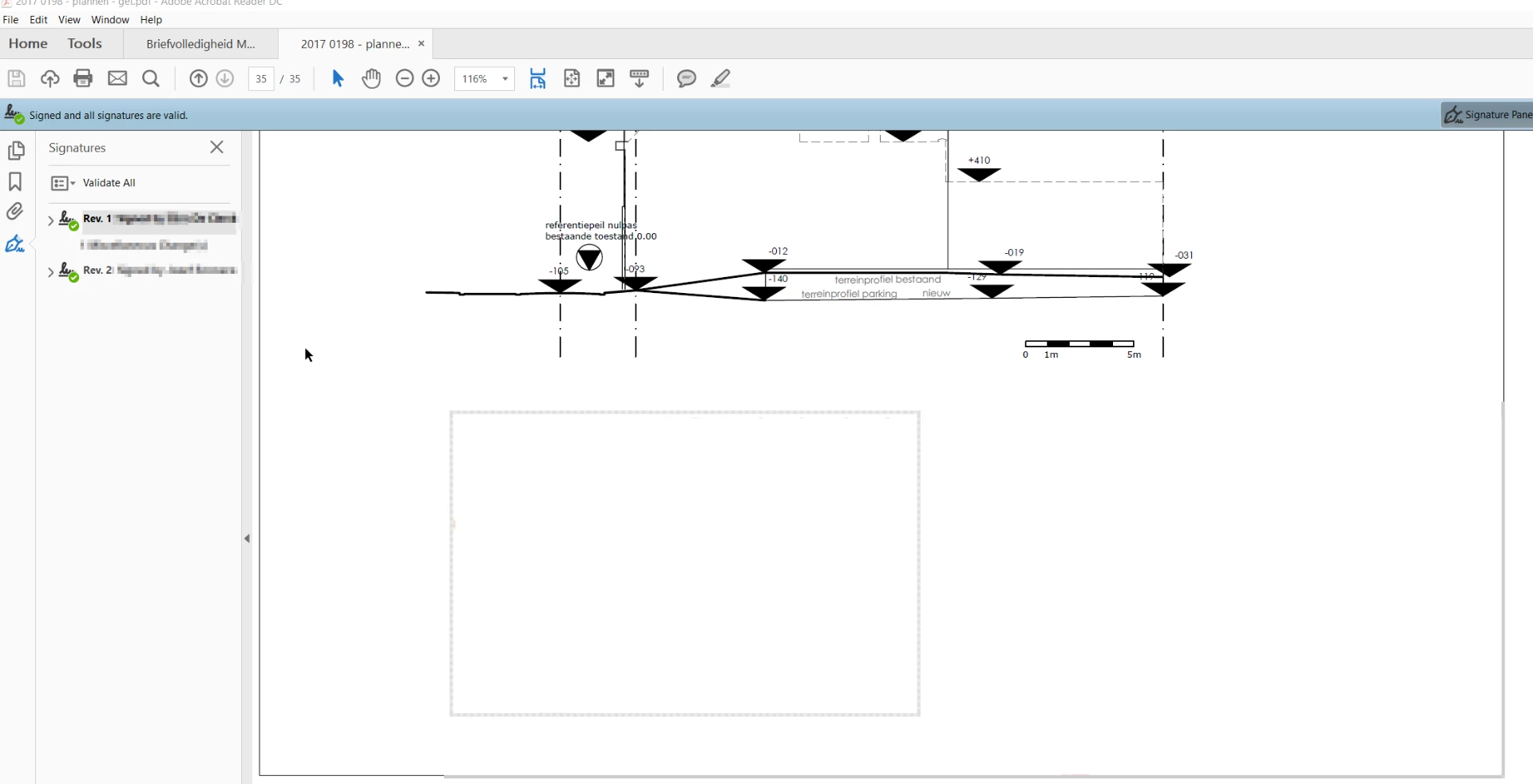
However quite recently we no longer get this blue bar visible upon opening PDF's... it seems we suddenly need to follow another procedure to get documents signed: the blue bar is simply not visible.

So: after an extensive search, we found out how we could sign now: what we now have do now, is we go to Edit --> Manage Tools --> Click "Certificates": the Certificates bar appears now:

Next we click "Digitally Sign" button, and we draw the square where we want the autograph to appear. We next select the appropriate certificate and our pincode is asked and the document is signed...

Question:

Does anyone have any insights into this behaviour changes?

And more importantly, is what we are doing correct to digitally sign a document?

by generating a PDF, is it possible for me to implement a empty signature canvas? (If yes, that might explain why suddenly the Signature Panel bar does not appear anymore if the creator of our PDF doesn't do this).

With regards,

Sven
    This topic has been closed for replies.
    Correct answer Meenakshi Negi

    Hi Sven,

    As you have mentioned above, you do not get the blue bar shown in the first screenshot above, when you open the PDFs.

    The blue bar you are referring to appears only when the document already has some digital signatures in it.

    As you can read the message in the blue bar " Signed and all signatures are valid". This refers to that there are already some digital signatures on the PDF which are valid.

    In the second case, where you do not get the blue bar, it seems that the PDF is not signed by anyone yet.

    Also, there is no Digital Signature field added to it.

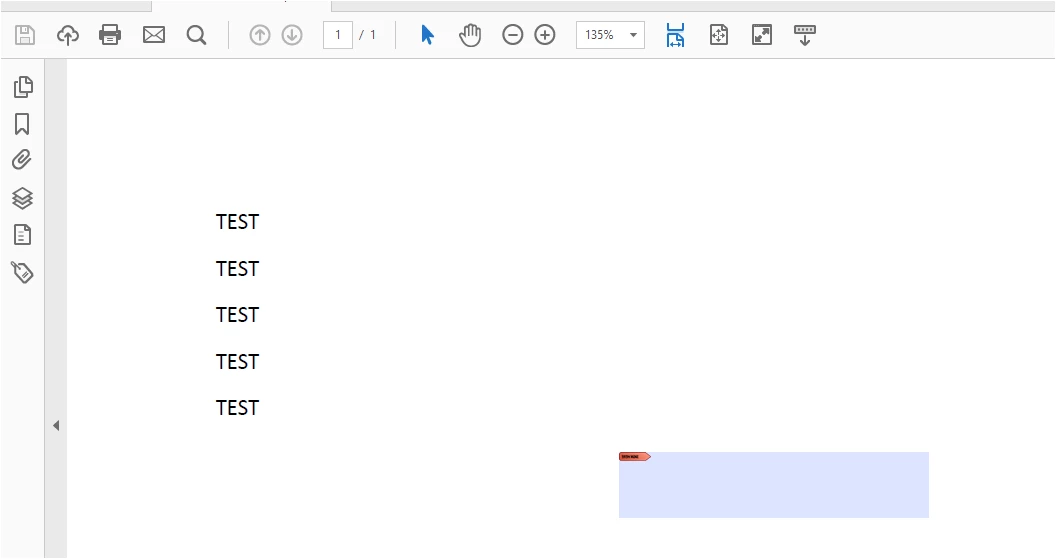
    When there is a digital signature field added to PDF, it will look as shown below in the screenshot:

    So, in the second case, where you do not get either the blue bar or the digital signature field, you need to add the digital signature field yourself.

    When there is no digital signature field and you need to sign the document, go to Tools > Certificates > Digital signature.

    Click and drag the digital signature field to PDF. Then you can sign the document.

    Hope the information helps.

    Let us know if you have any questions.

    Regards,

    Meenakshi

    1 reply

    Meenakshi Negi
    Community Manager
    Meenakshi NegiCommunity ManagerCorrect answer
    Community Manager
    April 11, 2018

    Hi Sven,

    As you have mentioned above, you do not get the blue bar shown in the first screenshot above, when you open the PDFs.

    The blue bar you are referring to appears only when the document already has some digital signatures in it.

    As you can read the message in the blue bar " Signed and all signatures are valid". This refers to that there are already some digital signatures on the PDF which are valid.

    In the second case, where you do not get the blue bar, it seems that the PDF is not signed by anyone yet.

    Also, there is no Digital Signature field added to it.

    When there is a digital signature field added to PDF, it will look as shown below in the screenshot:

    So, in the second case, where you do not get either the blue bar or the digital signature field, you need to add the digital signature field yourself.

    When there is no digital signature field and you need to sign the document, go to Tools > Certificates > Digital signature.

    Click and drag the digital signature field to PDF. Then you can sign the document.

    Hope the information helps.

    Let us know if you have any questions.

    Regards,

    Meenakshi