Participant
July 10, 2020
Answered

clear history of fill & sign autocomplete forms

  • July 10, 2020
  • 3 replies
  • 19534 views

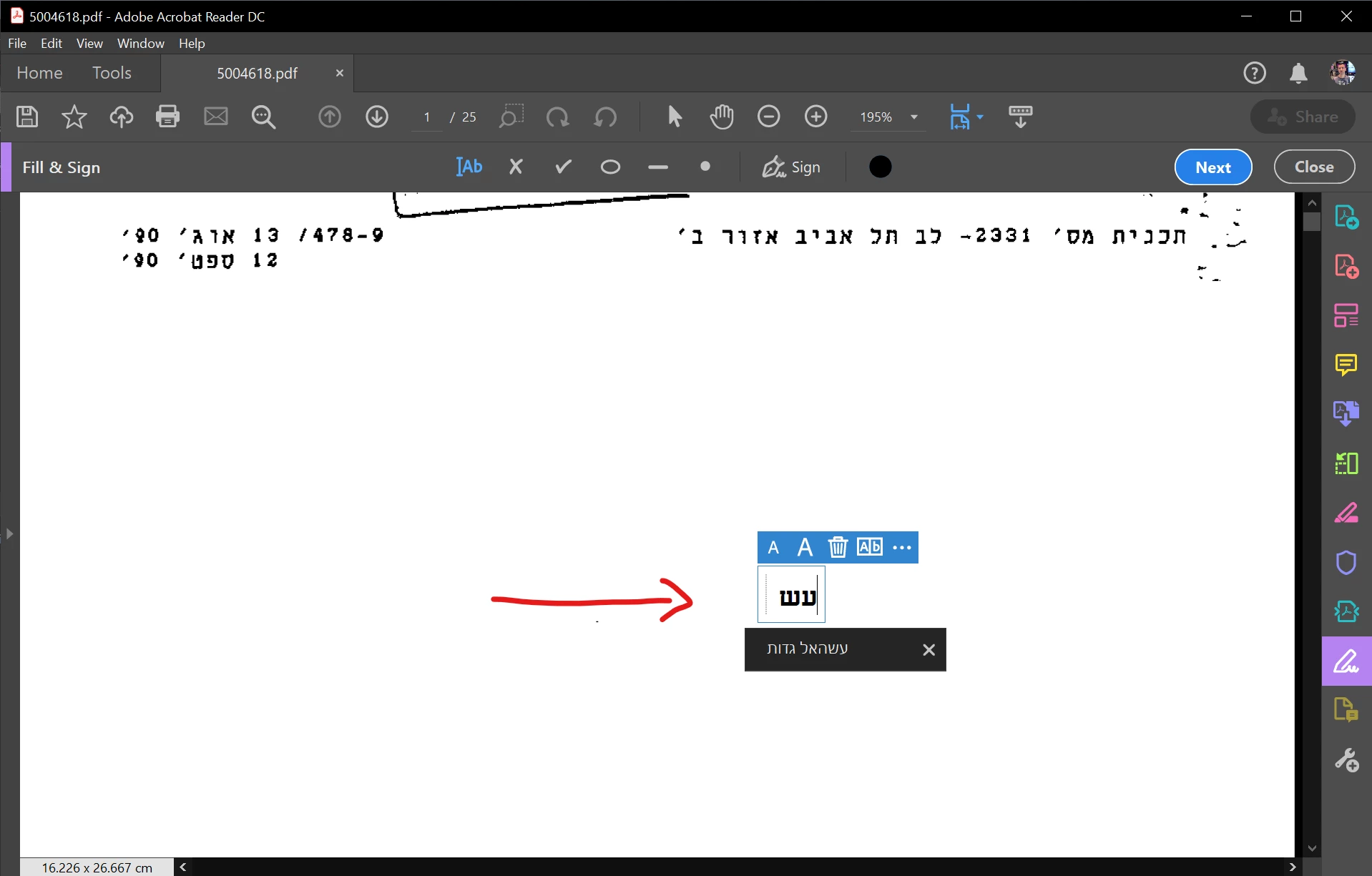
take a look at that screen shot

when i use fill & sign and start typing it's autocomlete. how can i clear the history of that?

Correct answer Bernd Alheit

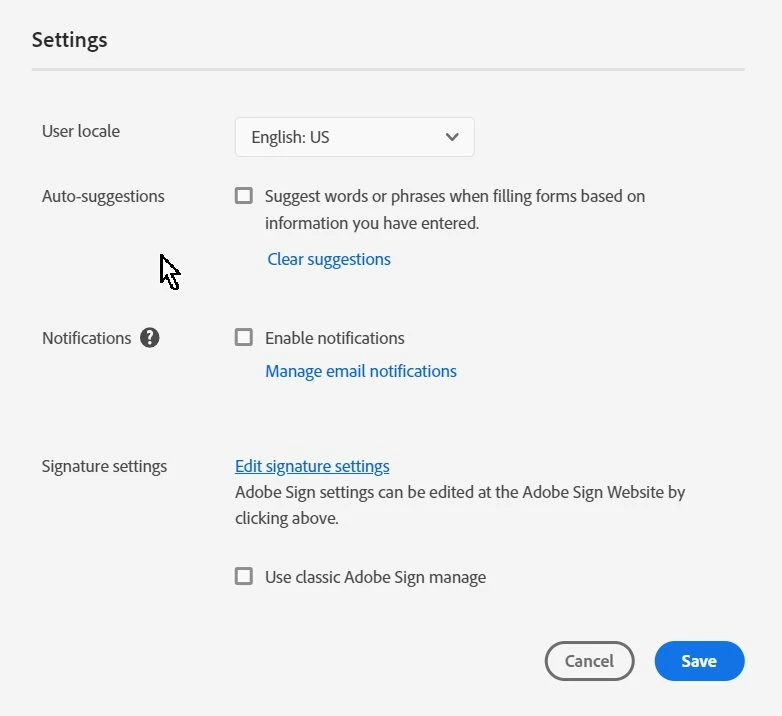
You can change this in the settings of your account at documentcloud.adobe.com
3 replies

Realfoodman
Participant
September 15, 2021

I am not signed in to an Adobe account, but I am getting these suggestions. How do I turn off the Fill & Sign history?

Participating Frequently
July 25, 2022

I have the same question - how to clear Fill & Sign history.  I'm using Adobe Reader DC without being logged into any account.  I tried the above suggestions, but previously entered (private, sensitive) information keeps showing up in the Fill & Sign list.

I tried uninstalling Adobe, then using the Adobe Cleaner to completely remove any remnants of the software from the computer.

However, after rebooting and reinstalling Adobe Reader DC the sensitive information STILL shows up using Fill & Sign.

What else can be tried in order to remove all of this information from Fill & Sign?

Thanks,

Participating Frequently
October 13, 2022

Has anyone found a proper solution to clear the fill&sign history.


My findings so far include the following 3 options:

1. In Adobe Reader, Edit>Preferences>Forms>Auto-Complete=Off

By default, this option is off, so that’s not usually the fix.


2. Delete all items in the Adobe Security folder (should be called INsecurity folder I think, but who am I):

C:\Users\USERNAME\AppData\Roaming\Adobe\Acrobat\DC\Security

(May have to enable view hidden folders)

Can also delete all items in the \DC folder

Problem is, when you use Fill and Sign again, the items in \Security folder get recreated and between them, they’re storing automatically all the Fill and Sign data you type.

So, it’s really a temporary fix until Adobe provides an option to not cache Fill and Sign data. Let us know when that happens please.


3. Other source for Fill and Sign cached data could be if at some point you created ANY kind of Adobe account, it’s caching Fill and Sign data in their cloud. To clear:

• Go to https://cloud.acrobat.com/ and sign in with your credentials.

• At the top right corner of the screen, you will see a dropdown with your username on it.

• Click it and go to Settings.

• Unchecking the “Suggest words….” checkbox and/or pressing Clear All button will clear all the auto fill entries which has been stored in your account.

Hope this helps

adobenewbie937
Participant
July 16, 2020

Hello there, I tried this and it did not work. How do you get this to clear when you do not have an account or if the form was created when the user was not logged in?

Amal.
Community Manager
Community Manager
July 16, 2020

Hi there


We are sorry for the trouble.


++ Adding on to discussion


Please go to Edit (Windows), Adobe Acrobat Reader DC (Mac) > Preferences > Forms > Select 'Off' Under Auto -Complete > Click OK and reboot the application and see if that works for you.


Regards

Amal

adobenewbie937
Participant
July 19, 2020

I have tried that and it has not worked. 

Bernd Alheit
Community Expert
Bernd AlheitCommunity ExpertCorrect answer
Community Expert
July 10, 2020

You can change this in the settings of your account at documentcloud.adobe.com

Participant
July 10, 2020

i did it but still there is a autofill suggestion.


EDIT:

it's worked. thank!