
bursurke
Participant
October 1, 2017
Answered

Duplex printing option is NOT visible; using PC and Brother

  • October 1, 2017
  • 2 replies
  • 20368 views

I am attempting to change my printing preferences to allow for duplex printing.  I am using Windows 10 and a Brother MFC-9340CDW printer.  This is a duplex printer.  I have set my automatic settings within my printer to duplex.  I can print duplex in literally every other application I have used.  The "Print on Both Sides of Paper" checkbox IS NOT VISIBLE.  The option to adjust this in my printer properties within the print window IS NOT VISIBLE.  The response to every question of this nature within the forums is a link to this page: Print double-sided | Adobe Acrobat, Reader DC .  This does not resolve the issue because this only tells you how to check the box if the box is there to be checked - so please don't reply with this as a potential answer to my question. 

What can I do to print duplex?
This topic has been closed for replies.
Correct answer Adorobat

Hi,

Sorry for the delay in response. 

bursurke  wrote

The "Print on Both Sides of Paper" checkbox IS NOT VISIBLE.  The option to adjust this in my printer properties within the print window IS NOT VISIBLE. 

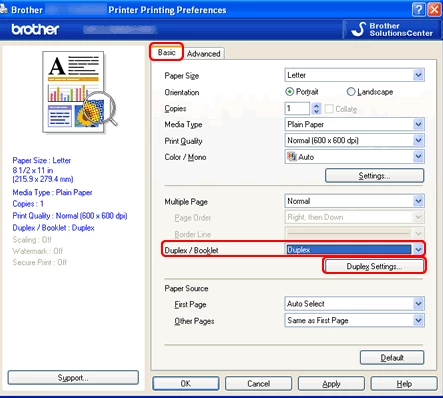
Could you please try navigating to Printing preferences and see if print of both sides of paper option is visible there?

1- Hold down the Windows key on the keyboard and press R key on the keyboard > type control printers and hit Enter.

2- Select your printer from the list > right-click > printing preferences, which will open a new window.

3- Search for duplex option under Basic tab . Below is a screenshot:

Let us know if you need any help.

Shivam

2 replies

Adorobat
Community Manager
AdorobatCommunity ManagerCorrect answer
Community Manager
February 7, 2018

Hi,

Sorry for the delay in response. 

bursurke  wrote

The "Print on Both Sides of Paper" checkbox IS NOT VISIBLE.  The option to adjust this in my printer properties within the print window IS NOT VISIBLE. 

Could you please try navigating to Printing preferences and see if print of both sides of paper option is visible there?

1- Hold down the Windows key on the keyboard and press R key on the keyboard > type control printers and hit Enter.

2- Select your printer from the list > right-click > printing preferences, which will open a new window.

3- Search for duplex option under Basic tab . Below is a screenshot:

Let us know if you need any help.

Shivam

Participant
February 6, 2022

This what helpful, but my Brother MFC 9340CDW printer is on the network, and we have a Windows 11 PC.


The checkbox was not showing up in Adobe, but after I went to 


Hold down the Windows key on the keyboard and press R key on the keyboard > type control printers and hit Enter.


Then I selected the printer and went into Printer --> Properties

    On the [Device Settings] Tab for the printer, I switched the "Duplex Unit" from Not Available to "Installed"


Now Adobe has "Print on both sides of paper" again!


Participant
September 16, 2022

Thank you - this worked perfectly for me 😉

Meenakshi Negi
Community Manager
Community Manager
October 2, 2017

Hi Bursurke,

As you do not get the option "Print on both sides" in the print window, try once to repair the installation.

To repair, launch the application and go to Help menu. Then select "Repair Installation" and relaunch the application.

Generally, if the printer has the duplex printing option, it automatically shows the option to print on both sides in print window.

Please make sure that the application is updated to the latest patch released.

Also, make sure that you select your printer name from the list in the print window.

Could you please confirm the dot version of Adobe application you are using.

You may refer the steps provided here Identify the product and its version for Acrobat and Reader DC to check the version number.

Let us know if you have any questions.

Regards,

Meenakshi