Hello Barbara!
I hope you are doing well, and we apologize for the trouble you had.
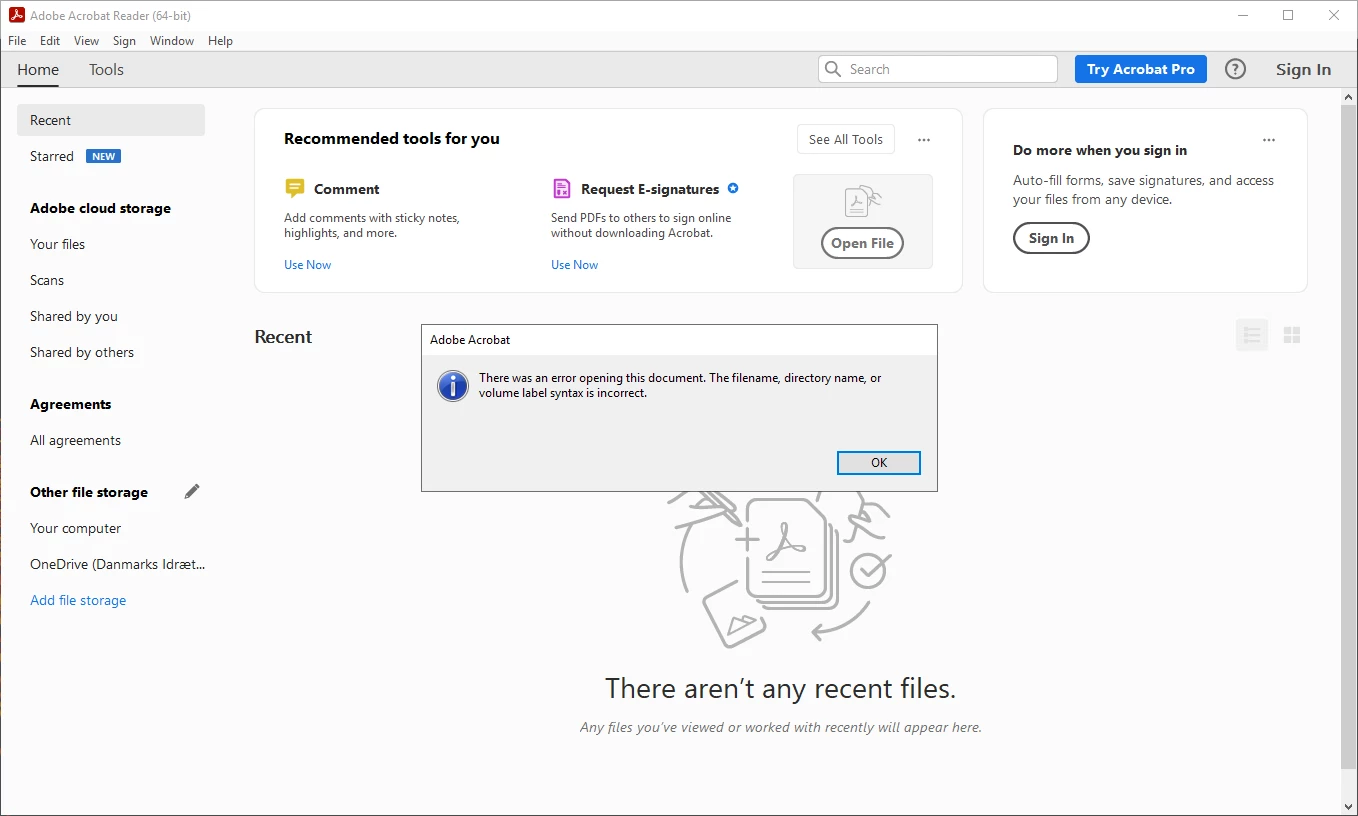
Do you get any error messages while opening the PDF files from SharePoint? Could you please share the workflow? What is the current version of Acrobat Reader installed? Ensure you have the latest version of Acrobat installed on the machine: 25.001.2043x Optional update, Mar 19, 2025. Check for any pending updates from the Menu > help > check for updates, install the updates, restart the app and the machine, and check. For more information, see this: https://adobe.ly/4j7Uisk
Are you on a Windows machine or Mac, and what is the version? Ensure the file name and directory path do not contain special characters like * : < > ? / \ | and are not excessively long. In SharePoint Online, navigate to Site Collection Features and activate Open Documents in Client Applications by Default. Set Adobe Acrobat Reader as Default: On your computer, go to Settings > Apps > Default apps. Scroll down to Choose default apps by file type, find .pdf, and set Adobe Acrobat Reader as the default app.
Browser Settings:
-
- Ensure your browser is configured to open PDFs with Adobe Acrobat Reader:
- Chrome: Go to
Settings > Privacy and security > Site Settings > PDF documents and turn on Download PDFs instead of automatically opening them in Chrome.
- Firefox: Go to
Options > Applications, find Portable Document Format (PDF), and set it to Open with Adobe Acrobat Reader.
- Edge: Go to
Settings > Cookies and site permissions > PDF documents and turn on Always open PDF files externally.
Please try the above steps and let us know if that works for you. Also, see this article to learn more about accessing the SharePoint files: https://adobe.ly/3Rd1jf3
Thanks,
Anand Sri.




 AdChoices