
New Participant
November 8, 2019
Answered

Help with error: "Adobe Acrobat does not allow connection to:"

  • November 8, 2019
  • 1 reply
  • 43556 views

I have both Adobe Acrobat DC Pro and Adobe Reader DC installed on my laptop. It is necessary because I am slowly learning that what works in the one does not always work in the other, especially when developing forms and interactive PDF's.


At the moment, the error message: "Adobe Acrobat does not allow connection to:" is driving me nuts. I build a a document sveral times a month with hyperlinks to servers on our local network. The hyperlinks work perfectly in Adobe Acrobat Pro DC, but not in Adobe Reader DC. I have checked the "Preferences" settings, and they are identical.


Foxit Reader and Nuance PowerPDF also allow the hyperlinks to work perfectly. Any advice or solutions would be appreciated. I need the hyperlinks to work, and if Adobe Reader doesn't do it then I must recommend that my organisation switch to a different solution.
Correct answer Prasanth_IRPA_Dev

Thanks Amal,

I reset the Acrobat preferences using the 'Manual' method from that link, tried again and get the below error:

-----------------
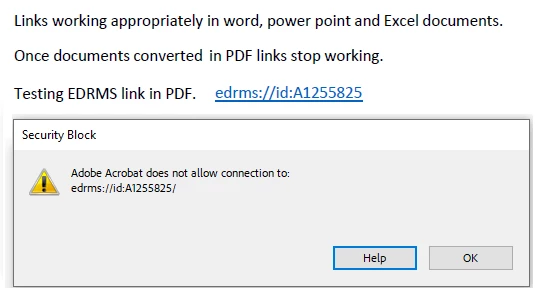
Security Block
Adobe Acrobat does not allow connection to:
<URL> 

-----------------

I then closed Adobe, ran the 'repair' option and tried again and had the same error.

Regards,
Dougal


Hello Team, I've faced the same ERROR. Here you go Edit > Preferences > Trust Manager > Click on Change Settings, Over there you can see the Web sites that are blocked, Just remove the blocked ones

Thanks

Prasanth

1 reply

Amal.
Community Manager
Community Manager
November 12, 2019

Hi there,


We are sorry for the trouble. As described above, you are getting the error 'Adobe Acrobat does not allow connection to' while opening the PDF in Adobe Acrobat Reader DC.


Would you mind sharing some more details for a better understanding:


Make sure you have the latest version 19.21.20049 of Adobe Acrobat/Reader DC. Go to Help > Check for Updates. For more details you may please refer to the link- https://www.adobe.com/devnet-docs/acrobatetk/tools/ReleaseNotesDC/index.html


For testing purpose, please try to turn off the protected view. Go to Edit > Preferences > Enhanced Security > Turn Off the protected view and Uncheck the Enhanced security > Click OK and restart the application and check.

Note: Please turn On the security after testing, irrespective of the result as it may cause security risks.

If it works, please refer to the help article (https://helpx.adobe.com/acrobat/kb/protected-mode-troubleshooting-reader.html)


You may also try the steps provided in the help article: https://helpx.adobe.com/in/acrobat/using/allow-or-block-links-internet.html


Let us know how it goes


Regards

Amal

Participating Frequently
November 28, 2023

Hello,

I have tried all the above preference options, as well as whitlisting in the appropriate areas within the preferences, and have the latest Adobe Reader version (2023.006.20380 (64-bit), continuous update) but have the same issue with a custom-type URL.

Other PDF readers prompt the user asking them if they want to open the URL, however no option within Adobe seems to allow this.

Is this something deliberate within Adobe now, or is that something that might be fixed?

Thank you.

Amal.
Community Manager
Community Manager
March 15, 2024

Thanks Amal,

I reset the Acrobat preferences using the 'Manual' method from that link, tried again and get the below error:

-----------------
Security Block
Adobe Acrobat does not allow connection to:
<URL> 

-----------------

I then closed Adobe, ran the 'repair' option and tried again and had the same error.

Regards,
Dougal


Hi there


Have you tried the steps provided in the correct answer below: go Edit > Preferences > Trust Manager > Click on Change Settings, Over there you can see the Web sites that are blocked, Just remove the blocked ones and seeif that works.


For testing purpose, you may turn off the security settings. Go to Preferences (Ctrl,Cmd+K) > Enhanced Security > Uncheck 'Enable Protected mode at startup' > Click OK and reboot the application.
Note: Please turn on the security after testing to avoid any security risk.


~Amal