Copy link to clipboard
Copied
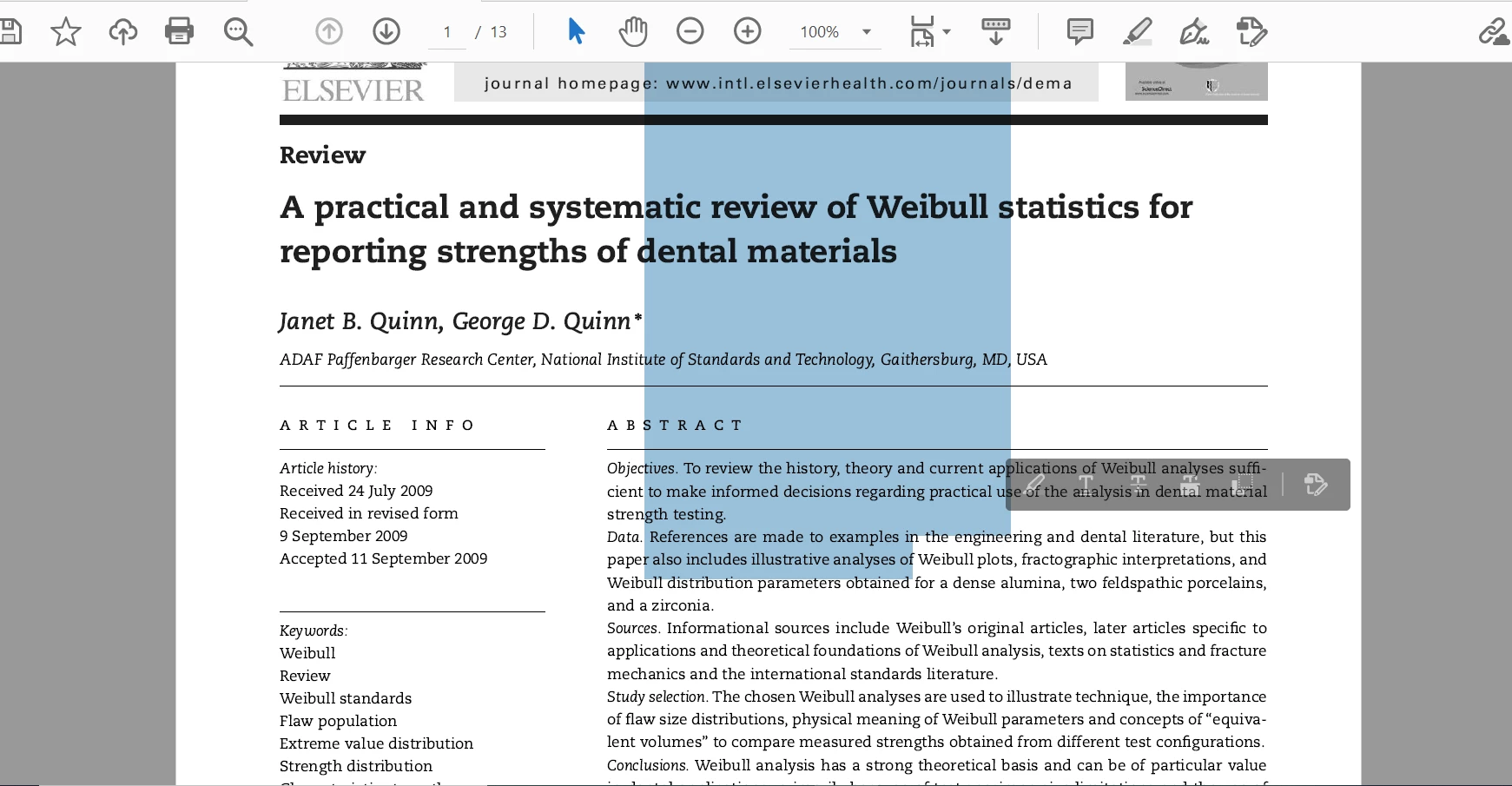
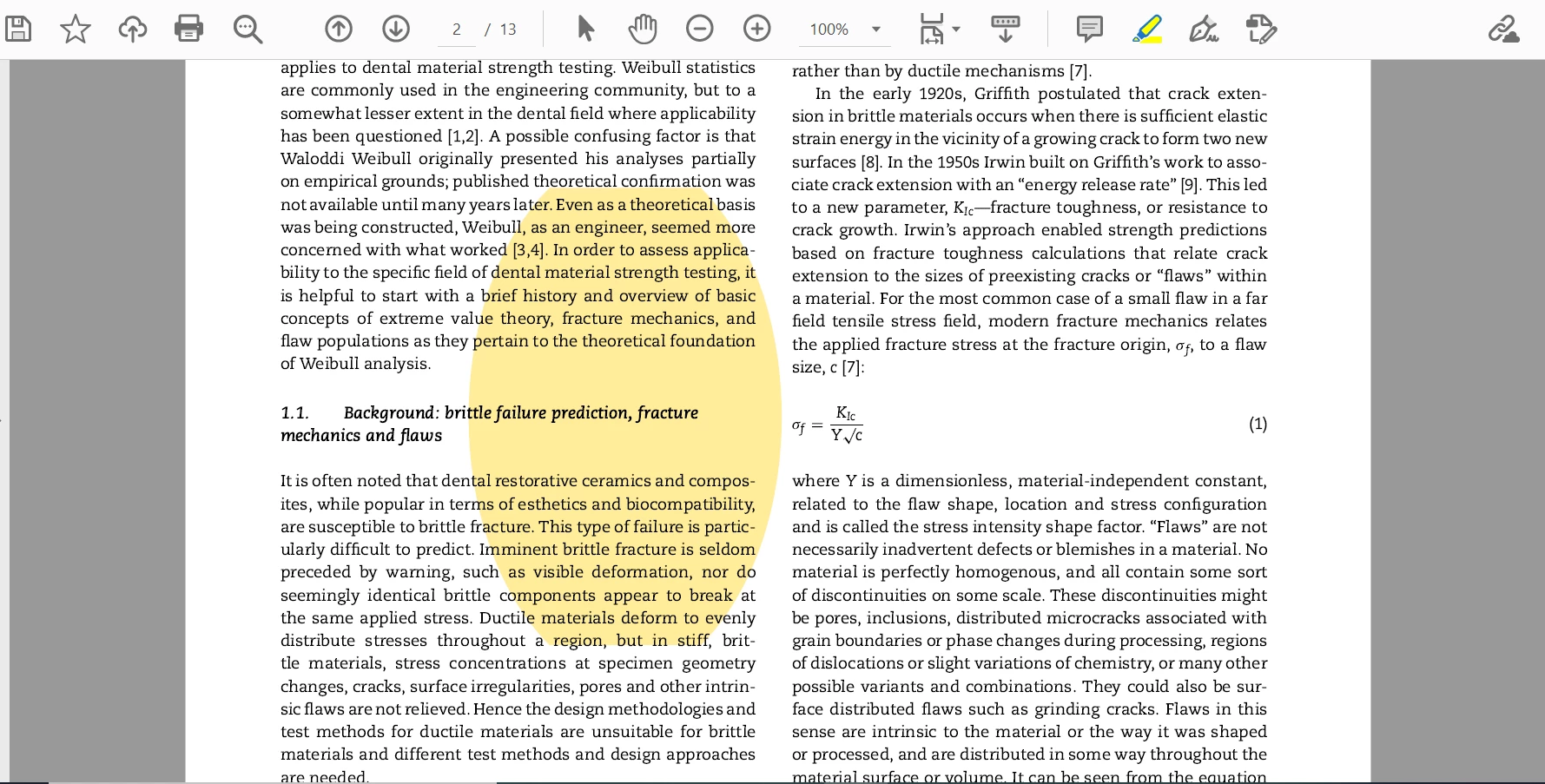
Can someone tell me why is this happening? I have a regular pdf file with text on, but whenever I try selecting a portion or highlighting it, it selects a giant portion as if the font size was giant. I tried the "recognize text" tool (OCR) but did nothing. It's also not the first file I encounter this problem with.
Thanks in advance.
This is usually the result of an incorrect font encoding when the file is first created. I assume you have Acrobat because Reader can't do OCR. If that's the case one possible workaround is to re-create the file. Export all pages as images, then create a new PDF from those images and run Text Recognition on it. Hopefully that will solve it. You should also report this issue to the authors of the PDF file.
Copy link to clipboard
Copied
This is usually the result of an incorrect font encoding when the file is first created. I assume you have Acrobat because Reader can't do OCR. If that's the case one possible workaround is to re-create the file. Export all pages as images, then create a new PDF from those images and run Text Recognition on it. Hopefully that will solve it. You should also report this issue to the authors of the PDF file.
Copy link to clipboard
Copied
Thank you! It worked as you said, now I can finally select text properly. The quality dropped a little bit, but I guess that's because of the conversion from pdf to image file.
Copy link to clipboard
Copied
Sadly, this solution would ruin the quality of the archive, image, etc.
This Acrobat bug is soo annoying
Copy link to clipboard
Copied
Hello @intelligent_artistry0942
I hope you are doing well, and thank you for reaching out.
Are you experiencing the issue with the latest version of Acrobat: 25.001.20693 Planned update, Sept 09, 2025?
This issue is typically caused by incorrect font encoding or missing embedded fonts when the PDF was first created. Specifically:
Check Font Embedding
Open the PDF in Acrobat.
Go to File > Properties > Fonts tab.
See if the fonts are listed as Embedded or Subset.
If fonts are missing or substituted, Acrobat may not interpret the text correctly.
Use OCR with Custom Settings
If the text is scanned or image-based:
Go to All Tools > Edit a PDF.
In the left panel, click Settings > More Settings.
Deselect “Use available system font”.
Click OK and run OCR again.
Instead of exporting pages as images (which reduces quality), try this:
Use Print to PDF from the original source (e.g., Word, InDesign) with font embedding enabled.
Or use Adobe PDF Printer and deselect “Rely on system fonts only” in the printer properties.
Use Preflight Fixups (Advanced)
Go to All Tools > Print Production > Preflight.
Search for “Embed missing fonts” or “Fix font encoding”.
Run the fixup to repair font issues without converting to images.
I hope this information helps.
Thanks,
Anand Sri.
Copy link to clipboard
Copied
I have 2 users reporting this exact issue, and the above steps did not fix.
What's wild about this, is they are using Adobe's Print to PDF virtual printer to create these documents direct from Outlook. Its Adobe Software, through and through.
Uninstalled/Reinstalled Adobe, removed/readded Adobe PDF printer, toggled Adobe PDF to use system fonts instead, Re-OCR, Preflight Fixups, etc, nothing fixes. Only option is to recreate the document.
The only viable workaround I was able to find was to have them use Microsoft's Print to PDF instead (which does not automatically OCR at creation), then open the PDF in Acrobat, Run OCR, and finally the selections work properly.
Bottom Line: Adobe PDF virtual printer is broken.
Copy link to clipboard
Copied
Hello @netG506
I hope you are doing well. Thank you for sharing the information. I am sorry for the trouble.
Could you please check if you are still experiencing the issue with the latest build of Acrobat: 25.001.20844 for Windows and 25.001.20841 for Mac, November 3, 2025? If the issue continues, please provide the following information: the current version of the operating system on your device, a quick screen recording, and the logs from the affected machine. To collect the logs, download and run the Log Collector tool. Ensure that you select all log options and attempt to reproduce the issue. After that, close the Log Collector tool; it will generate the logs along with a log ID. Please share this log ID with us for further investigation.
Thanks,
Anand Sri.
Copy link to clipboard
Copied
Thanks for the reply. I will work to get the requested information, and will reply back.
Copy link to clipboard
Copied
Get ready! An upgraded Adobe Community experience is coming in January.
Learn more