
Participant
September 30, 2019
Answered

Wörter mit Sonderzeichen werden im PDF nicht gefunden

  • September 30, 2019
  • 2 replies
  • 8183 views

Hallo zusammen,

wenn wir PDF's aus Visio 2019 erstellen, werden Wörter, die Sonderzeichen enthalten, über die Suchfunktion vom Adobe Reader nicht gefunden.


Beispiel: V1-V01


V1 wird noch gefunden, sobald ich jedoch V1- in die Suchfunktion eingebe, gibt es keine Treffer. Das Minus-Zeichen alleine wird jedoch gefunden. Wenn ich das PDF-Dokument über andere Programme öffne (z.B. Edge, Chrome usw.) gibt es keine Probleme.


Hat von Euch jemand einen Tip?


Besten Dank im Voraus.


    This topic has been closed for replies.
    Correct answer radzmar

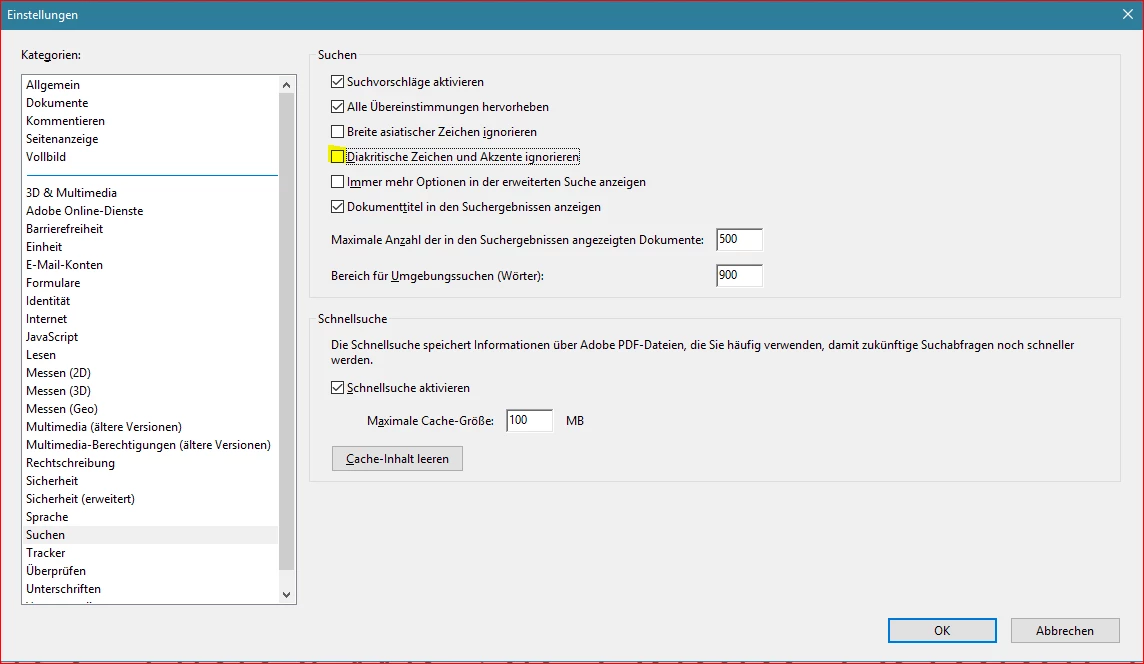
    Deaktiviere mal testweise unter den Voreinstellungen [Strg]+[K] die für den Abschnitt [Suchen] die Option [Diakritische Zeichen und Akzente ignorieren] und probiere die Suche erneut aus.

    2 replies

    radzmar
    Community Expert
    radzmarCommunity ExpertCorrect answer
    Community Expert
    October 1, 2019

    Deaktiviere mal testweise unter den Voreinstellungen [Strg]+[K] die für den Abschnitt [Suchen] die Option [Diakritische Zeichen und Akzente ignorieren] und probiere die Suche erneut aus.

    Amal.
    Community Manager
    Community Manager
    September 30, 2019

    Hi Maierg,


    Thanks for reaching out. As described above, words containing special character are not searching, correct?


    The web browsers uses their own plug-ins to view the PDFs so it may not appear similar in the application. 


    What is the version of the Adobe Acrobat Reader DC installed on your computer? To check the version of the application please use the link - https://helpx.adobe.com/acrobat/kb/identify-product-version.html


    Check for any missing update and try updating the application. Go to Help > Check for Updates. To know more about the latest version please use the link  - https://www.adobe.com/devnet-docs/acrobatetk/tools/ReleaseNotesDC/index.html and see if that works for you.


    As the PDF is created from a different application please try the following settings:

    Go to Edit  (Windows) , Adobe Acrobat Reader DC (Mac) > Preferences > Page Display > Select, Use Local Fonts > Click OK and restart the application and check if that helps.


    You may  try the steps provided in the help article- https://helpx.adobe.com/in/acrobat/using/searching-pdfs.html


    We need some more information:

    • Is this a behavior with a particular PDF or with any PDF file?
    • If its with a particular file, could you please share the file with us for testing? Please upload the file on https://documentcloud.adobe.com/link/home/ and share the link with us. 


    Let us know how it goes


    Regards

    Amal